 eCommerce with Zen Cart!

osCommerce Table Discounts
An osCommerce™ discounting module for bulk purchases.My osCommerce Quantity Discount Module allows you to discount bulk purchases of multiple items, grouped by product id, category id or dollars spent. However, there is no easy way to have different discount schedules for different categories, or to link multiple categories together for discounting. For example, suppose you had one discount schedule for category 7, and a completely different discount schedule for category 9. The solutions I suggested in the past were:
- Simply clone the Quantity Discounts contribution and set up the second discount schedule in the clone.
- Use Big Chooser, which permits Quantity Discounting
Example Discounts: I have provided several examples of osCommerce Table Discounts discounts.
Relevance: osCommerce™ 2.x
Current Version: 1.2
Occasionally, new features are documented prior to being publicly available; please check the version history to ensure the feature you want is available in your version.
Support Thread: My commercial software is not supported on the osCommerce forum. Please email me questions instead.
Cost: $60.00 (Note: this low price covers software only for self-installation.)

Would you like to ask me questions before buying? I'm happy to help likely purchasers make the right decision. Please use my contact form.
Installation Instructions: click here
Payment Gateway Integration Note that some payment modules, including PayPal, do not natively work with Order Total discounts (mine or anyone else's).
Here are some suggestions on how to fix this:
osCommerce 2.2 osCommerce 2.3 Note that doing these integrations is your responsibility. You can try doing this before purchase by testing my Better Together or Quantity Discounts modules, both of which are free.
Installed Cost: $120.00 (Professional installation by That Software Guy) Note that this does not include payment gateway integration - see above. Please test my free software first (Better Together or Quantity Discounts) to ensure that this will work with your payment gateway.
Installation Difficulty: Moderate (You must write some PHP to configure this mod; there is no Admin panel)
Buy: Buy Table Discounts!
Pre-purchase questions? No problem! Just Please contact me with your question.
FAQ: click here
Marketing Text: click here
Add-Ons:
Table Discounts is an order total module, so the discount is not visible until the Order Confirmation Page of checkout. If you want to see the discount on the shopping cart page (or sidebox), look at Discount Preview.
Overview:
Table Discounts permits a shop to create table based discounts, grouping products by category, id or manufacturer, and discount purchase levels by percent, a dollar amount per unit, or a net dollar amount. The number of discounts supported is unlimited.The discounts themselves are not entered into an admin panel; they are specified by modifying the setup() function in the file
includes/modules/order_total/ot_table_discounts.php
Table Discounts is configured by specifying lists of items which are eligible for discounting and then specifying the levels at which discounts occur.
Table Discounts requires you to add these conditions and parameters to the module itself - they are not configured through the admin panel. This sounds complicated, but it's not that bad, and many examples of common discounting practices are provided. Please note that Table Discounts only provides a discount; it does not automatically add items to the cart.
The calling conventions for building a table discount are as follows:
You begin with a text string that describes the discount. So suppose the discount was, "Buy 4 items from Category 3, save 10%. Buy 8 items, save 20%."
Edit
includes/modules/order_total/ot_table_discounts.php, and go
to the bottom where the setup() function is located. Change it to:
function setup() {
   $this->add_table("Bulk discounts on category 3");
     $this->set_constraint(CAT, 3);
     $this->set_discount("%", 4, 10, 8, 20);
}
The statements "set_discount" and "set_constraint" are called parameter statements. Parameter statements apply to the add_table statement they immediately follow. I have provided a visual cue for this by indenting the parameter statements on this page by three spaces. The following types of parameter statements are currently supported:
- set_constraint - specifies the items which are eligible for this discount
- set_discount - specifies the table discount
- set_support - provide additional information on the discount
- set_count - indicates that either tiering or case discounts should be used
- set_policy_lowtohigh - When constraints other than PROD are used, the list of products is processed from highest price to lowest price by default; this command inverts that behavior
Detailed Description:
- Configuration
Table Discounts is installed through the Admin interface (Admin > Modules > Order Total > Table Discount).
This is where the tax settings and sort order are configured.
Once this is done, the fileincludes/modules/order_total/ot_table_discounts.phpis edited to specify the discounts themselves. The discounts are specified according to the following syntax:
function setup() {
$this->add_table(<description >);
  $this->set_constraint(<discount basis 1>, <id 1> ...  <discount basis n>, <id n>);
  $this->set_discount(<discount units>, <min quantity 1>, <discount 1>, ... <min quantity n>, <discount n>);
}
Where:
"discount basis" is one of PROD, CAT or MANUF
"id" is the product, category or manufacturer id
"discount units" is one "%", "$" or "$$"
(% meaning percent off, $ meaning dollars off per item, $$ meaning an absolute dollar discount off)
(Note: your local currency is used if dollars are not your default currency)
The set_discount and set_constraint commands apply to the add_table command they immediately follow.
So for example,$this->add_table("Quantity discounts on category-3 items"); $this->set_constraint(CAT, 3); $this->set_discount("%", 50, 10, 100, 25);would mean "Buy 50-99 category 3 items, get 10% off , buy 100 or more, get 25% off ." - Checkout Page User Interface
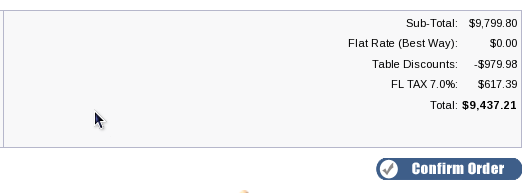
Table Discounts is an "Order Total" module, which means that by default, the discount is not shown until the Order Confirmation Page of checkout. However, using the Discount Preview module will allow you to show the discount in the shopping cart.
Depending on your configuration, the Order Confirmation page of checkout will look something like this:
Examples
In this section, we'll walk through some common examples.
$this->add_table("Quantity discounts on category-5 items");
  $this->set_constraint(CAT, 5);
  $this->set_discount("$", 50, 2, 100, 5);
would mean "Buy 50-99 category 5 items, get $2 off each, buy 100 or more,
get $5 off each."
$this->add_table("Bulk discounts on product-7");
  $this->set_constraint(PROD, 7);
  $this->set_discount("$$", 10, 5, 20, 12);
would mean "Buy 10-19 of product 7, get $5 off your purchase, buy 20 or more, get $12 off."
$this->add_table("Buy multiple items from manufacturer 8 and save!");
  $this->set_constraint(MANUF, 8);
  $this->set_discount("%", 100, 5, 200, 12);
would mean "Buy 100-199 of products from manufacturer 8, get 5% off, buy 200 or more, get 12% off."
The category used in Table Discounts may be the category id at any level, not just the parent category.
Men's Clothing (category 3)
     |
     ---->  Shirts (category 7)
            |
            -------> shirt A
                     shirt B
                     shirt C
     ---->  Shoes (category 8)
            |
            -------> shoe A
                     shoe B
                     shoe C
     ---->  Hats (category 9)
            |
            -------> hat A
                     hat B
                     hat C
In this example, if category 7 were specified, only the shirts
would be considered for discounting. If category 3 were specified,
shirts, shoes and hats would be considered for discounting.
This is different from
Quantity Discounts,
which only permits parent categories to be used.
What is also different from Quantity Discounts is the ability to specify multiple categories. To discount Shoes and Shirts, mix and match buying 3 get 10% off, you can do
$this->add_table("Mix and match shoes and shirts at a discount");
  $this->set_constraint(CAT, 7, CAT, 8);
  $this->set_discount("%", 3, 10);
To have buy 3 get 10% off, buy 6 get 20% off, buy 12, get 30% off, you simply expand the set_discount command.
$this->add_table("Mix and match shoes and shirts at a discount");
  $this->set_constraint(CAT, 7, CAT, 8);
  $this->set_discount("%", 3, 10, 6, 20, 12, 30);
Applying the maximum discount to all items once the final threshold has been crossed is the type of discounting most retailers want to offer. But there are two other modes of discounting which can be done with table discounts: tiered discounting and case discounting.
Tiered discounting and Case discounting
First, an explanation of terminology.- Tiered discounting discounts items with by applying specific discounts to specific counts of products within a single order. If you want one price for the first 10 items, another for the next 20 and another for the next 50, look at tiered discounts.
- Case discounting only discounts groups of items in specific numeric quantities. If you want to offer special prices for groups of 6, 12 and 24, but no special prices for other multiples, look at case discounting.
Tiered discounts were added to Table Discounts in version 1.1. Here are some examples of how they can be used.
Suppose your discount was:
function setup() {
       $this->add_table("Discount on hardware");
          $this->set_constraint(CAT, 1);
          $this->set_discount("%", 20, 10, 50, 20, 100, 25);
}
This corresponds to the following discount:
| 20 - 49 | 10% |
| 50 - 99 | 20% |
| 100 + | 25% |
But suppose your pricing is "tiered," so that the better prices are only available for the items that exceed that tier's quantities.
If you bought 100 items for $10 each, the regular (non-tiered) discount would be $100 * 25%, which would be $250.00.
With tiering, the discounting would be as follows:
| 19 at 0% off |
| 30 at 10% off = $30 |
| 50 at $20% off = $100 |
| 1 at 25% off = $2.50 |
To add tiering, simply add the statement set_count(BY_TIER) to your discount. So the new setup() function would be:
function setup() {
       $this->add_table("Discount on hardware");
          $this->set_constraint(CAT, 1);
          $this->set_discount("%", 20, 10, 50, 20, 100, 25);
          $this->set_count(BY_TIER);
}
Suppose instead of 100 $10 items, there was a mix of items. If there are 49 $10 items and 51 $20 items, the tiered discount is (applied highest to lowest) is:
| 19 $20 items at 0% off $0 |
| 30 $20 items at 10% off = $60 |
| 2 $20 items at 20% off = $8 |
| 48 $10 items at 20% off = $96 |
| 1 $10 item at 25% off = $2.50 |
Some vendors will not want to discount highest to lowest because it means the lowest priced item will attract the greatest discount, which could be confusing or disappointing to customers.
To discount lowest to highest instead, use the command
$this->set_policy_lowtohigh();
If the discount was applied lowest to highest, you would have the setup function being:
function setup() {
       $this->set_policy_lowtohigh();
       $this->add_table("Discount on hardware");
          $this->set_constraint(CAT, 1);
          $this->set_discount("%", 20, 10, 50, 20, 100, 25);
          $this->set_count(BY_TIER);
}
and the discounts being:
| 19 $10 items at 0% off |
| 30 $10 items at 10% off = $30 |
| 50 $20 items at 20% off = $200 |
| 1 $20 item at 25% off = $5.00 |
Note that set_policy_lowtohigh() applies to *all* table discounts; it is a global setting.
Another counting option is provided: by case. For instance, suppose all the products in category 17 are available in mix or match cases of 35, with a 10% case discount, but with quantities less than a full case at no discount.
function setup() {
       $this->add_table("Case discount on items in Category 17");
          $this->set_constraint(CAT,17);
          $this->set_discount("%", 35, 10);
          $this->set_count(BY_CASE);
}
This would produce the following table:
| 35 | 10% |
If you bought 100 items for $10 each, the case discount would be as follows:
| 30 at 0% off |
| 2 cases (70) at 10% off = $70 |
If the discount was $10 per case rather than 10% per item in the case, you could use "$$" discounting, i.e.
function setup() {
       $this->add_table("Case discount on items in Category 17");
          $this->set_constraint(CAT, 17);
          $this->set_discount("$$", 35, 10);
          $this->set_count(BY_CASE);
}
Note that using "$" instead of "$$"
$this->set_discount("$", 35, 10);
would discount $10 per item, rather than $10 per case.
If you wanted to discount cases of 35 by $10 and cases of 100 by $50, you could do that too as follows:
function setup() {
       $this->add_table("Case discounts on items in Category 17");
          $this->set_constraint(CAT,17);
          $this->set_discount("$$", 35, 10, 100, 50);
          $this->set_count(BY_CASE);
}
Installation Instructions:
- Back up everything! Try this in a test environment prior to installing it on a live shop.
- If you already have the Table Discounts module installed, please deinstall your old copy by going to Admin > Modules > Order Total, selecting "Table Discount" and pressing the "Remove" button. Make a note of your settings so you can apply them to the new version.
- Copy the contents of the unzipped folder to the root directory of your shop.
- Login to Admin and in Modules > Order Total you will see 'Table Discount' listed along with all the other modules available.
- Click on 'Table Discount' to highlight the module and click on 'Install'
- Decide on the parameters you wish to use. The easiest way to do this is to open a shopping cart in another window, and just try different discounting models. The discounts are shown on the second step of checkout in "Your Total" under "Table Discounts."
- If you wish, follow the guidelines in marketing to advertise your discounts.
- Test a transaction and ensure the discount goes all the way through. For PayPal and some other payment methods, you may need to make additional changes, as outlined below in Payment Modules in osCommerce 2.2 and Payment Modules in osCommerce 2.3.
Optional Installation Instructions:
- I highly recommend Discount Preview with all my discounting modules. Without Discount Preview, your customers cannot see the price reductions they are entitled to until the second page of checkout (checkout confirmation). Obviously this is a disadvantage, particularly for new customers who need to go through the additional step of creating an account before they can see this information. Sometimes seeing is believing, so here's a video showing Discount Preview in action.
More Examples
If you have two products, 230 and 231, that you want to give 10% off for mix and match quantities of 100 or more:
this->add_table("Bulk discounts on product 230 and 231");
  $this->set_constraint(PROD, 230, PROD, 231);
    $this->set_discount("%", 100, 10);
Notes on Taxes for osCommerce 2.3
If you don't use embedded taxes, and don't have a mix of taxable and tax-free products, and don't have a different rate of tax for shipping, please skip this section.
However, if you any of the above apply to you, please read my Notes on Taxes.
Payment Modules in osCommerce 2.2
Note: This only applies to osCommerce 2.2. For osCommerce 2.3, please click here.Some contributed payment modules in osCommerce 2.2 (such as PayPal) are not naturally aware of the existence of discounts (mine or any other contribution or extension). For this reason, you must ensure any payment module you use takes discounts into account. Here are some guidelines:
- If the payment module passes in a subtotal, shipping and tax, modify the subtotal (as shown below) to include the discount.
- If the payment module passes in a shipping, tax, and total, modify the total (as shown below) to include the discount.
- In the case of PayPal, turn OFF the sending of line item details, which will confuse PayPal since the total is not the sum of the line items. This can be done through the admin panel by setting Transaction Type to "Aggregate."
paypal_ipn.php):
      foreach ($order_totals as $ot) {
        $order_total[$ot['code']] = $ot['value'];
      }
then the discount is available in the $order_total variable as follows:
| Module | Variable Name |
|---|---|
| Quantity Discounts | $order_total['ot_quantity_discount'] |
| Better Together | $order_total['ot_better_together'] |
| Big Chooser | $order_total['ot_big_chooser'] |
| Big Spender | $order_total['ot_bigspender_discount'] |
| Table Discounts | $order_total['ot_table_discounts'] |
| Free Gift Chooser | ot_freegift_chooser.php |
So for instance, subtracting the Quantity Discounts discount from a variable called $subtotal would be done as follows:
$subtotal = $subtotal - $order_total['ot_quantity_discounts'];This would be done in process_button() for example.
Another more sophisticated approach would be to execute the order totals and use
ot_total, which is the final total after discounts.
// BEGIN: Change to use order_totals to get values

      $order_id = substr($cart_PayPal_IPN_ID, strpos($cart_PayPal_IPN_ID, '-')+1);
      $ord_totals = array();
      $ord_totals_query = tep_db_query("select class, value from " . TABLE_ORDERS_TOTAL .
          " where orders_id = '" . (int)$order_id . "' order by sort_order");
      while ($totals = tep_db_fetch_array($ord_totals_query)) {
        $ord_totals[$totals['class']] = $totals['value'];
      }

// END

. . .

      $parameters['business'] = MODULE_PAYMENT_PAYPAL_IPN_ID;
// BEGIN : use order_totals['ot_total'] for order total to include all discounts.
      if ($ord_totals['ot_total'] > 0) {
        $parameters['amount'] = number_format($ord_totals['ot_total'], $currencies->get_decimal_places($currency));
      } else {
        $parameters['amount'] = number_format($order->info['total'] - $order->info['shipping_cost']
           - $order->info['tax'], $currencies->get_decimal_places($currency));
      }
// END
Payment Modules in osCommerce 2.3
Note: This only applies to osCommerce 2.3. For osCommerce 2.2, please click here.Some contributed payment modules in osCommerce 2.3 (2.3.1-2.3.3.x) are not naturally aware of the existence of discounts (mine or any other contribution or extension). For this reason, you must ensure any payment module you use takes discounts into account.
For some carts, PayPal Website Payments Standard has been changed to accommodate these osC discounts, but in a bizarre way. If you have
Subtotal: $30
Postage: $7.69
Discount: -$12.00
Tax (7%): $1.26
-----------------------------
Total:   $26.95
PayPal turns this into
Subtotal: $17.16
Tax (7%): $2.10
Shipping: $7.69
-----------------------------
Total:   $26.95
This is in osC 2.3.3, with no changes made to PayPal. But the final number is correct (and your actual order total figures as shown in osC admin will be correct per the checkout confirmation page).
I have seen this work on some carts and not on others depending on mods and settings; please test your own cart carefully.
PayPal Express in osCommerce 2.3 still has problems with osCommerce discounts. Here is one way to fix it:
In
./ext/modules/payment/paypal/express.php, right above the block on
line 544-545 that sets the item and tax amounts:
      $params['ITEMAMT'] = $items_total;
      $params['TAXAMT'] = $tax_total;
insert the discount computation. Here's an example for Quantity Discounts.
Pull in the module and its language file.
Then compute the discount and add it in as a line item.
      // Add OT
      require('includes/modules/order_total/ot_quantity_discount.php');
      include(DIR_WS_LANGUAGES . $language . '/modules/order_total/ot_quantity_discount.php');
      $discount = new ot_quantity_discount();
      if ($discount->check()) {
         $qd = $discount->calculate_deductions();
         if ($qd['total'] > 0) {
            $amt = $qd['total'] * -1;
            $params['L_NAME' . $line_item_no] = 'Discount';
            $params['L_AMT' . $line_item_no] = $amt;
            $params['L_NUMBER' . $line_item_no] = 0;
            $params['L_QTY' . $line_item_no] = 1;

            $product_tax = 0;
            $params['L_TAXAMT' . $line_item_no] = $paypal_express->format_raw($product_tax);
            $items_total += $paypal_express->format_raw($amt);
            $line_item_no++;
         }
      }
For other modules, here are the filenames. The object to be created is the filename without the
.php suffix.
| Module | File Name |
|---|---|
| Quantity Discounts | ot_quantity_discount.php |
| Better Together | ot_better_together.php |
| Big Chooser | ot_big_chooser.php |
| Big Spender | ot_bigspender_discount.php |
| Table Discounts | ot_table_discounts.php |
| Free Gift Chooser | ot_freegift_chooser.php |
Marketing
What good is having cross selling and upselling specials if you don't advertise them?Table Discounts may be automatically displayed on the product info page.
Modify catalog/product_info.php, and add this block of code:
<?php
require(DIR_FS_CATALOG. 'table_discounts_marketing.php');
?>
The placement of this code is a matter of personal preference; try placing it below the product description and adjust to your tastes. It creates a message on your page.
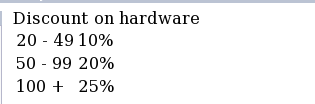
For example, the following discount
    function  setup() {
       $this->add_table("Discount on hardware");
          $this->set_constraint(CAT, 1);
          $this->set_discount("%", 20, 10, 50, 20, 100, 25);
    }
would generate this image:
Files
(new) catalog/includes/languages/english/modules/order_total/ot_table_discounts.php
(new) catalog/includes/modules/order_total/ot_table_discounts.php
(new) catalog/table_discounts_marketing.php
Formal Syntax of Tables and Parameters
Tables and Parameters, which are specified in the setup() function of ot_table_discounts.php, are the mechanism for configuring a store's discounts.Tables
Discounts always begin by specifying a table. All subsequent parameters (until the next table) apply to this table.
$this->add_table(<description>);
where:
| description | Is a textual description of the discount. This description is not automatically created the way it is in Better Together or Combination Discounts; it must be added manually. The reason for this is to allow greater flexibility |
Parameters - set_constraint
The set_constraint() command specifies the items to which this discount applies.
$this->set_constraint(<required_purchase_quantity 1>[,<required_purchase_quantity 2>,...,<required_purchase_quantity n>]);
where:
| required_purchase_quantity | is the string PROD, CAT, or MANUF, followed by an identifier (product or category id, or manufacturer id)
<PROD | CAT | MANUF> <product, category or manufacturer identifier >
|
Parameters - set_discount
The set_discount() command specifies the items or categories whose prices should be reduced if the condition has been met.
$this->set_discount(<discount units>, <discount 1>[,<discount 2>,...,<discount n>]);
where:
| discount_units | is the string "%", "$" or "$$", meaning percent off, dollars off per quantity purchased, or net dollars off. |
| discount | is a quantity followed by a discount amount (the units of which are specified by discount_units above). |
Parameters - set_support
The set_support() command provides additional supporting text to describe your promotion. It is completely optional.
$this->set_support(<text>);
where:
| text | is a text string, which can be plain text or a link |
These strings are displayed on your promotional page, and optionally, on your product info page if you customize the file
includes/templates/YOUR_TEMPLATE/templates/tpl_table_discounts_marketing.php
Parameters - set_policy_lowtohigh
Normally the list of products meeting the constraints for a discount is processed from highest price to lowest price by default; this command inverts that behavior. This becomes important in tiered and case discounting. For more information on this discounting model, please see tiered discounting and case discounting.
$this->set_policy_lowtohigh();
The set_policy_lowtohigh command was added in version 1.1.
Parameters - set_count
The set_count command allows you to specify case or tiered pricing for your discount. For more information on this discounting model, please see tiered discounting and case discounting.
$this->set_count(BY_TIER|BY_CASE);
The set_count command was added in version 1.1.
Major Versions
- Version 1.2 - 09/21/13 - Update for osCommerce 2.3.3.3.
- Version 1.1b - 10/01/2011 - First osCommerce release.
FAQ
Q: How do I install this software?A: If you've never installed an osCommerce mod before, please read my Guide to Mod Installation on osCommerce.
Q: I can't seem to get Table Discounts to work. What am I doing wrong?
A: Please check the following things:
- Go to Admin > Modules > Order Total. Do you see Table Discounts? If not, then you haven't installed it. Follow the README.
- If you do see it, the circle at the right hand end of the row for Table Discounts should be green. If it's not green, reinstall it.
- If you're using category discounts, see the previous FAQ question.
- Re-read my Guide to Mod Installation on osCommerce.
Q: How do I determine a product's id?
A: In the catalog, click on the product to open the product info page. In the address bar of your browser, you see something like
... product_info.php?products_id=24&osCsid=...The products_id = 24 tells you the product's id is 24.
Q: How do I determine a product's category id?
A: In Admin > Catalog, single click on the category you're interested in. In the address bar of your browser, you will see something like
categories.php?cPath=3&cID=11If you were to double click on it, you'd see something like
categories.php?cPath=3_11The category you want to use is "11".
In the same way, in the catalog you can hover over this category in the categories sidebox and see
catalog/index.php?cPath=3_11This re-confirms that the category is "11."
Q: How do I find out the manufacturer id so I can use MANUF?
A: Go to the Manufacturer's sidebox on your catalog home page and select a manufacturer. The resultant URL will look something like this:
catalog/index.php?manufacturers_id=8&osCsid=rhifpa0duotjnoadm4e5is70k0The "manufacturers_id=8" component of this URL indicates that the id for this manufacturer is 8.
Q: How do I tell if my stock is organized into subcategories?
A: In the Admin page, go to Catalog > Categories/Products, and click on the category you're not sure about. If the entries that appear on the next page have file folders to the left of their names, then these are subcategories. If the products are directly below these folders, then these folders are the parent folder numbers you will use for category inclusions, exclusions and special discounts. If what is below these subcategories is more subcategories, continue drilling down until you get to products, and then go back one level.
Q: Why didn't you put all the configuration for Table Discounts in the Admin panel?
A: There are an endless number of combinations and permutations of how people want discounting to work. Rather than design a complicated user interface to present all these options, I have provided a framework that anyone with at least a beginner's knowledge of PHP should be able to extend.
Q: I would like my discounts to show up in the shopping cart. Why don't they?
A: The way the Order Total modules work is that they show up at checkout time. However, if you require the discounts to show up in the shopping cart, you may wish to consider purchasing the Discount Preview module for $30.
Alternately, you can indicate that you have a table discount policy by adding to TEXT_INFORMATION in
includes/languages/english/shopping_cart.php, and inform the user that the discounts will be
calculated (and visible) at checkout time.
Additionally, changing SUB_TITLE_SUB_TOTAL in the same file to
something like 'Sub-Total BEFORE Discount' will emphasize the fact that
a discount will be added at checkout time.
Extensions
The following Table Discounts extensions are available:- Show Table Discounts on the shopping cart page using Discount Preview

I charge a fee of $60 for Table Discounts.
Buy Now.
The fee covers software only; installation is extra if you require help.
The fee covers software only; installation is extra if you require help.