 eCommerce with Zen Cart!
Zen Cart Frequency Discounts
A Zen Cart™ loyalty reward module which provides discounts based on total spending levels reached in a defined interval. The interval may be specified in days, weeks or months, or without limit.Background: See the Zen Cart Matrix-o-discounts
Relevance: Zen Cart™ 1.5.x
See interoperability for changes required for Edit Orders.
Current Version: 1.3 (version history)
Support Thread: My commercial software is not supported on the Zen Cart forum. Please email me questions instead.
Cost: $60 (Note: this low price covers software only for self-installation.)

Would you like to ask me questions before buying? I'm happy to help likely purchasers make the right decision. Please use my contact form.
Installed Cost: $200.00 (Professional installation by That Software Guy)
Installation Difficulty: Moderate (You must write some PHP to configure this mod; there is no Admin panel; access to phpMyAdmin is required for initial installation.)
Installation Instructions: click here for installation instructions
Tax Notes: Notes on tax handling
Buy: Buy Frequency Discounts.
Pre-purchase questions? No problem! Just Please contact me with your question.
FAQ: click here for FAQs
Configuration: All configuration is done through Admin > Modules > Order Total.
Marketing Text: click here for marketing text
Promotional Page: The promotional page is free with the purchase of Frequency Discounts. You may download a copy here.
Add-Ons:
Frequency Discounts is an order total module, so the discount is only shown on the payment page of checkout. To display the discount on the shopping cart page, get Discount Preview.
Overview:
This mod permits a shop to define two things:- Up to seven admin specified purchase levels, and percent off discounts for each level.
- A lookback period, defined in days, weeks or months (or without limit) that specifies how far back to go when computing the current spending level.
Order 1:
10x Product 1:        $100
Sub-Total:            $100
Quantity Discount:    -$10
Shipping:               $5
Tax:                   $10
Total:                $105

Order 2:
1x  Product 2:         $90
1x  Product 3:         $10
Sub-Total:            $100
Shipping:               $5
Tax:                   $10
Total:                $115
If "Compute past spending" is set to "Order Total," the value would be $220 ($105+$115). If "Compute past spending" is set to "Product Total," the value would be $200 ($100+$100).
These numbers assume the use of "Display Prices with Tax" = false in Admin > Configuration > My Store. If you are displaying prices with tax because of a VAT or some other embedded taxes, please see Notes for VAT shops below.
The limit of seven levels can be exceeded using a simple interface in the code to define additional levels.
Detailed Description:
- Configuration
Frequency Discounts is configured through the Admin interface (Admin > Modules > Order Total > Frequency Discount).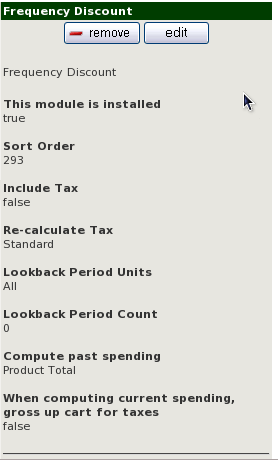
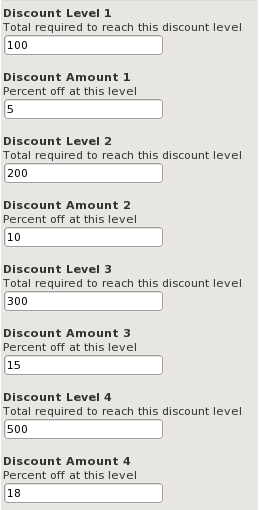
The Lookback Period Units allows you to specify whether you're looking back days, weeks or months to determine the total spend, and the Lookback Period Count says how many days, weeks or months. If Lookback Period Units "All" is selected, all orders will be considered.
Compute Past Spending allows you to compute past spending using the product total from all orders under consideration, or the final total. An example is provided above in the Overview section.
The image to the left shows a shop which gives 5% off if more than $100 is spent in the last 14 months, and 10% off if more than $1000 is spent.
Discount Level 1..5 and Discount Amount 1..5 are fields which contain a set of seven discount levels (min. spend required to get to this level) and discount amounts. Enter the amounts without the "%" sign (i.e. "5" not "5%" for 5 per cent off).
Specifying "include tax = true" will gross the discount up by the amount of tax that would have been paid on the goods prediscount. This is appropriate for shops under a price inclusive sales tax system, such as the UK VAT. (Note: if you are a VAT shop, please see Notes for VAT shops below.) Specifying Re-calculate tax = Standard will recalculate the entire tax based on the original subtotal minus the frequency discount.
- User Exits
Some shops will want to further customize their discounting policy. Additional user exits are provided to permit the following customizations:- Include or exclude certain categories from discounting.
- Include or exclude certain products from discounting.
Specifically:- The function exclude_category() shows you how to add categories to a list of categories to not be discounted. This may be used with any Discount Basis.
- The function exclude_product() shows you how to add products to a list of products to not be discounted. This may be used with any Discount Basis.
Each of these functions contains a simple example of how to use it using item and category numbers like 99999, 99998, etc. See the FAQ below for more examples
The user exits are inincludes/modules/order_total/ot_frequency_discount.php
Frequency Discounts discounts off the *gross* price of the goods. This can result in a larger than expected discount if other discounts are added (such as coupons or group discounts), so bear this in mind when creating your discount strategy.
- Checkout Page User Interface
Frequency Discounts is an "Order Total" module, which means that by default, the discount is not shown until the second page of checkout (Payment Information). However, using the Discount Preview module will allow you to show the discount in the shopping cart.
Depending on your configuration, the second page of checkout will look something like this:
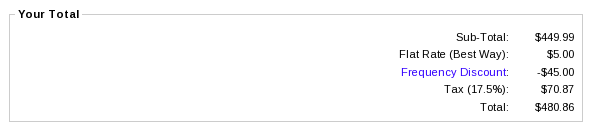
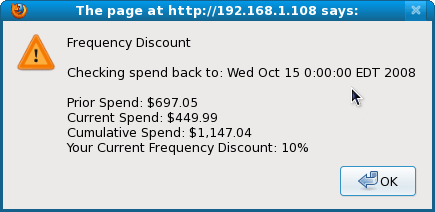
Notice that "Frequency Discount" is a link, which will show how the discount was computed.
For instance, if the lookback is to Oct 15, 2008, and level 2 is 1,000 with amount 2 of 10%, you would see
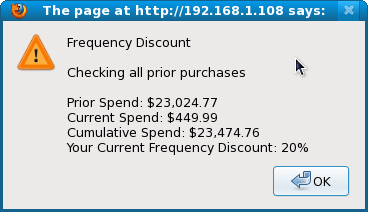
If the lookback is "All", and level 3 is 10,000 with amount 3 of 20%, you would see
- Breaking the seven level barrier
Suppose your discounting strategy is as follows:
Spend Level ($) Discount 500 5% off 1000 10% off 1500 15% off 2000 20% off 2500 25% off 10000 50% off
How do you create that last discount?
In the fileincludes/modules/order_total/ot_frequency_discount.php, there is a function called setup(). From there, you may add a call to a function to add additional discounting levels and discounts in the following manner:function setup() { // Add extra levels and discounts here in this manner: // "Spend more than $10,000, get 50% off" $this->add_extra_level_discount(10000, 50); }
The behavior of these {level, discount} pairs is identical to those you added in the admin panel. Specifically,- They will show up as explanatory text in the checkout page user interface
- They will show up in your marketing text
- Big Spender vs. Frequency Discounts
Big Spender offers discounting by dollars spent with many more options than Frequency Discounts, but it computes spent totals using only the current cart contents, not historical orders. - Free Gift Spender vs. Frequency Discounts
Free Gift Spender offers discounting by dollars spent with many more options than Frequency Discounts, but it computes spent totals using only the current cart contents, not historical orders.
Installation Instructions:
- Back up everything! Try this in a test environment prior to installing it on a live shop.
- If you already have the Frequency Discounts module installed, please deinstall your old copy by going to Admin > Modules > Order Total, selecting "Frequency Discount" and pressing the "Remove" button. Make a note of your settings so you can apply them to the new version.
- Copy the contents of the unzipped folder to the root directory of your
shop.
The names of these files reflect a template name of "custom." If you are using a different template name, please change file paths using "custom" to use your template name instead. Note: If you are using Zen Cart 1.5.5 or higher, your template name will be "responsive_classic" if you have not changed it. - Run the ind.sql file against your database using phpMyAdmin. Note: you may not use Admin > Tools Install SQL Patches for this step; you must use phpMyAdmin or another direct database interface. If you have used a prefix for your database, adjust the "orders" tablename in ind.sql accordingly (for instance, to "zen_orders" if your prefix is "zen_").
- Login to admin and in Modules > Order Total you will see 'Frequency Discount' listed along with all the other modules available.
- Click on 'Frequency Discount' to highlight the module and click on 'Install'
- Decide on the parameters you wish to use (Lookback Period Units, Lookback Period Count, Compute Past Spending). The easiest way to do this is to open a shopping cart in another window, and just try different discounting models. The discounts are shown on the second step of checkout in "Your Total" under "Frequency Discount," which is itself a link that explains the calculation.
- Customization: If no products are excluded from discounting, you're all set. If there are exclusions, you will have to add code to the user exits as described above.
- If you wish, follow the guidelines in marketing to advertise your discounts.
- If you wish, install a Frequency Discounts Promotional Page.
Optional Installation Instructions:
- I highly recommend Discount Preview with all my discounting modules. Without Discount Preview, your customers cannot see the price reductions they are entitled to until the second page of checkout (checkout confirmation). Obviously this is a disadvantage, particularly for new customers who need to go through the additional step of creating an account before they can see this information. Sometimes seeing is believing, so here's a video showing Discount Preview in action.
Marketing
What good is having cross selling and upselling specials if you don't advertise them?Frequency Discounts may be automatically displayed in two places: on the product info page, and on a separate promotional page. We'll talk about the product info page first.
Customize the
tpl_product_info_display.php file to advertise
your discounts. Copy the file
includes/templates/template_default/templates/tpl_product_info_display.php
into
includes/templates/<YOUR_TEMPLATE>/templates
Then add this block of code to the new copy of
tpl_product_info_display.php:
<?php
require($template->get_template_dir('/tpl_frequency_discounts_marketing.php',DIR_WS_TEMPLATE,
   $current_page_base,'templates'). '/tpl_frequency_discounts_marketing.php');
?>
The placement of this code is a matter of personal preference;
try placing it below the product description and adjust to your tastes.
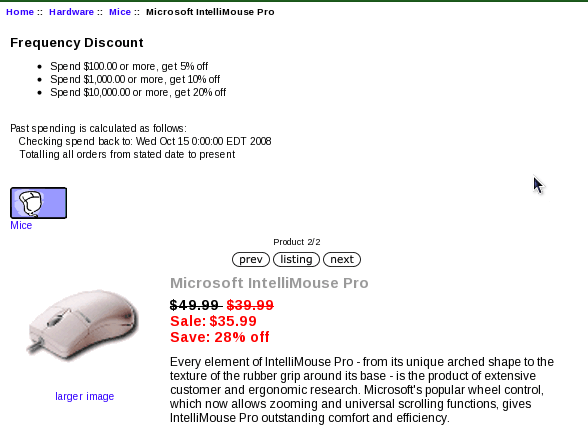
It creates a message on your page that shows the spend levels
and discount amounts like the following:
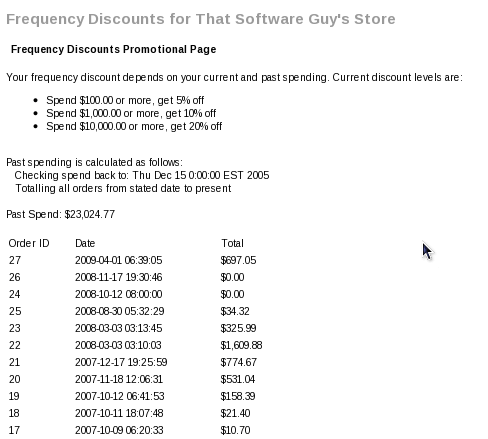
The promotional page also displays similar text along with the ability to show the customer how the total spend is computed. You may download a copy here.
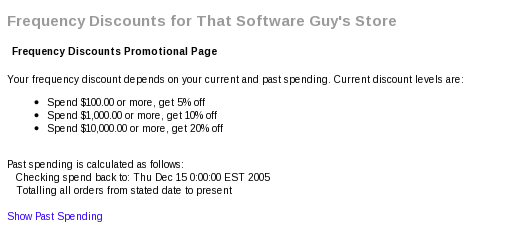
This new promotional page can be accessed via the URL
YOURSITE.com/index.php?main_page=frequencydiscounts_promoA link to this page may be added to the categories sidebox, the site footer, or the main page content for your site. See Promotional Pages for more information and ideas.
When the "Show Past Spending" link is clicked, the customer's spend is displayed in tabular form.
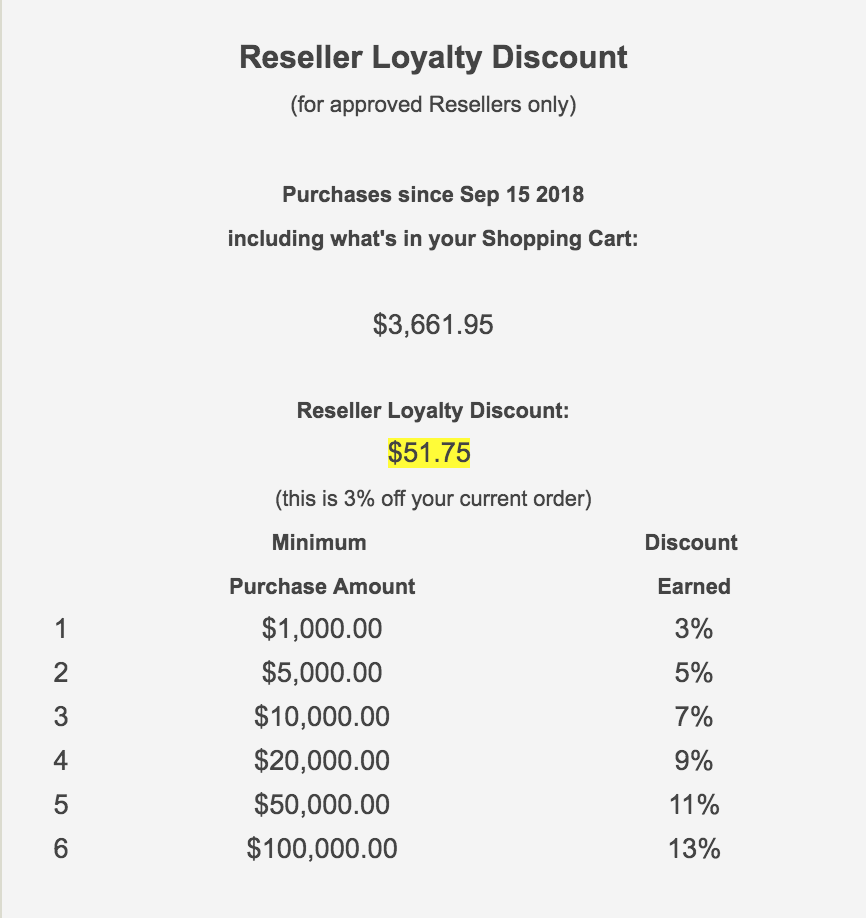
You can style the discounting data in whatever way you'd like. Here's an example from one implementation I did:
Notes for VAT shops
This section is designed for shops which run with Admin > Configuration > My Store > Display prices with tax.If you use the setting "Compute past spending" = "Product Total," past spend is computed on a pre-tax basis. In other words, the prices of the products, without embedded taxes, are used. If you use the setting "Order Total" instead, past spend is computed with embedded taxes included.
For instance, if the orders during the specified period were as follows:
Order 1:
1x  Product 1:        $125
Sub-Total:            $125
Shipping:               $5
Tax:                   $25
Total:                $130
If "Compute past spending" is set to "Order Total," the value would be $130 ($125 + $5). If "Compute past spending" is set to "Product Total," the value would be $100 ($125 - $25).
There is a switch in the admin called "When computing current spending, gross up cart for taxes." This may be appropriate for carts with embedded taxes. If the order above were the cart contents, the current spend would be computed as follows: If "When computing current spending, gross up cart for taxes" is set to "false" the current spending would be $100. If "When computing current spending, gross up cart for taxes" is set to "false" the current spending would be $125.
Notes on Taxes
If you don't use embedded taxes, and don't have a mix of taxable and tax-free products, and don't have a different rate of tax for shipping, please skip this section.
However, if you any of the above apply to you, please read my Notes on Taxes.
Be sure that the sort order for the Tax module (set in Admin->Modules->Order Total->Tax) is greater than the largest order total sort order, so that your taxes are shown after all discounts. 399 is a good value for most stores.
Major Versions
- 1.3 02/17/2022 - Updates for PHP 8.
- 1.2 09/15/2019 - Added more 2 levels, more data in calculate_discounts return value.
- 1.1 12/26/2018 - Updates for PHP7, Zen Cart 1.5.6
- 1.0.3 08/29/2017 - Updates for more recent PHP, fix EO interoperability
- 1.0.2 03/09/2010 - Amounts should always be %
- 1.0.1 01/11/2010 - Add ability to include tax in spend calculation.
- 1.0 12/21/2009 - First Release
Files
(new) includes/languages/english/modules/order_total/ot_frequency_discount.php
(new) includes/modules/order_total/ot_frequency_discount.php
(new) ./includes/templates/custom/templates/tpl_frequency_discounts_marketing.php
Interoperability
Frequency Discounts version 1.3 interoperates correctly with Edit Orders version 4.2.3 or higher. Note that for lookback periods other than "All", the lookback is computed with respect to the original order date. For example, if the today is September 12, and the Lookback Period Units is "Days" and the Period Count is "10", for an order placed on Aug 27 20:43:50, the lookback window is from Aug 17 20:43:50 to Aug 27 20:43:50. It would *not* be September 2 - September 12, which was how version 1.0.2 computed it. If you don't like this change, you can comment out the second check in the functionget_eo_filter_string().
FAQ
Q: I can't seem to get Frequency Discounts to work. What am I doing wrong?A: Please check the following things:
- Go to Admin > Modules > Order Total. Do you see Frequency Discounts? If not, then you haven't installed it. Follow the README.
- If you do see it, the circle at the right hand end of the row for Frequency Discounts should be green. If it's not green, reinstall it.
- Click on Frequency Discounts. The Level and Amount fields are all numeric. Do not use dollar or percent signs in these fields.
- If you've used any of the exits, make a backup of your
ot_frequency_discount.phpfile and re-install from scratch; then apply your changes one at a time to see where it breaks. The most common error I have seen in exits is using the assignment operator ("=") where an equivalence test ("==") was intended. - Re-read my Guide to Mod Installation on Zen Cart.
Q: How does Frequency Discounts handle Gift Certificates?
A: Frequency Discounts does not differentiate between products when considering product purchases that have already been made, so if your store sells gift certificates, double counting will occur; Frequency Discounts may not be for you in this case.
Q: Why does the Frequency Discounts contribution not provide more discounting levels in the Admin Screen?
A: Having a fixed number of discounts in the Admin screen is a design consequence of the Order Total implementation. I thought five was a reasonable compromise, and the most recent version increases this limit to seven. Remember that a limitless number of discount levels are available by calling the add_extra_level_discount() function in setup().
Q: Why are there user exits for customization? Why didn't you put this in the Admin panel?
A: There are an endless number of combinations and permutations of how people want discounting to work. Rather than design a complicated user interface to present all these options, I have provided a framework that anyone with at least a beginner's knowledge of PHP should be able to extend.
Q: I would like my discounts to show up in the shopping cart. Why don't they?
A: The way the Order Total modules work is that they show up at checkout time. However, if you require the discounts to show up in the shopping cart, you may wish to consider purchasing the Discount Preview module for $30.
Alternately, you can indicate that you have a frequency discount policy by adding to TEXT_INFORMATION in
includes/languages/english/shopping_cart.php, and inform the user that the discounts will be
calculated (and visible) at checkout time.
Additionally, changing SUB_TITLE_SUB_TOTAL in the same file to
something like 'Sub-Total BEFORE Discount' will emphasize the fact that
a discount will be added at checkout time.
Q: I only want discounts applied to items in category 11. How do I do this?
A: Update the function exclude_category() in
includes/modules/order_total/ot_frequency_discount.php as follows:
    function exclude_category($category) {
        switch($category) {
           case 11:
                return false;
        }
        return true;
    }
Q: I don't want discounts applied to items in category 7. How do I do this?
A: Update the function exclude_category() in
includes/modules/order_total/ot_frequency_discount.php as follows:
    function exclude_category($category) {
        switch($category) {
           case 7:
                return true;
        }
        return false;
    }
Q: I only want discounts applied to product numbers 17 and 19. How do I do this?
A: Update the function exclude_product() in
includes/modules/order_total/ot_frequency_discount.php as follows:
    function exclude_product($prid) {
        $id = (int)$prid;
        switch($id) {
           case 17:
           case 19:
                return false;
        }
        return true;
    }
Q: I want discounts applied to all products except products 12 and 13. How do I do this?
A: Update the function exclude_product() in
includes/modules/order_total/ot_frequency_discount.php as follows:
    function exclude_product($prid) {
        $id = (int)$prid;
        switch($id) {
           case 12:
           case 13:
                return true;
        }
        return false;
    }
Q: How can I present my discounting schedule on the product page?
A: Create your custom template if you haven't already done so. Then customize the file
includes/templates/template_default/templates/tpl_product_info_display.php
Look at the examples in marketing.
Add the one that fits your needs best to
tpl_product_info_display.php; start by putting it after
the product description (although the placement is a matter
of personal taste).

I charge $60 for the basic version of Frequency Discounts for Zen Cart.
Buy Frequency Discounts!
The fee covers software only; installation is extra if you require help.
Buy Frequency Discounts!
The fee covers software only; installation is extra if you require help.