 eCommerce with Zen Cart!

Zen Cart Military Discount
Military Discount is a Zen Cart™ discounting module which allows you to offer reduced prices for orders that are shipped to APO/FPO addresses.Donate: This is free software. Show your appreciation by supporting my efforts.

Relevance: Zen Cart™ 1.3.0 - 1.3.9, 1.5.x
Current Version: 1.1 (version history)
Support Thread: Military Discount Support Thread
Cost: Free, but donation appreciated
Installed Cost: $100.00 Buy Professional Installation by That Software Guy
Installation Difficulty: Easy-Moderate (Some code updates may be required)
Installation Instructions: See README in zip file
Location: Zen Cart Plugins, under Pricing Tools.
Download: Military Discount in Zen Cart Plugins
Overview:
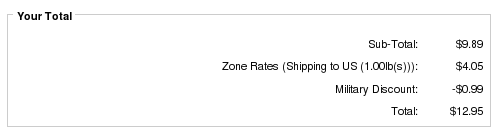
Military Discount allows you to offer a discount (percentage or fixed amount) for shipments headed to an APO or FPO.Military Discount is an order total module; it only shows up on the second page of checkout.
Payment Page displaying Military Discount
Installation Instructions:
- Back up everything! Try this in a test environment prior to installing it on a live shop.
- Copy the contents of the unzipped folder to the root directory of your shop. The names of these files reflect a template name of "custom." If you are using a different template name, please change file paths using "custom" to use your template name instead. Note: If you are using Zen Cart 1.5.5 or higher, your template name will be "responsive_classic" if you have not changed it.
- Login to Admin and in Modules > Order Total you will see 'Military Discount' listed along with all the other modules available.
- Click on 'Military Discount' to highlight the module and click on 'Install'
- Set the parameters according to your discounting plan.
- If you wish, follow the guidelines in marketing to advertise your discounts.
Marketing
A discounting plan reaches maximum effectiveness through advertising.Customize the tpl_product_info_display.php file to advertise your discounts. Put the file
includes/templates/template_default/templates/tpl_product_info_display.php
into
includes/templates/<YOUR_TEMPLATE>/templates
,
and add this block
of code to the page:
<?php
  $value = "ot_military_discount.php";
  include_once(zen_get_file_directory(DIR_WS_LANGUAGES . $_SESSION['language'] .
          '/modules/order_total/', $value, 'false'));
  include_once(DIR_WS_MODULES . "order_total/" . $value);
  $discount = new ot_military_discount();
  echo '<div class="content" id="militaryDiscountPolicy">';
  $resp = $discount->get_html_policy();
  echo $resp;
  echo '</div>';
  echo '<br class="clearBoth" />';
?>
The placement of this code is a matter of personal preference;
try placing it below the product description and adjust to your tastes.
Notes on Taxes
If you don't use embedded taxes, and don't have a mix of taxable and tax-free products, and don't have a different rate of tax for shipping, please skip this section.
However, if you any of the above apply to you, please read my Notes on Taxes.
Be sure that the sort order for the Tax module (set in Admin->Modules->Order Total->Tax) is greater than the largest order total sort order, so that your taxes are shown after all discounts. 399 is a good value for most stores.
Files
(new)includes/languages/english/modules/order_total/ot_military_discount.php

(new)includes/modules/order_total/ot_military_discount.php
How do US Military Addresses work?
US Military addresses are formed in such a way as to make them resemble regular domestic addresses. Instead of a city and state value, however, they use the following system:- In lieu of a city name, the values "APO" (Army Post Office) or "FPO" (Fleet Post Office)
- In lieu of a state name, the values
- AF (Armed Forces Africa)
- AA (Armed Forces Americas)
- AC (Armed Forces Canada)
- AE (Armed Forces Europe)
- AM (Armed Forces Middle East)
- AP (Armed Forces Pacific)
The city and state values required for shipping to US military addresses are part of the stock Zen Cart installation; no additional work is required on your part.
An example of a proper US Military address is
PFC Gomer Pyle
CMR 123, Box 90210
APO AE 09250
I'm from the United Kingdom - how do I extend this for British Forces abroad?
Put the file
includes/languages/english/checkout_shipping.php
in your
template. For example, if your template is called "custom," copy it to
includes/languages/english/custom/checkout_shipping.php
Change the define TEXT_CHOOSE_SHIPPING_DESTINATION in this file to include a statement like:
'If you are shipping to a BFPO, please be sure to specify "BFPOxxxx" in the Post/Zip Code field.'
Edit the file
includes/modules/order_total/ot_military_discount.php
and change
    function is_soldier() {
       global $order;
to
    function is_soldier() {
       global $order;
       // UK
       $test1 = strpos(strtoupper($order->delivery['postcode']), "BFPO");
       $test2 = strpos(strtoupper($order->delivery['suburb']), "BFPO");
       if ( !($test1 === false) || !($test2 === false) ) {
          return true;
       }
       ...
I'm from Canada - how do I extend this for Canadian Forces abroad?
Put the file
includes/languages/english/checkout_shipping.php
in your
template (i.e. If your template is called "custom," copy it to
includes/languages/english/custom/checkout_shipping.php).
Change the define TEXT_CHOOSE_SHIPPING_DESTINATION in this file to include a statement like:
'If you are shipping to a Canadian Forces personnel, please be sure to specify "STN FORCES" in one of the address fields.'
Edit the file
includes/modules/order_total/ot_military_discount.php
and change
    function is_soldier() {
       global $order;
to
    function is_soldier() {
       global $order;
       // Canada
       $test1 = strpos(strtoupper($order->delivery['street_address']), "STN FORCES");
       $test2 = strpos(strtoupper($order->delivery['suburb']), "STN FORCES");
       if ( !($test1 === false) || !($test2 === false) ) {
          return true;
       }
       ...
Zen Cart only supports two address lines, so you will need to put the section/mess number and the name of the ship/unit together on line two (normally they would be on separate lines). For example:
SGT. JEFF SMITH
MESS #3 HMCS CALGARY FMO VICTORIA
PO BOX 17000 STN FORCES
VICTORIA BC  V9A 7N2
CANADA

SGT. JOHN JONES
SECTION 37, KABUL 100
PO BOX 5113 STN FORCES
BELLEVILLE ON K8N 5W6
CANADA
See this page for more information on Canadian Forces Shipping rules.
I'm from Italy...
    function is_soldier() {
       global $order;
       // Canada
       $test1 = strpos(strtoupper($order->delivery['street_address']), "CASERMA");
       $test2 = strpos(strtoupper($order->delivery['suburb']), "CASERMA");
       if ( !($test1 === false) || !($test2 === false) ) {
          return true;
       }
       ...
I'm from Australia ...
    function is_soldier() {
       global $order;
       // AUS
       $email_parts = split('@', $order->customer['email_address']);
       $domain = trim($email_parts[1]);
       if ($domain == "defence.gov.au") return true;
       if ($domain == "navy.gov.au") return true;
       // deal with subdomains too
       $pos = strpos($domain, "defence.gov.au");
       if ($pos !== false) return true;
       $pos = strpos($domain, "navy.gov.au");
       if ($pos !== false) return true;
       ...

That Software Guy, Inc. supports the USO and encourages all Americans to do likewise
... until every one comes home.