 eCommerce with Zen Cart!

Zen Cart Combination Discounts Admin
Note: Combination Discounts and Combination Discounts Admin are still supported, but for most Zen Cart shops, a better option would be Discount Chooser.Combination Discounts Admin simplifies the process of adding discounts to Combination Discounts.
Background: See the Zen Cart Matrix-o-discounts for a perspective on Combination Discounts.
Relevance: Zen Cart™ 1.3.5 - 1.3.9, 1.5.x, along with Combination Discounts.
This software will not work under PHP 8.
See interoperability for changes required for Edit Orders.
You must have JavaScript enabled in your browser.
This extension is part of the Zen Cart Combination Discounts World.
Current Version: 1.2 (version history)
Support Thread: My commercial software is not supported on the Zen Cart forum. Please email me questions instead.
Cost: $60. This is a separate fee from the fee for Combination Discounts. (Note: this low price covers software only for self-installation)

Would you like to ask me questions before buying? I'm happy to help likely purchasers make the right decision. Please use my contact form.
Installed Cost: $200.00 (Professional installation by That Software Guy)
Installation Difficulty: Moderate
Installation Instructions: click here
Common Installation Issues: click here
FAQ: click here
Video: You can see how to create a discount like "Buy products 25 and 26, get product 27 for $30 off" using Combination Discounts Admin in this video:
Incompatibilities:
- This software is believed to be incompatible with Simple SEO URL by Numinix.
- This software will also not work with AJAX add-to-cart or checkout mods that do not reload the page when changing the cart contents or checking out. Please do not order this software if you are using these mods.
-
This mod builds dropdowns of all categories with products and all products
in a specific category once that category is selected.
For this reason, if you have- over 400 categories containing products, or
- categories with other 400 products in them,
SELECT COUNT( DISTINCT categories_id ) FROM products_to_categories;
If you are using a prefix, you must include it in this statement (e.g. "FROM zen_products_to_categories" instead of "FROM products_to_categories" if your prefix is "zen_").
Note that Discount Chooser does not have the limitation of 400 categories (or 400 products per category), so it is a better choice for larger stores.
Overview:
This page assumes a basic familiarity with Combination Discounts.Combination Discounts is a very popular module, but many people have told me they dislike need to edit a file in order to add "linkages" (the term I used to describe associating one product with another for the purpose of discounting). So I created an admin panel which allows you to add linkages in a way which will be familiar to users of the Zen Cart admin system.
Combination Discounts Admin Panel
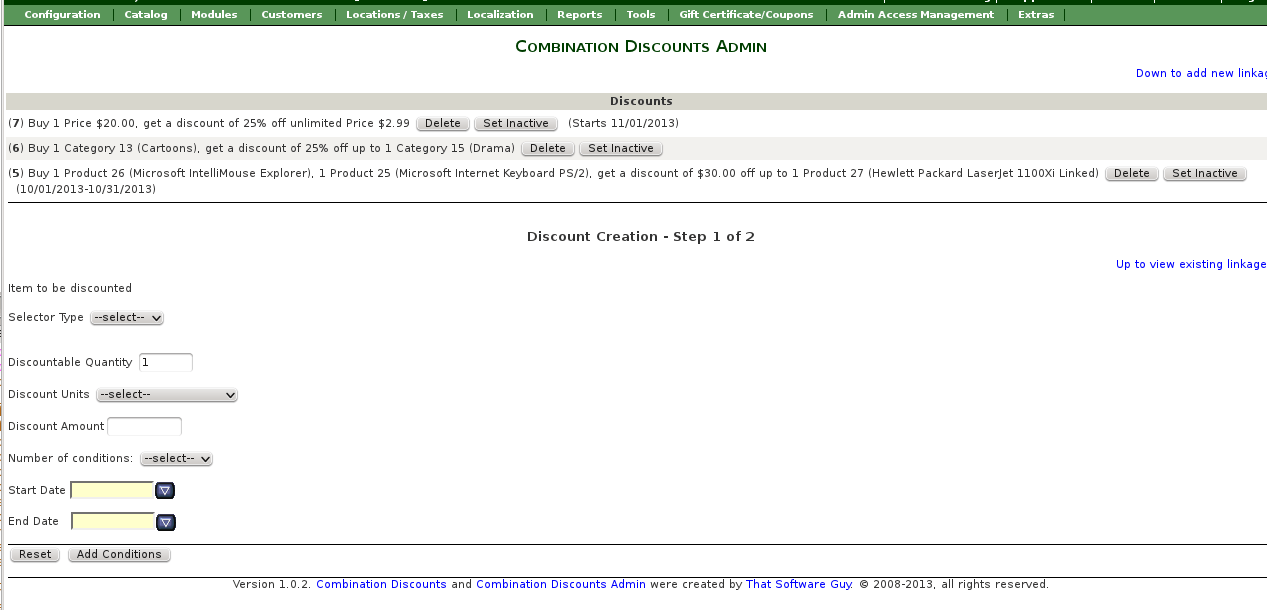
The page is broken into two areas: on the top, a list of existing discounts, and on the bottom, a form to allow you to add new linkages to create new discounts.
Discounts are listed in the order they were created. Discounts can currently be deleted but not edited directly; instead, to edit a discount, delete the existing one and create a new one.
Creating discounts is done in two steps. First, you specify the product to be discounted: the selector PROD, CAT or PRICE, the category id, product id or price to be discounted, and the count of items which may be discounted. Then you specify the number of conditions, i.e. the number of other things which must be done in order to get this discount. For instance, the example from the Combination Discounts help page is
$this->add_linkage(PROD,26,1,PROD,25,1,PROD,27,1,"$", 30);This is read, "get $30 off one product 27 if you buy one product 25 and one product 26." There are two conditions to this discount; a product 26 purchase (quantity one), and a product 25 purchase (quantity one).
Combination Discounts Admin - Add a new linkage - step 1
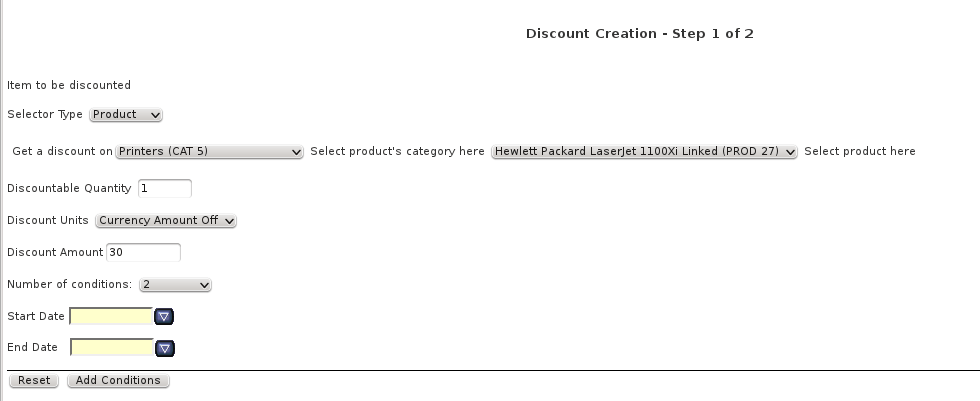
Once you select a selector type, the appropriate fields are filled in for the discounted product, category or price.
- When selector is set to "Product," the "Buy" dropdown is automatically populated with a complete list of categories, with a list of products for the selected category. Select the category you wish to use and then the product under it.
- When selector is set to "Category," the "Buy" dropdown is automatically populated with a complete list of categories. Select the category you wish to use and then the product under it.
- When selector is set to "Price," a text entry box is presented; enter the price you wish to match against.
You then select the discount units (% or $ off), fill in the amount, and set the number of conditions. Set either or both of the dates if desired. Then press "Add Conditions."
Combination Discounts Admin - Add a new linkage - step 2
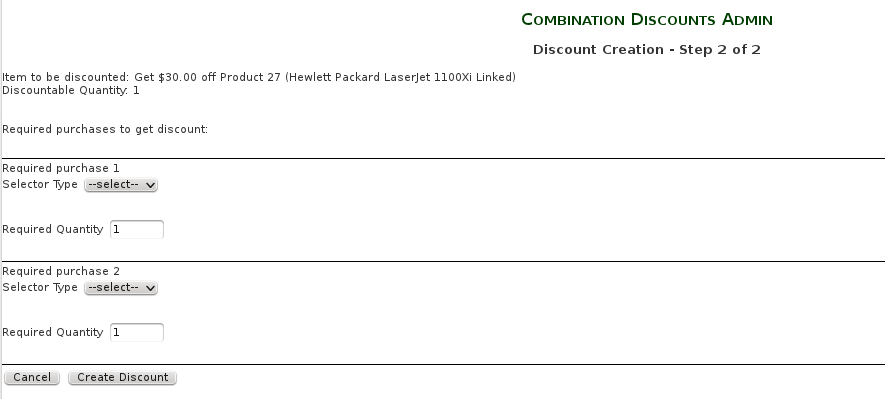
This takes you to the next page. We selected 2 conditions, so we have two places to specify the product, category or price we need to match in order to get the discount.
Combination Discounts Admin - Add a new linkage - step 2
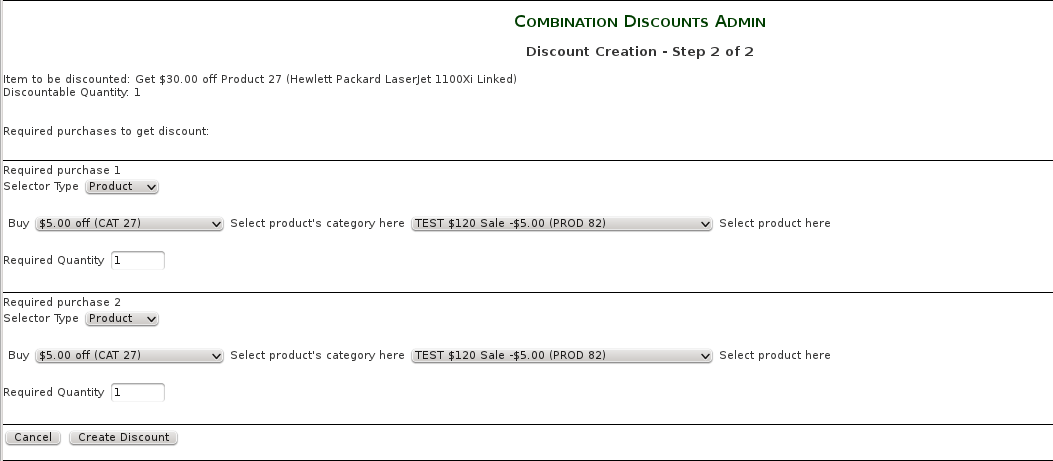
We will select products 25 and 26, with quantity one for each. To create this discount, press the "Create Discount button.
Combination Discounts Admin - Add a new linkage - complete

The page refreshes, and you see your new linkage at the top of the list.
If you decide you don't want to offer one of your discounts, you have two options: you may permanently delete the discount with the "Delete" button, or you may temporarily suspend the discount with the "Set Inactive" button. When you set a discount inactive, the notation "INACTIVE" is painted next to the discount in red letters. This discount will not be applied at checkout, nor will it show up in the Combination Discounts marketing text, on the Combination Discounts Promotional Page, or in Checkout Candy for Combination Discounts on your shopping cart and shipping page.
Combination Discounts Admin - set linkage inactive

When you inactivate a discount, the "Set Inactive" button changes to say "Set Active." To reactivate this discount, simply press the "Set Active" button.
Installation Instructions:
Prior to Installation:
- Go into Admin > Tools > Store Manager, and click on "Reset ALL Products Master Categories ID".
Installation
- Back up everything! Try this in a test environment prior to installing it on a live shop.
- Two zip files are provided. Unzip both, and copy the contents of the two unzipped folders to the root directory of your
shop. Note that the zip file "cd_admin_xajax.zip" is identical to
the file
bt_admin_xajax.zipfrom Better Together Admin; there is no need to reinstall it if you have Better Together Admin. - In Admin > Tools > Install SQL patches, run the following scripts:
- cd_admin.sql
- Edit the file
includes/modules/order_total/ot_combination_discounts.phpGo to the bottom of file to the setup() function. Ensure the inclusion ofcombination_discounts_admin.phpis not commented out.
You should delete all manually entered discounts here so that all your discounts will be visible through the admin panel. - Combination Discounts Admin will now be available in the admin panel under Tools.
Upgrading Instructions:
If you are upgrading from a prior version of Combination Discounts Admin, follow these instructions rather than the installation instructions below:- Unzip cd_admin.zip, and copy the contents of the unzipped admin and includes folders to the root directory of your shop. There is no need to reinstall xajax.
- In Admin > Tools > Install SQL Patches, run the following files:
- cd_admin_add_date.sql (if upgrading from Combination Discounts Admin 1.0.1).
- old_sql/cd_admin_150.sql (if upgrading to Zen Cart 1.5.x or higher from 1.3.x).
Installation Problems:
The most common installation problems for this module are as follows:- Unfamiliarity with installing mods. Please review my Guide to Mod Installation on Zen Cart.
- Forgetting to modify
includes/modules/order_total/ot_combination_discounts.phpas described above. - Installing Buy The Set, which changes
includes/modules/order_total/ot_combination_discounts.phpand forgetting to reapply the modification noted above. - A misunderstanding of "category." A category in Combination Discounts is "the parent category of a product, or any ancestor of that parent." See the Category Issues page for a discussion of the treatment of categories in my mods.
-
Some hosts require scripts which are run from a URL - for example,
http://your-store.com/your-admin/better_together_admin.php
to have permissions 644. You may see a message like
HTTP Error 500: Internal Server Error

The server encountered an internal error or misconfiguration and was unable to complete your request.
when running Combination Discounts Admin if this is the case with your host. Simply set the permissions of admin/combination_discounts_admin.php to 644 using your FTP client (or perhaps your cPanel File Manager). - One European IE6 user reported that the linkage type dropdown was
not responding. The fix was to match the XAJAX encoding type with what
was actually being received from the server. At the top of the file
admin/combination_discounts_consts.phpunder the version number, insert the linedefine ('XAJAX_DEFAULT_CHAR_ENCODING', 'iso-8859-1');(or whatever your encoding is). You can tell you have 8859-1 encoding if you look at your web pages and see a line like this close to the top:
<meta http-equiv="Content-Type" content="text/html; charset=iso-8859-1" />
If so, and your dropdowns are not responding, try this fix. -
Some people who use ISO 8859 encoding also have reported getting
errors like this:
PHP Warning:  htmlspecialchars() [<a href='function.htmlspecialchars'>function.htmlspecialchars</a>]: Invalid multibyte sequence in argument in
... admin\includes\xajax\xajax_core\xajaxResponse.inc.php on line 1575
If this is happening to you, edit the fileadmin/combination_discounts_admin.phpand delete the function addCreateOptions (around line 20-30). Insert this in its place:function addCreateOptions($sSelectId, $options) { $this->script("document.getElementById('".$sSelectId."').length=0"); if (sizeof($options) >0) { foreach ($options as $option) { $optval = $option['val']; $text = htmlentities($optval); $text = html_entity_decode( $text, ENT_NOQUOTES, "UTF-8" ); $this->script("addOption('".$sSelectId."','". $option['id']."','".$text ."');"); } } }
Then, edit the fileadmin/combination_discounts_step2.phpand delete the function addCreateOptions (around line 21-31), and paste in the version shown above in its place.
If your products have the registered trademark symbol (®) in their names you need to make this change. -
If try to run the Admin Panel and get an error like
1146 Table 'yourdb.zen_combination_discounts_purchase' doesn't exist
in:
[SELECT * FROM zen_combination_discounts_purchase ORDER BY id DESC ]
If you were entering information, press the BACK button in your browser and re-check the information you had entered to be sure you left no blank fields.
this means you ran the sql script in phpMyAdmin without adding the prefix manually. Delete the tables combination_discounts_purchase and combination_discounts_required and edit cd_admin.sql file and add your prefix (e.g. change combination_discounts_purchase to zen_combination_discounts_purchase and combination_discounts_required to zen_combination_discounts_required if your prefix is "zen_".) - Are you sure you have Combination Discounts installed? The basic package and the admin panel are sold separately.
-
I have seen installations where the AJAX queries fail (clicking linkage type
does not populate the dropdowns for category/product selection) because misplaced
blank lines in PHP files.
If you do a View Source in your browser and see something like this:
(this screenshot is from Better Together, but Combination Discounts will fail in
the same way)
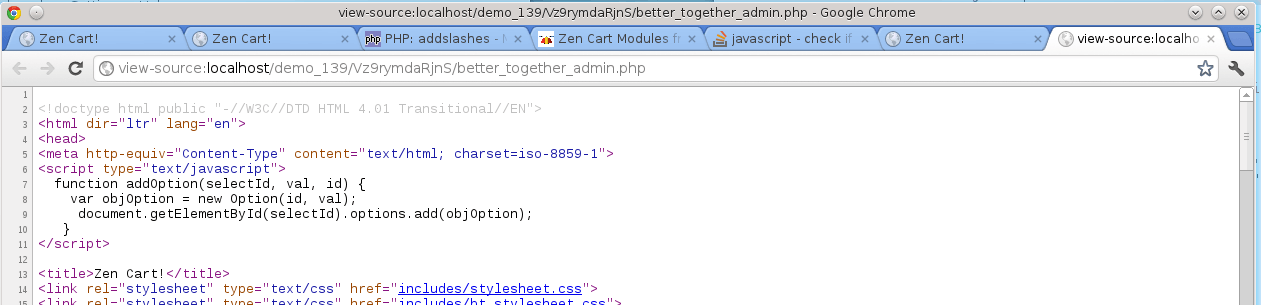
The blank line on line 1 means the DOM parsing of the page will fail. You must fix this before you will be able to use Combination Discounts Admin. - Running from a non-superuser account in 1.5.x? Please see this code change.
- Got a blank page? Review the guidelines for Debugging a blank page in Zen Cart
- Are you using PHP7? If so, you need to upgrade this module. Get the new copy from my store.
- Did you read the incompatibilities list? You may have too many categories, for example. If this describes you but you have already bought the software, please contact me; I may be able to write some custom logic (at additional cost) to help you make this mod work.
Issues with newer PHP Versions:
You must update to the latest version of this module if you are using PHP7. You can get the new copy from my store.If you have the latest version and you are still having trouble installing this module, you should also refer to my Guide to Mod Installation on Zen Cart. I'm also happy to install most of my mods for a fee.
Major Versions
- 1.2 12/23/18 - Update for Zen Cart 1.5.6.
- 1.1 11/05/18 - Update for PHP7.
- 1.0.3a 11/14/14 - Fix for set inactive feature.
- 1.0.3 12/01/13 - Fix to allow non-superusers to run the tool (1.5.x)
- 1.0.2 11/01/13 - Added start and end date support
- 1.0.1 11/06/11 - Update to 1.5.0rc1
- 1.0.1 10/02/09 - Fix for mistaken title on Admin > Modules > Order Total
- 1.0 12/26/08 - First release
Interoperability
- If you are using Zen Cart 1.5.x and Edit Orders 4.x along with
Combination Discounts Admin,
you must make the following change to
includes/modules/order_total/ot_combination_discounts.php:
In function calculate_deductions(), below the global statement, add this code:if (IS_ADMIN_FLAG) { require(DIR_FS_CATALOG . 'includes/modules/combination_discounts_admin.php'); }
FAQ
Q: Why do all my categories not show up?A: The definition of a "category" in Combination Discounts is "the parent category of a product." See the Category Issues page for a discussion of the treatment of categories in my mods.
Q: Why do I have to enable Javascript to run the Combination Discounts Admin Panel?
A: Because it uses AJAX, a Javascript based technology. This creates a faster, more responsive user interface. If you do not enable Javascript in your browser, you will see a flashing red error message at the top of the page, and the Combination Discounts Admin Panel will not operate.
Q: I would like to make it more obvious that a discount is inactive. How can I do this?
A: Edit the file
admin/includes/cd_stylesheet.css
and add
.inactive {
   color:#FF0000;
}
Now the entire line for an inactive discount will be red. Lines for
active discounts use the ".active" class if you would prefer to do
it the other way around.

I charge a fee of $60 for the Combination Discounts Admin Panel. You must have Combination Discounts (sold separately) to use the
Combination Discounts Admin Panel.
Buy Combination Discounts Admin.
The fee covers software only; installation is extra if you require help.
The fee covers software only; installation is extra if you require help.