 eCommerce with Zen Cart!

Zen Cart Better Together
A Zen Cart™ discounting module allowing vendors to create "buy one, get one" style discounts.Donate: This is free software. Show your appreciation by supporting my efforts.

Background: See the Zen Cart Matrix-o-discounts
Example Discounts: I have provided several examples of Zen Cart Better Together discounts.
Relevance: Zen Cart™ 1.3.5-1.3.9, 1.5.x
See interoperability for changes required for Edit Orders and Better Together Admin.
Be sure to see the rest of the Better Together World.
Current Version: 3.2 (version history)
Support Thread: Better Together Support Thread
Cost: Free, but donation appreciated
Installed Cost: $100.00 Buy Professional Installation by That Software Guy
Installation Difficulty: Moderate (You must write some PHP to configure this mod unless you purchase the Better Together Admin panel
Installation Instructions: click here for installation instructions
Common Installation Problems: click here for common installation problems
Tax Notes: Notes on tax handling
Github Repo: Github Repo for Zen Cart Better Together
Location: Zen Cart Plugins, under Marketing Tools
Download: Better Together in Zen Cart Plugins
FAQ: click here for FAQ
Configuration: The basic configuration of Better Together involves adding PHP code to the setup() function in the module, as shown below. For people who would prefer not to do this, a Better Together Admin panel is available. Many examples of basic configuration are shown in this help file; examples of advanced configuration are also available.
Marketing Text: click here for marketing text
See it Live: Go to product 7 in my demo shop (You've Got Mail), and you will see the upsell message for product 19 (Something about Mary). The converse is also true.
The code that created this Better Together linkage was:
   function setup() {
         $this->add_prod_to_prod(7, 19, "%", 50);
   }
This discount could also have been created using the Better Together Admin panel as shown in this video:
Promotional Page: information here.
Add-Ons:
The add-ons for Better Together are all grouped together on one page called The Better Together World.
Better Together is an order total module, so the discount is not visible until the second page of checkout. If you want to see the discount on the shopping cart page (or sidebox), look at Discount Preview.
The Checkbox Cross Sell allows you to enable add to cart of items which are cross sold through better together with just the tick of a checkbox. The items appear on the product info page underneath the add to cart button, and if checked, are added at the same time as the main item.
The Better Together Admin panel (a separate product which is sold as commercial software) allows you to create discounts without needing to edit files. Better Together Admin also offers the ability to automatically start and end Better Together offers on specific dates.
If you add product 12 to your cart in my demo site, you will notice that on the shopping cart page (and the first checkout page) that Checkout Candy re-enforces the upselling message.
You can see Better Together with Buy Both Now by looking at product 3 in my demo shop.
If you add both these products to your cart, you will be able to see the discount in your cart because of Discount Preview.
The Better Together Promotional Page allows you to display all your Better Together discounts on one page. Here is a sample of the Better Together Discount promotional page. You can even do a single-click add for two product discounts with no attributes on the Promotional Page using Add Both to Cart.
The Better Together Offers on Listing Pages extension displays the marketing text for your Better Together offers on listing pages such as All Products, Search Results and Manufacturer Pages.
The Better Together Centerbox allows you to display your Better Together offers on your home page (and optionally other pages).
Bugs: click here for bugs
osCommerce User? This is a Zen Cart page. Look at the Better Together for osCommerce World for osCommerce help.
Overview:
The gold standard of online retailing is Amazon.com. Zen Cart store operators looking to increase their profitability should constantly be asking, "WWAD?" or "What would Amazon do?"When you look at an item in Amazon, not only is a cross selling recommendation made, a discount is offered to persuade the customer to accept the recommendation. This mod permits you to offer this type of discounted cross selling in your Zen Cart.
You may specify
- Buy item X, get item Y at a discount
- Buy item X, get an item from category A at a discount
- Buy an item from category A, get an item from category B at a discount
- Buy an item from category A, get item X at a discount
You may also specify cross sells for any of these variants ("You may also be interested in ..."). Cross sells are pairings like the ones listed above, but without a discount.
Discounts may be specified as percentages of the latter item's price or as absolute values in the currency your cart uses.
These discount specifications are called "linkages," because they "link" one product or category to another. These linkages are not only used in discount calculations; they are also used to create messages which are automatically displayed on the product_info page. Details on how to do this are provided in marketing.
In addition, Better Together may be used to facilitate two-for-one offers for identical items. Although it may be argued that this is simply a special case of "buy item X, get item Y at a discount," this capability was added to facilitate two for one offers for an entire category of goods with a single statement. You may specify two-for-one type specials such as
- Buy item X, get another item X free
- Buy an item from category A, another identical item free
Please note that Better Together only provides a discount; it does not automatically add items to the cart. If you need to automatically add your discounted items to the cart, take a look at Auto Add. (Note that several restrictions apply to Auto Add; please read the documentation carefully.)
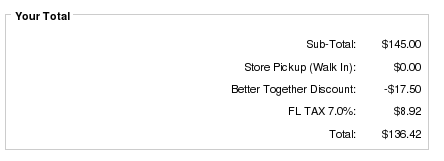
Payment Page displaying Better Together Discount
Detailed Description:
The original model for adding Better Together discounts was that people would modify the setup() function at the bottom of the file
includes/modules/order_total/ot_better_together.php
This still works, but now another available option is the Better Together Admin panel (a separate module which is sold commercially). Better Together Admin is easy to use and fast - and it's a great way to show your support for Better Together. Here's a video showing how Better Together Admin works.
If you wish to continue editing the setup function, here are some examples.
Four types of linkages may be performed. The format of each of these is the same:
- first identifier (product or category)
- second identifier (product or category)
- "%" or "$" to indicate how discounting is to be done, or "X" for a cross sell
- a number, indicating the discount amount.
The four calls for the four types of discounting are
- add_prod_to_prod()
- add_prod_to_cat()
- add_cat_to_cat()
- add_cat_to_prod()
If a straight two for one discount is what is desired, the calls are
- add_twoforone_prod()
- add_twoforone_cat()
Examples
Let's consider two products: product 5 from category 3, and product 2 from category 1.Suppose you want to offer a 50% discount on product 5 with the purchase of product 2. Make the setup() function look like this:
   function setup() {
      $this->add_prod_to_prod(2,5,"%", 50);
   }
Want to make it buy product 2, get product 5 free?
   function setup() {
      $this->add_prod_to_prod(2,5,"%", 100);
   }
How about buy one product 2, get one free?
   function setup() {
      $this->add_prod_to_prod(2,2,"%", 100);
   }
If you just want to cross sell product 5 when product 2 is displayed, use
   function setup() {
      $this->add_prod_to_prod(2,5,"X", 0);
   }
Remember product 5 is in category 3. If instead of specifying product 5 in particular, you want to discount any item in category 3 by 20% with the purchase of a product 2 item, use
   function setup() {
      $this->add_prod_to_cat(2,3,"%", 20);
   }
Discount can be done in currencies as well. To offer $7 off (or 7 off of whatever currency your cart uses), use
   function setup() {
      $this->add_prod_to_cat(2,3,"$", 7);
   }
(The "$" is just used to specify currency; your cart's currency settings will be respected when computing the discount.)
Remember product 2 is in category 1. If you want to widen the discount to provide a discount of 20% off any item in category 3 when an item from category 1 is purchased, use
   function setup() {
      $this->add_cat_to_cat(1,3,"%", 20);
   }
Any number of these discounts may be offered; discount computation will be done in the order in which your discounts are specified in setup(), and items will be processed in the order in which they appear in the cart.
Using the examples above, suppose these items are in your cart:
1 - Product 2, category 1
2 - Product 10, category 1
2 - Product 20, category 3
2 - Product 5, category 3
and suppose you have coded these discounts:
   function setup() {
      $this->add_prod_to_prod(2,5,"$", 7);
      $this->add_cat_to_cat(1,3,"%", 25);
   }
The following discounts will be computed:
- $7 off ONE product 5 because of ONE product 2 (rule 1)
- 25% each off TWO product 20 because of TWO product 10 (rule 2)
With the same cart, coding
   function setup() {
      $this->add_cat_to_cat(1,3,"%", 25);
      $this->add_prod_to_prod(2,5,"$", 7);
   }
Would compute the following discount:
- 25% off ONE product 20 because of ONE product 2 (rule 1)
- 25% off ONE product 20 because of ONE product 10 (rule 1)
- 25% off ONE product 5 because of ONE product 10 (rule 1)
To create a two for one discount for product 5, simply code
   function setup() {
      $this->add_twoforone_prod(5);
   }
And to create two for one discount for all products in category 3, code
   function setup() {
      $this->add_twoforone_cat(3);
   }
Note the difference between
   function setup() {
      $this->add_twoforone_cat(3);
   }
and
   function setup() {
      $this->add_cat_to_cat(3,3,"%", 100);
   }
The latter says, "buy any item from category three, and get 100%
off any other item from category three." The former says, "all
items in category three are buy one, get an identical item free."
So if a customer bought items 20 and 30 from category three,
a discount would only be given in the latter case.
To make these discounts visible on your product info page, customize the file
includes/templates/template_default/templates/tpl_product_info_display.php
as described in marketing below in the installation instructions.
This step will create text like this:
Buy this item, get a Microsoft Intellimouse Explorer at 50% off
Buy this item, get an item from Memory at 50% off
The link is created to facilitate the cross sell. This step is optional; if you prefer, you can add your own cross selling text.
Upgrading to Better Together Admin makes this process even easier. In this video, you can see how Better Together Admin handles the different linkage types by adjusting the screen to capture only the necessary data:
One to Many Behavior
One to Many is a new feature in Better Together 2.5. It is best explained by example. Suppose you have the following discount structure:
      $this->add_prod_to_prod(27, 3, "%", 50);
      $this->add_prod_to_prod(27, 25, "%", 50);
Where 27 is the HP LaserJet Printer, 3 is the Mouse, and 25 is the keyboard.
Now suppose you have 1 product 27, and 2 product 3 and 2 product 5 in your cart.
The way Better Together has always worked is as follows: it would run the first rule, see that item 27 was in the cart, see that item 3 was in the cart, and discount item 3. Now item 27 would no longer be permitted for use in discounts, and that would be the end of the discount.
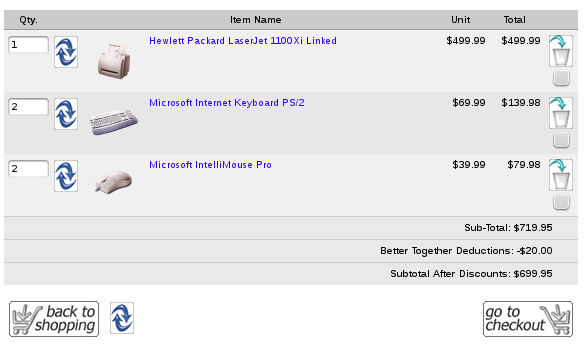
This is shown, using Discount Preview, by the following screenshot. Note that the discount is $20.00, 50% of the the price of the mouse (item 3).
Better Together One to Many = 0 (Classic Mode)
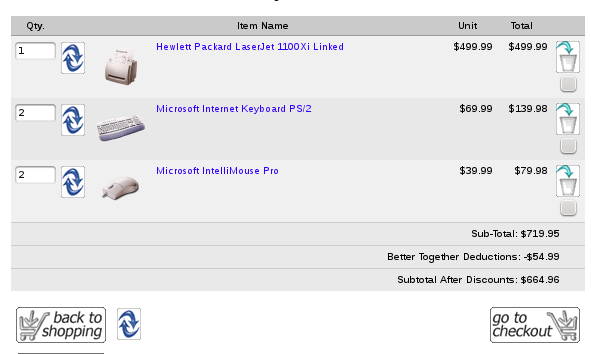
Some people wanted the option of discounting both item the mouse and keyboard, even though there was only one printer in the cart. In Better Together 2.5, this can be done by setting the configuration option One to Many to 1 (in Admin > Modules > Order Total > Better Together). Note that the discount is now $54.99, which is half the price of the mouse (item 3) and the keyboard (item 27) combined.
Better Together One to Many = 1
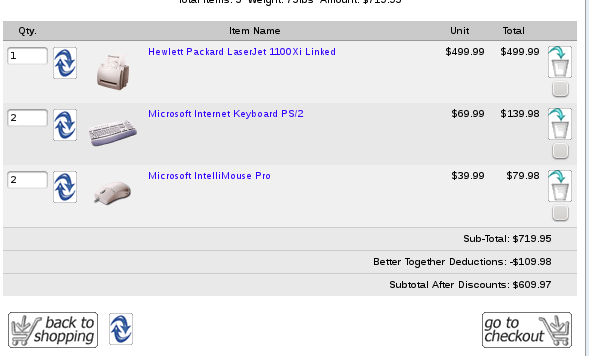
And finally, some people wanted unlimited mice and keyboards to be discounted, which can be done by setting One to Many to 2 (in Admin > Modules > Order Total > Better Together). Note that the discount is now $109.98, which is half off the price of two each of the mouse and the keyboard.
Better Together One to Many = 2
Note: If you were running Better Together 2.4 or older and you download version 2.5 or higher, you must go to Admin > Modules > Order Total and Remove and Re-Install Better Together to get access to this feature.
If you are using this feature (i.e. setting the One to Many value to 1 or 2), you should avoid discounts with overlapping products (e.g. prod_to_prod with the same item). It will cause double discounting if you do - for example
$this->add_prod_to_prod(27, 27, "%", 30);
will actually wind up giving 60% off the second item 27. If you need
both one to many discounts *and* BOGO style discounts, consider doing your
BOGO discounts using Free Gift Chooser.
Category Handling
Note that the "category" in add_cat_to_cat(), add_prod_to_cat(), add_cat_to_prod() and add_twoforone_cat() is the parent category, as determined by the master_categories_id field in the products table. If subcategories are being used, the parent category will not be the same as the top level category. If the product is linked to another category, the parent category will still be the original parent category (the master_categories_id field).
Men's Clothing  (Category 7)
     |
     ---->  Shirts (Category 12)
            |
            -------> shirt A
                     shirt B
                     shirt C
In this example, the parent category of "shirt A" is "Shirts," not
"Men's Clothing." "Men's Clothing" would be considered the top level category.
In stores where the first level of categories has products directly underneath it, the top level category and the parent category are the same.
If your store uses subcategories and you require the ability to reference categories at different levels, you may wish to consider purchasing Discount Chooser.
Again, note that "parent category id" is determined using the master_categories_id field from the products table. So if Shirt A is also linked into a category called "Hot Products," the parent category is still category 12 (Shirts). For more details on category handling in Better Together, please see the Category Issues page.
How Discounts are Selected
The basic operation of all my "Buy X, Get Y at a discount" modules is the same:- sort from most expensive to least;
- pick off the most expensive matching item(s) for the condition (the item(s) which must be purchased to get the discount)
- pick off the least expensive matching item(s) to discount
- remove the matching items from further consideration by this module (unless some sort of override exists)
Better Together sorts items by price in descending order, then looks for the condition (the first part of the linkage) from the top going down. Once it has found a match, it looks for the discount (the second part of the linkage) from the bottom going up. So if the following items are in your cart,
| Product ID | Category ID | Price |
|---|---|---|
| 1 | 12 | $4.00 |
| 5 | 18 | $20.00 |
| 7 | 12 | $5.00 |
| 9 | 12 | $10.00 |
Better Together sorts them by price like this:
| Product ID | Category ID | Price |
|---|---|---|
| 5 | 18 | $20.00 |
| 9 | 12 | $10.00 |
| 7 | 12 | $5.00 |
| 1 | 12 | $4.00 |
It then matches conditions from most expensive items to least (top down), and matches discounts from least expensive items to most (bottom up).
If your discount is
   function setup() {
      $this->add_cat_to_cat(12,12,"%", 100);
   }
then this means that product 9 will be the condition, and product
1 will be the item which is discounted 100%.
But if your discount is
   function setup() {
      $this->add_cat_to_cat(12,18,"%", 100);
   }
then this means that product 9 will be the condition, and product
5 will be the item which is discounted 100%. Since product 5
is more expensive than product 9, this may not be what you want.
As items are used in linkages, they are no longer available for subsequent in linkages. So if your cart contents are this:
| Quantity | Product ID | Price |
|---|---|---|
| 1 | 5 | $20.00 |
| 2 | 8 | $10.00 |
| 1 | 12 | $10.00 |
   function setup() {
      $this->add_prod_to_prod(5,8,"%", 100);
   }
you will only get one of product 8 for free. The second product 8 has
no matching product 5.
If you need to ensure that the item which is discounted is less
than or equal in price to the condition, you have the following options:
- Use the same category id in your add_cat_to_cat discounts. If the condition and the discount have the same category, then the price based sorting that Better Together does will ensure the lower priced item will be discounted.
- Select high value categories (with only high priced items) as your first (condition) category, and lower value categories (with lower priced items) as your second (discount) category.
- Use Big Chooser,
which allows you to enforce this condition on any discount using the
condition_price_gtecommand.
Installation Instructions:
- Back up everything! Try this in a test environment prior to installing it on a live shop.
- If you already have the Better Together module installed, please uninstall your old copy by going to Admin > Modules > Order Total, selecting "Better Together" and pressing the "Remove" button. Make a note of your settings so you can apply them to the new version.
- Copy the contents of the unzipped folder to the root directory of your
shop.
The names of these files reflect a template name of "custom." If you are using a different template name, please change file paths using "custom" to use your template name instead. Note: If you are using Zen Cart 1.5.5 or higher, your template name will be "responsive_classic" if you have not changed it. - Login to Admin and in Modules > Order Total you will see 'Better Together' listed along with all the other modules available.
- Click on 'Better Together' to highlight the module and click on 'Install'
- Decide on the linkages you wish to use, and add them to
the setup() function in
includes/modules/order_total/ot_better_together.phpOpen a shopping cart in another window to test these discounts. They are shown on the second step of checkout in "Your Total" under "Better Together." - If you wish, follow the guidelines in marketing.
- If you wish, install the Better Together Promotional Page (which displays all your Better Together discounts on one page).
- Donate! Show your appreciation by supporting my efforts.
Optional Installation Instructions:
- I highly recommend Discount Preview with all my discounting modules. Without Discount Preview, your customers cannot see the price reductions they are entitled to until the second page of checkout (checkout confirmation). Obviously this is a disadvantage, particularly for new customers who need to go through the additional step of creating an account before they can see this information. Sometimes seeing is believing, so here's a video showing Discount Preview in action.
Installation Problems:
The most common installation problems for this module are as follows:- For
Better Together Admin panel
users: Forgetting to modify
includes/modules/order_total/ot_better_together.phpas described in the Better Together Admin Panel instructions. - Using a category function - add_prod_to_cat(), add_cat_to_prod(), add_cat_to_cat() or add_twoforone_cat() - can cause problems - see the Category Issues page.
-
Some people try deleting the setup function and wind up deleting the
final brace in the file, which causes a blank page on checkout. The
bottom of the file
includes/modules/order_total/ot_better_together.phpshould look like this:function setup() { .. some statements here .... } } ?>The final curly brace must not be deleted. - Got a blank page? Review the guidelines for Debugging a blank page in Zen Cart
- Not donating often causes problems. Donate! Show your appreciation by supporting my efforts.
Marketing
What good is having cross selling and upselling specials if you don't advertise them?Better Together Discounts may be automatically displayed in two places: on the product info page, and on a separate promotional page. We'll talk about the product info page first.
There are two built-in ways to display Better Together items on the product info page:
- Showing the Better Together discounts
as text/image links using
tpl_better_together_marketing.php, as described below. - Showing the Better Together cross sells
as text/image links using
tpl_better_together_xsells.php, as described below.
- As checkboxes on the product info page, allowing people to add cross sell items without attributes to their cart when they add the main item, using Checkbox Cross Sell.
- As links on the product info page, including a single button which will purchase both items, with Buy Both Now.
Showing Better Together Discounts
Customize thetpl_product_info_display.php file to advertise
your discounts. Copy the file
includes/templates/template_default/templates/tpl_product_info_display.php
into the directory
includes/templates/<YOUR_TEMPLATE>/templates
Then modify
tpl_product_info_display.php, and add this block
of code:
<?php
require($template->get_template_dir('/tpl_better_together_marketing.php',DIR_WS_TEMPLATE,
   $current_page_base,'templates'). '/tpl_better_together_marketing.php');
?>
The placement of this code is a matter of personal preference.
Some people like it at the top of the page, right above the first
zen_draw_form() call; others place it below the product description.
(NOTE: If you are using
Buy Both Now,
you must place this code *outside* the zen_draw_form block
in the product info page; either before or after the form,
as noted in the instructions for that mod.)
The marketing text will appear like this on your product info page:
Buy this item, get a Microsoft Intellimouse Explorer at 50% off
Buy this item, get an item from Memory at 50% off
Buy this item, get an item from Memory at 50% off
One or two div blocks of text will be produced depending on whether the item is the first or second parameter in an add_... call. For instance, if
   function setup() {
      $this->add_prod_to_prod(8,12,"%", 100);
      $this->add_prod_to_prod(12,17,"%", 100);
   }
is used, then the product info page for products 8 will have
one block of text with the div id
betterTogetherDiscountPolicy which will say
"Buy this item, get name-of-product-12 free"
Product 12 will have a block of text with div id
betterTogetherDiscountPolicy which will say
"Buy this item, get name-of-product-17 free"
"Buy name-of-product-8, get this item free"
"Buy name-of-product-8, get this item free"
Because this text has its own div id, styling it (changing font, color, etc.) is simply a matter of adding to your stylesheet
#betterTogetherDiscountPolicy {
   font-size: 200%;
   color: #ff0000;
}
This would give you
Buy this item, get a Microsoft Intellimouse Explorer at 50% off
Buy this item, get an item from Memory at 50% off
Buy this item, get an item from Memory at 50% off
Probably a bit more obnoxious than you would truly want, but you get the idea.
Alternately, you could modify the marketing text template (
tpl_better_together_marketing.php) and put the text into a fieldset:
To display the fieldset, edit
includes/templates/YOUR_TEMPLATE/templates/tpl_better_together_marketing.php, and above
echo '<div class="content" id="betterTogetherDiscountPolicy">';
add
echo '<fieldset>';
echo '<legend>' . MODULE_ORDER_TOTAL_BETTER_TOGETHER_TITLE . '</legend>';
then below
echo '</div>';
add
echo '</fieldset>';
In version 2.1 and higher, the marketing text may also be displayed with images of the products. Use the following code in your
tpl_product_info_display.php file:
<?php
require($template->get_template_dir('/tpl_better_together_marketing_images.php',DIR_WS_TEMPLATE,
   $current_page_base,'templates'). '/tpl_better_together_marketing_images.php');
?>
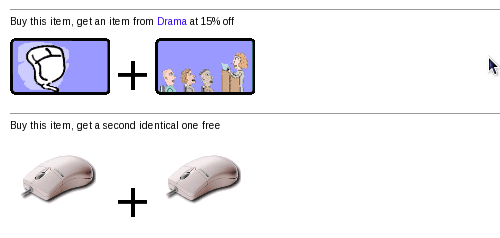
You will see the marketing text appear like this:
Product Info Page with Marketing Text and Images
If both products do not have attributes, and you want to offer a one click buying opportunity, you may wish to upgrade to Buy Both Now. You will see the marketing text appear like this:
Buy Both Now
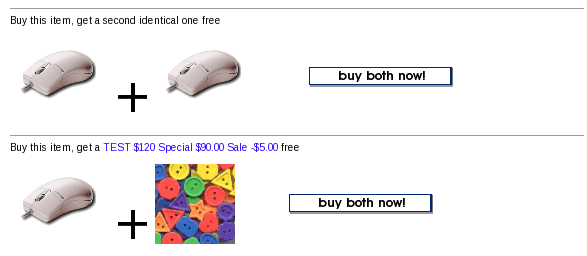
Buy Both Now is sold separately from Better Together; it's a paid add-on.
There are also marketing opportunities on the Shopping Cart page; the Checkout Candy module can be configured to show available Better Together discounts both on the Shopping Cart page and on the first page of checkout.
Showing Better Together Cross Sells
The cross sells work differently - since there is no discount to be displayed, they are shown more like a regular Zen Cart product display.For instance, suppose your setup function looked like this:
    function setup() {
      // Add all linkages here
      $this->add_prod_to_prod(3, 83, 'X', 0);
      $this->add_prod_to_prod(3, 25, 'X', 0);
    }
When you are on the product info page for product 3, if you add the Better Together Cross Sell template change (shown below), you will see products 25 and 83 displayed like this:
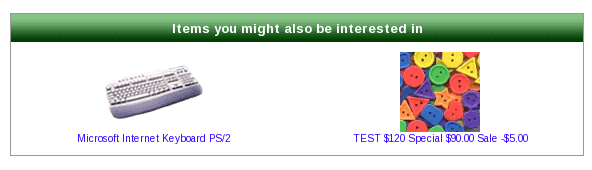
To display the cross sell marketing on your product info page, simply add the following code to the bottom of your
includes/templates/YOUR_TEMPLATE/templates/tpl_product_info_display.php file:
<?php
require($template->get_template_dir('/tpl_better_together_xsells.php',DIR_WS_TEMPLATE,
   $current_page_base,'templates'). '/tpl_better_together_xsells.php');
?>
Note that cross sells, unlike regular Better Together offers, are not bidirectional; in the example above, product 3 will not appear on the page for products 83 and 25 unless you explicitly add a cross sell statement to do this:
      // ...
      $this->add_prod_to_prod(83, 3, 'X', 0);
      $this->add_prod_to_prod(25, 3, 'X', 0);
More Marketing Ideas
The other available marketing vehicle is the Better Together Discount promotional page. This page is completely optional; it is not included in the Better Together Contribution, but it is a free download. It creates a new page on your site that looks like this, displaying all discounts.This new page can be accessed via the URL
YOURSITE.com/index.php?main_page=bettertogether_promoA link to this page may be added to the categories sidebox, the site footer, or the main page content for your site. See Promotional Pages for more information and ideas.
You may also optionally add an "Add Both to Cart" button to the Promotional page; see the Better Together Promotional Page (Add Both to Cart) for details.
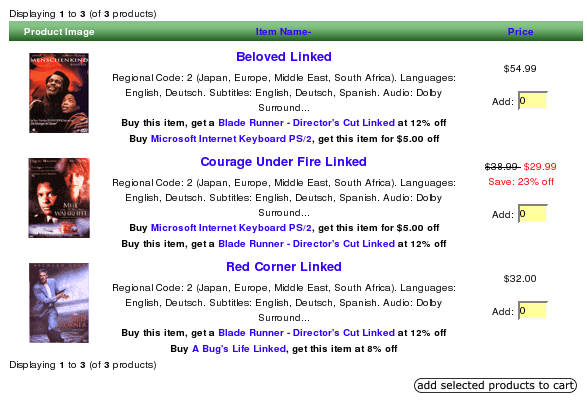
The Better Together Offers on Listing Pages extension displays the marketing text for your Better Together offers on listing pages such as All Products, Search Results and Manufacturer Pages.
Category Listing Page - Better Together Offers
Better Together and Discount Preview
Discount Preview makes Better Together pop! It shows the discount on the shopping cart page, instead of making your customers wait until the checkout payment page to see their discounts. Here's a screenshot of the shopping cart page on a cart using Discount Preview and Better Together. The discount was a prod to prod linkage between these two items. Notice that the description has been changed to "Bundle discount."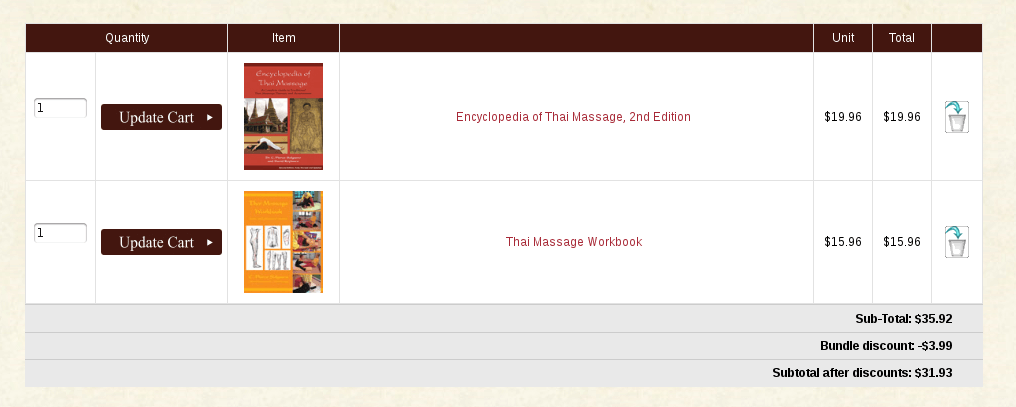
Discount Preview is sold separately. Buy Discount Preview Now!
Notes on Taxes
If you don't use embedded taxes, and don't have a mix of taxable and tax-free products, and don't have a different rate of tax for shipping, please skip this section.
However, if you any of the above apply to you, please read my Notes on Taxes.
Be sure that the sort order for the Tax module (set in Admin->Modules->Order Total->Tax) is greater than the largest order total sort order, so that your taxes are shown after all discounts. 399 is a good value for most stores.
Files
(new)  includes/languages/english/modules/order_total/ot_better_together.php
(new)  includes/modules/order_total/ot_better_together.php
(new)  includes/templates/template_default/templates/tpl_better_together_marketing.php
(new)  includes/templates/template_default/templates/tpl_better_together_marketing_images.php
(new)  includes/templates/template_default/templates/tpl_better_together_xsells.php
(new)  includes/templates/template_default/css/stylesheet_bettertogether_product.css
Major Versions
- 3.2 02/11/2023 PHP 8 updates
- 3.1 09/19/2022 PHP 8.2 updates
- 2.7 02/12/2022 PHP 8 updates
- 2.6 12/20/2018 PHP 7 updates
- 2.5.3 05/03/2017 Fixes for one-to-many discounts with identical items
- 2.5.2 07/16/2016 Updates for PHP7
- 2.5.1 03/01/2014 Interoperability issue with Checkout Candy and Better Together > 2.5.
- 2.5 06/01/2013 One to Many feature.
- 2.4 04/16/2013 Code inspection and cleanup. No functional changes.
- 2.3b 09/01/2011 Bug when displaying marketing text on listing pages
- 2.3a 07/23/2010 Bug in Marketing Text
- 2.3 05/02/2010 Cross Sells
- 2.2 04/03/2010 VAT handling
- 2.1a 02/18/2010 Minor housekeeping
- 2.1 12/20/2009 Added images to marketing text
- 2.0 09/01/2008 Added price sorting, add_cat_to_prod
- 1.6 12/14/2007 Compatibility with 1.3.8.
- 1.5a 09/18/2007 Fixed Google Checkout issue.
- 1.5 09/08/2007 Fixed some messages; consolidated marketing text down to one div; only display marketing text if module turned on
- 1.4a 07/31/2007 Simplified inclusion of marketing logic by adding it to this package. Some minor language improvements.
- 1.3 12/30/2006 Adding marketing ability to print discounts in reverse order. (If buy A, get B free is offered, can now show this on B's page, not just A's page.) Allow products which are ordered in odd quantities to be used as twoforone *and* better together discounts if so specified. Previously, twoforone products were not additionally checked for better together discounts.
- 1.2 12/03/2006 Adding explicit two for one support
- 1.1 09/26/2006 Providing PHP 4 compatibility
- 1.0 09/15/2006 First Release
Bugs
-
For recalculate tax = Standard, carts using Edit Orders 4.3.1 will need to change the process() function
in the code file in
includes/modules/order_totalas follows:
Changeif ($this->calculate_tax != 'VAT') { $order->info['total'] -= $od_amount[$key]; }toif (!IS_ADMIN_FLAG) { if ($this->calculate_tax != 'VAT') { $order->info['total'] -= $od_amount[$key]; } } - Users wishing to sort native discounts (such as Coupons or Group Discounts) after my discounts, with tax recalculation, should look at this page.
-
Older versions of Better Together (prior to 1.6)
require a patch to run under Zen Cart 1.3.8. Take
this function and paste it
right above the function calculate_deductions()
in the file
includes/modules/order_total/ot_better_together.phpThe latest versions (1.6 and greater) include this patch, but if you haven't upgraded, you must manually apply the patch.
FAQ
Q: I'm using a category function - add_prod_to_cat() or add_cat_to_cat() or add_twoforone_cat() - and it's not working!A: There are several possible root causes. Please see the Category Issues page for solutions.
Q: Why does using overlapping categories for my condition and discounted item not work?
A: Having overlapping category specifications for the conditions and discounting issues can cause issues. This issue (and some remedies) is discussed on this page.
Q: What's the difference between Buy Both Now and the Better Together Promotional Page with Add Both to Cart?
A: They're two separate products. Buy Both Now works with the marketing text on the product info page; the Promotional Page with Add Both to Cart works on the Promotional page.
Q: How do I install this software?
A: Click here for Installation instructions. If you've never installed a Zen Cart mod before, please read my Guide to Mod Installation on Zen Cart.
Q: How do I set up Better Together discounts?
A: Decide on the linkages you wish to use, and add them to the setup() function in
includes/modules/order_total/ot_better_together.php
("Linkages" are what "add_prod_to_prod," etc. are called.)
Don't want to edit code? Get the Better Together Admin panel.
Q: Can I start and stop my Better Together discounts on certain dates in the future?
A: This feature is included in the Better Together Admin panel. Alternately, you can write PHP code to do this; please see Timing Discounts in Zen Cart for an explanation of how to do this.
Q: Why do you have to add PHP code to setup()? Why didn't you put this in the Admin panel?
A: When I created Better Together, I wanted it to be as flexible as possible, and I focused on functionality, not ease of use. Over time, the demand grew for an admin panel, and when the project got funded, I did it.
Creating the Better Together Admin panel was a significant amount of work and represents my main revenue stream for Better Together (the support for which consumes hours of my time every week); please show your support for my software by purchasing it.
Q: I would like my discounts to show up in the shopping cart. Why don't they?
A: The way the Order Total modules work is that they show up at checkout time. However, if you require the discounts to show up in the shopping cart, you may wish to show your support for Better Together by purchasing the Discount Preview module for $30.
Alternately, you may indicate that you have a Better Together discount policy by adding to TEXT_INFORMATION in
includes/languages/english/shopping_cart.php, and inform the user that Better Together discounts will be
calculated (and visible) at checkout time.
Additionally, changing SUB_TITLE_SUB_TOTAL in the same file to
something like 'Sub-Total BEFORE Discount' will emphasize the fact that
a discount will be added at checkout time.
Q: How can I present my Better Together discounts on the product page?
A: Create your custom template if you haven't already done so. Then customize the file
includes/templates/template_default/templates/tpl_product_info_display.php
Follow the directions in
marketing in the installation instructions
for details on the changes that are required.
Q: OK, I have the Better Together information on my product page, but my customers can't figure out that the discount isn't visible until checkout time
A: Add some explanatory text to the discount policy information you created above. This way it will show up every time there is Better Together information on a page. Alternately, you may purchase the Discount Preview module, or you may also add text to the shopping cart page to indicate that Better Together discounts will show up at checkout time as discussed above.
Q: OK, I have Better Together specials, but my customers aren't biting. How can I re-enforce the promotion?
A: My Checkout Candy module can be configured to show available Better Together discounts both on the Shopping Cart page and on the first page of checkout. Please consider showing your support for Better Together by purchasing this module.
Q: I don't want Discount Preview or Checkout Candy, but I'd still like to make a contribution to show my appreciation for Better Together - how do I do this?
A: Click here! All donations are greatly appreciated.
Q: What would my setup() look like if I wanted to give 2 for 1 on all items in category 1?
A: You have two options. This provides a two for one discount, allowing you to mix and match items from category 1:
  function setup() {
      $this->add_cat_to_cat(1,1,"%", 100);
  }
This provides a two for one discount on identical items in category 1:
  function setup() {
      $this->add_twoforone_cat(1);
  }
Q: What would my setup() look like if I wanted to give 2 for 1 on all items 5, 8, 12, 17 and 31? What about buy one get one half off?
A: Here's what you would do for 2 for 1:
  function setup() {
      $this->add_prod_to_prod(5,5,"%", 100);
      $this->add_prod_to_prod(8,8,"%", 100);
      $this->add_prod_to_prod(12,12,"%", 100);
      $this->add_prod_to_prod(17,17,"%", 100);
      $this->add_prod_to_prod(31,31,"%", 100);
  }
Here's buy one get one half off:
  function setup() {
      $this->add_prod_to_prod(5,5,"%", 50);
      $this->add_prod_to_prod(8,8,"%", 50);
      $this->add_prod_to_prod(12,12,"%", 50);
      $this->add_prod_to_prod(17,17,"%", 50);
      $this->add_prod_to_prod(31,31,"%", 50);
  }
As in the previous question, mixing and matching is allowed with these discounts - but since these are specific products, what are the semantics of "mixing and matching?"
Well, for add_prod_to_prod() and add_twoforone_prod(), mixing and matching means "having different attributes." If you wish to give a buy one get one free for only precisely the same item for items 5 and 8, and not permit mixing and matching, you would use:
  function setup() {
      $this->add_twoforone_prod(5);
      $this->add_twoforone_prod(8);
  }
For example, if you sell sweaters with the attribute "color," then buying a red sweater and a blue sweater would not produce a discount if add_twoforone_prod() were used, but it would if add_prod_to_prod() were used.
Q: What would my setup() look like if I wanted to do buy one of item 5, get one from category 2, 7 or 9 at $5 off?
A: Here's what you would do:
  function setup() {
      $this->add_prod_to_cat(5,2,"$", 5);
      $this->add_prod_to_cat(5,7,"$", 5);
      $this->add_prod_to_cat(5,9,"$", 5);
  }
Q: Can I do three for the price of two? Four for the price of three?
A: No - but you may want to look at Discount Chooser, which can do this sort of thing. Also Combination Discounts and Big Chooser would work.
Q: What if I want to do offers on all my products?
A: The setup() function is in a PHP file, so you can write software to configure your discounts. For instance, if you have 600 products, and you want to do "buy one get one 50% off" on all of them, you can do:
function setup() {
   for ($i = 1; $i <= 600; $i++) {
      $this->add_prod_to_prod($i,$i,"%", 50);
   }
}
Obviously you could do this for add_twoforone_prod, etc. just as well.
Another approach would be to inspect the cart and call add_prod_to_prod (or whatever) on all items in the cart. The downside with this is that the marketing text then wouldn't work.
Extensions
The following Better Together extensions and related modules are available:- Allow people to add your cross sold items (without attributes) with a single tick of a checkbox using Checkbox Cross Sell.
- Make managing your discounts easier using the Better Together Admin panel.
- The Better Together Offers on Listing Pages extension displays the marketing text for your Better Together offers on listing pages such as All Products, Search Results and Manufacturer Pages.
- Buy Both Now allows you to provide a one-click interface to adding both linked items to the cart on the product info page.
- Combination Discounts allows you to group more than two items together for discounting. It's Better Together for multi-item sets.
- Big Spender allows you to provide "Better Together" style discounts based on the amount spent, with configuration in PHP like Better Together.
- Discount Chooser allows you to provide "Better Together" style discounts but with an admin panel, and more flexibility.
- Big Chooser allows you to provide "Better Together" style discounts on more than two items with a variety of configuration mechanisms.
- Show Better Together discounts on the shopping cart page using Discount Preview.
- Show Better Together cross selling text on the shopping cart page using Checkout Candy.
- Market your Better Together discounts using the Better Together Promotional Page.