 eCommerce with Zen Cart!

Zen Cart Big Chooser
A discounting module for Zen Cart™ that allows you to provide discounts if certain products are in the cart.Background: See the Zen Cart Matrix-o-discounts
Example Discounts: I have provided several examples of Zen Cart Big Chooser discounts.
Relevance: Zen Cart™ 1.5.x
See interoperability for changes required for Edit Orders.
Current Version: 1.4. Occasionally, new features are documented prior to being publicly available; please check the version history to ensure the feature you want is available in your version.
Support Thread: My commercial software is not supported on the Zen Cart forum. Please email me questions instead.
Cost: $60 (Note: this low price covers software only for self-installation)

Would you like to ask me questions before buying? I'm happy to help likely purchasers make the right decision. Please use my contact form.
Installed Cost: $200.00 (Professional installation by That Software Guy)
Installation Difficulty: Moderate (You must write some PHP to configure this mod; there is no Admin panel)
Installation Instructions: click here
Tax Notes: Notes on tax handling
Buy: Buy Big Chooser!
Pre-purchase questions? No problem! Just Please contact me with your question.
FAQ: click here
Configuration: The basic configuration of Big Chooser involves adding PHP code to the setup() function in the module, as shown below. No admin panel is available. Many examples of basic configuration are shown in this help file; examples of advanced configuration are also available.
Marketing Text: click here
See it Live: Go to product 5 in this test cart you will see the upsell message that if you buy this product (BladeRunner) or Beloved, you get $100 off a graphics card (such as this one.)
The code that created this Big Chooser Discount was:
         $this->add_condition('Buy Bladerunner or Beloved, get a graphics card for $100 off', true);
         $this->set_choice_constraint(1, PROD, 5, PROD, 20);
         $this->set_discount(CAT,4,1,"$",100);
A second demonstration involves attribute-based discounting. Go to product 26 in this test cart you will see the upsell message that if you buy 2 of these mice with USB, you'll get a third with USB free. If you try buying 2 with USB and a third with PS/2, you'll see the discount is not shown on the shopping cart page.
The code that created this Big Chooser Discount was:
 $this->add_condition("Buy any two USB Microsoft IntelliMouse, get a third free.", true);
     $this->set_choice_constraint(2, PROD, 26);
     $this->set_constraint_attrfilter(3, 9);
     $this->set_choice_discount(1, PROD, 26, "%", 100);
     $this->set_discount_attrfilter(3, 9);
Promotional Page: free from my website (you must buy Big Chooser separately)
Add-Ons: Big Chooser is an order total module, so the discount is not visible until the second page of checkout. If you want to see the discount on the shopping cart page (or sidebox), look at Discount Preview.
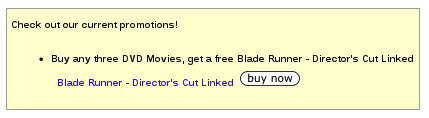
Here is a sample of the Big Chooser Discount promotional page, which is available for download here.
You can display your promotions on the shopping cart page and the checkout shipping page using Big Upsell.
Big Buy Now displays a Buy Now button next to any set_support_prod link, as long as the product does not have attributes and may be added from a listing page.
Bugs: click here
Overview:
My Big Spender Extension allows you to discount products in various ways under various conditions provided a certain dollar threshold is exceeded. Big Chooser takes a similar approach, but rather than setting a dollar threshold, it becomes activated when a specific set of items are placed into the cart.Big Chooser is configured by creating "conditions" and then parameterizing these conditions, specifying how the decision is made as to whether the condition is met, and the discounts available once the condition is met.
Big Chooser requires you to add these conditions and parameters to the module itself - they are not configured through the admin panel. This sounds complicated, but it's not that bad, and many examples of common discounting practices are provided. Please note that Big Chooser only provides a discount; it does not automatically add items to the cart. If you need to automatically add your discounted items to the cart, take a look at Auto Add. (Note that several restrictions apply to Auto Add; please read the documentation carefully.)
The calling conventions for building a condition are as follows:
{ text description, whether to apply the behavior multiple times }
So suppose the discount was stated as, "After items A and B are added to the cart, take some action." This would be
$this->add_condition("Buy items A and B, and get ...", false);
If the discount was, "For every item A and B in the cart, take some action," the code would be
$this->add_condition("For every A and B you buy, get ...", true);
Now we need to parameterize the condition. Parameter statements apply to the condition statement they immediately follow. I have provided a visual cue for this by indenting the parameter statements on this page by three spaces. The following types of parameter statements are currently supported:
- set_constraint - specifies the items that must be in the cart to meet the condition
- set_choice_constraint - specifies a set of items, some of which must be in the cart to meet the condition
- set_no_discount - specifies a set of items which are not eligible for discounting even if they otherwise meet the discounting specifications
- set_negative_constraint - specifies the items which are excluded from the promotion; they will not be counted towards the condition. (Note that as of Big Chooser 1.2.16, it is considered for discounting; prior to that it was not.)
- set_discount - discount some product or category by a specific percentage or currency figure
- set_choice_discount - discount a specified number of items from some product or category by a specific percentage or currency figure
- set_cart_discount - discount the entire cart (or just the constraint items) by a specific percentage or currency figure
- set_support - provide additional information on the discount
- set_deal_id - giving the discount an identifying number to allow other discounts to be filtered out if this number has been run
- set_no_double_dip - specifying which discounts which, if executed, will cause this discount to be skipped
- one_discount_only - stops after the first discount
- set_group - only apply this discount to members of the listed groups
- set_no_group - do not apply this discount to members of the listed groups
- set_wholesale_level - only apply this discount to members of the wholesale groups (using the Dual Pricing Mod).
- include_condition_items - allow items which were used in set_discount or set_choice discount to themselves be discounted
- set_extra_discount, set_extra_choice_discount - used with include_condition_items to specify additional discounts not included in the condition
- set_coupon - permits you to add a coupon condition to a discount
- set_constraint_regprice - specifies that items counted towards the constraints must not be on sale or special
- set_cart_free_shipping- Rebate the amount charged for shipping as part of the Big Chooser discount
- set_cart_discount_shipping- Rebate a portion of the amount charged for shipping as part of the Big Chooser discount
- set_constraint_attrfilter - Ensure that the constraint has the specified attribute setting.
- set_discount_attrfilter - Ensure that the item to be discounted has the specified attribute setting.
One of set_discount(), set_choice_discount() or set_cart_discount() must be done for every condition for it to have any action. One of set_constraint() or set_choice_constraint() must be used for every condition to make it conditional (otherwise the discount will be applied universally).
Examples
First, some easy ones:The discount, "Buy product 1, get a free product 5" would be specified as
   $this->add_condition("Buy name-of-product-1, get a free name-of-product-5", false);
      $this->set_constraint(PROD, 1, 1);
      $this->set_discount(PROD, 5, 1, "%", 100);
The discount, "Buy an item from category 3, get a free product 8" would be specified as
   $this->add_condition("Buy an item from name-of-category-3, get a free name-of-product-8", false);
      $this->set_constraint(CAT, 3, 1);
      $this->set_discount(PROD, 8, 1, "%", 100);
Now let's look at things you can't do with Better Together or Combination Discounts.
The discount, "Buy 3 items from category 5, get a fourth one free" would be specified as
   $this->add_condition("Buy 3 item from name-of-category-5, get a fourth free", false);
      $this->set_constraint(CAT, 5, 3);
      $this->set_discount(CAT, 5, 1, "%", 100);
The discount, "Buy 3 items from manufacturer ABC, get a fourth one free" would be specified as
   $this->add_condition("Buy 3 item from manufacturer ABC, get a fourth free", false);
      $this->set_constraint(MANUF, 7, 3);
      $this->set_discount(MANUF, 7, 1, "%", 100);
(assuming the manufacturer id of ABC was 7).
Pay close attention to the phrase you use to promote the discount where the condition and discount refer to the same category or product. For instance, I do not recommend using verbiage like "buy three, get one free" because it's ambiguous. Rather, use "buy three, get a fourth free" or "buy three, get the least expensive one free" to indicate whether the customer will need to pay full price for two or three items. For more suggestions on this, see verbiage.
The discount, "Buy 3 items from category 5, get the least expensive one free" would be specified as
   $this->add_condition("Buy 3 items from category-5, get least expensive free", false);
      $this->set_constraint(CAT, 5, 2);
      $this->set_discount(CAT, 5, 1, "%", 100);
If you really don't like this phrasing, use the set_support command to emphasize that the discount is applied to the lowest priced item.
   $this->add_condition("Pick 3 items from category-5, get one free", false);
      $this->set_support("Discount applied to lowest priced item");
      $this->set_constraint(CAT, 5, 2);
      $this->set_discount(CAT, 5, 1, "%", 100);
The discount, "Mix and match 3 product 1 and product 2, get a free product 5" would be specified as
   $this->add_condition("Mix and match 3 of products 1 and 2, get a free name-of-product-5", false);
      $this->set_choice_constraint(3, PROD, 1, PROD, 2);
      $this->set_discount(PROD, 5, 1, "%", 100);
The discount, "Group 3 Members, Buy an item from category 3, get a free product 8" would be specified as
   $this->add_condition("Buy an item from name-of-category-3, get a free name-of-product-8", false);
      $this->set_constraint(CAT, 3, 1);
      $this->set_discount(PROD, 8, 1, "%", 100);
      $this->set_group(3);
The discount, "Buy 6 items from two categories (21 and 22), get the least expensive one free" would be specified as
   $this->add_condition("Buy 6 items from cat-21-or-22, get the lowest price one free", false);
      $this->set_choice_constraint(5, CAT, 21, CAT, 22);
      $this->set_choice_discount(1, CAT, 21, "%", 100, CAT, 22, "%", 100);
The discount, "Buy two items from category 3, get your choice of a free product 8, 9 or 10" would be specified as
   $this->add_condition("Buy two items from name-of-category-3, get a free name-of-product-8, 9 or 10", false);
      $this->set_constraint(CAT, 3, 2);
      $this->set_choice_discount(1, PROD, 8, "%", 100, PROD, 9, "%", 100, PROD, 10, "%", 100);
Conversely, the discount, "Buy any of product 8, 9 or 10, get two items from category 3 free" would be specified as
   $this->add_condition("Buy any of 8, 9 or 10, get two items from name-of-category-3 free", false);
      $this->set_choice_constraint(1, PROD, 8, PROD, 9, PROD, 10);
      $this->set_discount(CAT, 3, 2, "%", 100);
A free shipping discount can be provided for specific purchases, using the constraint mechanism (only counting certain products, categories, manufacturers, etc.) The discount, "Buy two items from category 3, get free shipping" would be specified as
   $this->add_condition("Buy two items from name-of-category-3, get free shipping", false);
      $this->set_constraint(CAT, 3, 2);
      $this->set_cart_free_shipping();
If the free shipping discount is for a specific shipping module choice only (say "flat"), you can specify this in the call to `set_cart_free_shipping`.
   $this->add_condition("Buy two items from name-of-category-3, get free flat rate shipping", false);
      $this->set_constraint(CAT, 3, 2);
      $this->set_cart_free_shipping("flat");
Alternately, a shipping discount can be provided for specific purchases, using the constraint mechanism (only counting certain products, categories, manufacturers, etc.)
   $this->add_condition("Buy two items from name-of-category-3, get half off shipping", false);
      $this->set_constraint(CAT, 3, 2);
      $this->set_cart_discount_shipping("%", 50);
You may also discount only certain types of shipping. For instance, if you wanted to discount Per Item shipping (but not, say, UPS), you'd use
   $this->add_condition("Buy two items from name-of-category-3, get 50 percent off Per Item shipping", false);
      $this->set_constraint(CAT, 3, 2);
      $this->set_cart_discount_shipping("%", 50, 'item');
A dollar based discount off shipping can be used too.
   $this->add_condition("Buy two items from name-of-category-3, get $20 off shipping", false);
      $this->set_constraint(CAT, 3, 2);
      $this->set_cart_discount_shipping("$", 20);
What if instead of category 3, you wanted to provide a discount for spending on certain types of products which were spread across categories. We'll call this product class "open stock cookware," and assume that it is made up of product ids 1, 3, 5, 11, 13, 19, 37, and 41. We'll only allow this discount to be offered once per order.
   $this->add_condition("Buy 2 items from open stock cookware, select 2 free gifts... ", false);
      $this->set_choice_constraint(2, PROD, 1, PROD, 3, PROD, 5, PROD, 11,
                                      PROD, 13, PROD, 19, PROD, 37, PROD, 41);
      $this->set_choice_discount(1, PROD, 8, "%", 100,
                                 PROD, 9, "%", 100,
                                 PROD, 10, "%", 100);
Discounting can be done in currencies as well. To offer $5 off (or 5 of whatever currency your cart uses), instead of 100% off, use
   $this->add_condition("Buy 2 items from open stock cookware, select 2 free gifts... ", false);
      $this->set_choice_constraint(2, PROD, 1, PROD, 3, PROD, 5, PROD, 11,
                                      PROD, 13, PROD, 19, PROD, 37, PROD, 41);
      $this->set_choice_discount(1, PROD, 8, "$", 5,
                                 PROD, 9, "$", 5,
                                 PROD, 10, "$", 5);
(The "$" is just used to specify currency; your cart's currency settings will be respected when computing the discount.)
The discount, "Buy product 12, get 20% off one item priced at $100 or more" would be specified as
   $this->add_condition("Buy name-of-product-12, get 20% off one item $100 or more", false);
      $this->set_constraint(PROD, 12, 1);
      $this->set_discount(MINPRICE, 100, 1, "%", 20);
In some discounting plans, you want to discount both items. You can do this with Big Chooser as follows:
 $this->add_condition("Buy a movie and hardware item, get 10% off both", true);
      $this->set_constraint(CAT, 3, 1, CAT, 1, 1);
      $this->set_discount(CAT, 1, 1, "%", 10, CAT, 3, 1, "%", 10);
      $this->include_condition_items();
Sometimes you may wish to tier your discounts
   $this->add_condition("Buy 5 category 1, get five free product 20", false);
      $this->set_constraint(CAT, 1, 5);
      $this->set_discount(PROD, 20, 5, "%", 100);

   $this->add_condition("Buy 2 category 1, get one free product 20", false);
      $this->set_constraint(CAT, 1, 2);
      $this->set_discount(PROD, 20, 1, "%", 100);
Or, you may offer two ways of getting the same discount:
   $this->add_condition("Buy 5 category 1, get a free product 20", false);
      $this->set_constraint(CAT, 1, 5);
      $this->set_discount(PROD, 20, 1, "%", 100);

   $this->add_condition("Buy 2 category 7, get a free product 20", false);
      $this->set_constraint(CAT, 7, 2);
      $this->set_discount(PROD, 20, 1, "%", 100);
If you want these discounts to both be valid on a single order, that's fine - but if you wish to make them exclusive (only one free product 20), more steps are required. Big Chooser does not know that these are related, so this would allow someone buying 5 category 1 items and 2 category 7 to get 2 product 20 items free. To indicate that discounts are exclusive, use set_deal_id() and set_no_double_dip().
   $this->add_condition("Buy 5 category 1, get a free product 20", false);
      $this->set_support("Limit one free product 20 per order");
      $this->set_constraint(CAT, 1, 5);
      $this->set_deal_id(1);
      $this->set_discount(PROD, 20, 1, "%", 100);

   $this->add_condition("Buy 2 category 7, get a free product 20", false);
      $this->set_support("Limit one free product 20 per order");
      $this->set_no_double_dip(1);
      $this->set_constraint(CAT, 7, 2);
      $this->set_discount(PROD, 20, 1, "%", 100);
Note that when this is done, the highest discount should be specified first; otherwise, a lower discount will block a higher discount.
A set_no_double_dip() on the first condition and a set_deal_id() on the last are not required but may be specified; the above block is identical to this:
   $this->add_condition("Buy 5 category 1, get a free product 20", false);
      $this->set_constraint(CAT, 1, 5);
      $this->set_deal_id(1);
      $this->set_no_double_dip(2);
      $this->set_discount(PROD, 20, 1, "%", 100);

   $this->add_condition("Buy 2 category 7, get a free product 20", false);
      $this->set_deal_id(2);
      $this->set_no_double_dip(1);
      $this->set_constraint(CAT, 7, 2);
      $this->set_discount(PROD, 20, 1, "%", 100);
If you want to offer a variant of quantity discount, such as a "buy four, get the least expensive one free" promotion, this can be done as follows:
   $this->add_condition("Buy any four items, get the lowest priced one free", true);
      $this->set_constraint(MINPRICE, 0.01, 3);
      $this->set_discount(MINPRICE, 0.01, 1, "%", 100);
And similarly, the classic "Buy any item, get a less expensive half off" or BOGO style offer is just
   $this->add_condition("Buy any item, get any other item half off", true);
      $this->set_constraint(MINPRICE, 0.01, 1);
      $this->set_discount(MINPRICE, 0.01, 1, "%", 50);
      $this->set_support("Discount applied to lower priced item.");
Sales where the free item is specified (not just chosen as the least expensive) based on a quantity purchase (using MINPRICE) are a little trickier, because Big Chooser satisfies the conditions from most expensive to least expensive, and discounts from least expensive to most expensive. So if item 10 costs $10 and item 2 costs $2, doing the following will not work for a basket of 3 item 2's and 1 item 10:
   // DO NOT DO THIS!!
   $this->add_condition("Buy any 3 items, get item 10 free", false);
      $this->set_constraint(MINPRICE, 0.01, 3);
      $this->set_discount(PROD, 10, 1, "%", 100);
In order to create this discount, you must preclude item 10 from being checked as a condition. Then it will be available to be discounted:
   $this->add_condition("Buy any 3 items, get item 10 free", false);
      $this->set_constraint(MINPRICE, 0.01, 3);
      $this->set_negative_constraint(PROD, 10);
      $this->set_discount(PROD, 10, 1, "%", 100);
(Note that this works correctly in Big Chooser 1.2.16 and higher because
of changes made to the handling of set_negative_constraint.)
Another form of tiered quantity discounts involves a full initial price and then lower prices for subsequent items.
   $this->add_condition("Buy 1 product 12, get additional ones for $10 off each", true);
      $this->set_constraint(PROD, 12, 1);
      $this->set_discount(PROD, 12, 1, '$', 10);
      $this->set_extra_discount(PROD, 12, '*', '$', 10);
Another type of quantity discount has discounts on all discounted items when certain levels are reached. If you do this and have multiple levels, be sure to put the largest one first.
   $this->add_condition("Buy 12 or more product 17, get 20% off", false);
      $this->include_condition_items();
      $this->set_constraint(PROD, 17, 12);
      $this->set_discount(PROD, 17, 12, "%", 20);
      $this->set_extra_discount(PROD, 17, '*', "%", 20);

   $this->add_condition("Buy 6 or more product 17, get 10% off", false);
      $this->include_condition_items();
      $this->set_constraint(PROD, 17, 6);
      $this->set_discount(PROD, 17, 6, "%", 10);
      $this->set_extra_discount(PROD, 17, '*', "%", 10);
Yes, this syntax is a bit wacky, and probably not what
you expected. You can read more about doing discounts like this
in the section
Discounting the items that create the condition
below.
You can create a discount for a specific group on one or more categories or products.
   $this->add_condition('Group 2 25% off category 3', true);
      $this->set_group(2);
      $this->set_discount(CAT, 3, '*', "%", 25);
Or instead of using a group, you can create a discount requiring a coupon code.
   $this->add_condition('25% off category 3 (coupon required)', true);
      $this->set_coupon("DISCOUNT_ON_3");
      $this->set_discount(CAT, 3, '*', "%", 25);
Similarly, you could do a manufacturer discount requiring a coupon. Assuming Ace is manufacturer 27,
   $this->add_condition('15% off manufacturer Ace (coupon required)', true);
      $this->set_coupon("DISCOUNT_ON_ACE");
      $this->set_discount(MANUF, 27, '*', "%", 15);
If you use a category to select items for discounting, you can have exclusions using set_negative_constraint. For instance, if you wanted 25% off category 3 except item 12, you would use:
   $this->add_condition('Save 25% off category 3 (item 12 excluded)', true);
      $this->set_discount(CAT, 3, '*', "%", 25);
      $this->set_negative_constraint(PROD, 12);
You may also discount based on price. If you want to give Group 1 customers the ability to buy $3.99 items for $3.75, and $4.99 items for $4.75, you would do:
$this->add_condition('Group 1 members get $3.99 items for $3.75', true);
$this->set_discount(PRICE, 3.99, "*", "$", 0.24);
$this->set_group(1);

$this->add_condition('Group 1 members get $4.99 items for $4.75', true);
$this->set_discount(PRICE, 4.99, "*", "$", 0.24);
$this->set_group(1);
(Note that this uses the 'final_price' field from the shopping cart's
view of the cart contents. It is not recommended for VAT stores.)
You can discount the entire cart based on the purchase of specific items:
   $this->add_condition("Buy 3 item from name-of-category-5, get 20% off your entire order", false);
      $this->set_constraint(CAT, 5, 3);
      $this->set_cart_discount("%", 20);
Or you can discount just the constraint:
   $this->add_condition("Buy 3 item from name-of-category-5, get 20% off the set of three", false);
      $this->set_constraint(CAT, 5, 3);
      $this->set_cart_discount("%", 20, CART_DISCOUNT_CONSTRAINTS_ONLY);
Another example of only discounting the constraint:
   $this->add_condition("Buy item 27 and item 3, get 10% off the pair", false);
      $this->set_constraint(PROD, 27, 1, PROD, 3, 1);
      $this->set_cart_discount("%", 10, CART_DISCOUNT_CONSTRAINTS_ONLY);
Discounting just the constraint items is a great way to create "kit" discounts.
We've already seen how you could use set_choice_constraint on a category level to say, choose some items from specific categories and get a discount.
$this->add_condition("Buy 1 hammer, 1 saw, and 2 boxes of nails, and get 20% off the set", false);
      $this->set_choice_constraint(1, CAT, 1); // hammers
      $this->set_choice_constraint(1, CAT, 2); // saws
      $this->set_choice_constraint(2, CAT, 3); // nails
      $this->set_cart_discount("%", 20, CART_DISCOUNT_CONSTRAINTS_ONLY);
What if the item specification was done from a smaller list of products. Here's a kit discount for one item each out of several lists:
$this->add_condition("Buy a foo, a bar, a baz and get 20% off the set", false);
      $this->set_choice_constraint(1, PROD, 11, PROD, 12, PROD, 13); // foo
      $this->set_choice_constraint(1, PROD, 19, PROD, 7); // bar
      $this->set_choice_constraint(1, PROD, 20, PROD, 16, PROD, 14); // baz
      $this->set_cart_discount("%", 20, CART_DISCOUNT_CONSTRAINTS_ONLY);
Dynamic kits can also be built - querying the database for products with specific characteristics, rather than hardcoding in product ids - but this is more complex. An example is provided in my examples of advanced configuration instructions.
Discounting the items that create the condition
In the normal model for running Big Chooser, a condition specified in add_condition (and enforced through set_constraint, set_choice_constraint, etc.) sets aside the items required to meet the condition. They are not available for discounting. The only items which are discounted are the additional items specified in set_discount and set_choice_discount. However, some shops want to use Big Chooser to create offers where once a condition is met, a discount is applied to the items meeting the condition (and optionally even more items).This can also be done with Big Chooser, but requires more statements.
For instance, the discount, "Mix and match 6 product 10 or 12, get 20% off all 6" would be specified as
   $this->add_condition("Buy 6 product 10 or 12, get 20% off all 6", false);
      $this->include_condition_items();
      $this->set_choice_constraint(6, PROD, 10, PROD, 12);
      $this->set_choice_discount(6, PROD, 10, "%", 20, PROD, 12, "%", 20);
When eliminating items from consideration for further discounting, normally both the items in the set_constraint/set_choice_constraint statements and the items matching the set_discount/set_choice_discount statements are selected. However, in a discount using include_condition_items, because the two groups potentially overlap, only the items matching the constraints are removed. This could potentially result in double discounting if the items in set_discount and set_choice_discount are discounted by a subsequent offer. For this reason, two new statements were added which can be used with include_condition discounts to extend the discount, yet properly remove all discounted items from further discounting. They are "set_extra_discount" and "set_extra_choice_discount".
We'll look at the discount, "Buy 6 or more product 10 or 12, get 20% off the group." At first glance, you would think it would be
   // DO NOT DO THIS!!
   $this->add_condition("Buy 6 or more product 10 or 12, get 20% off the group", false);  // WRONG!!
      $this->include_condition_items();
      $this->set_choice_constraint(6, PROD, 10, PROD, 12);
      $this->set_discount(PROD, 10, '*', "%", 20); // WRONG!
      $this->set_discount(PROD, 12, '*', "%", 20); // WRONG!
Do this instead; match the constraint with the discount, then specify additional discounts.
   $this->add_condition("Buy 6 or more product 10 or 12, get 20% off the group", false);
      $this->include_condition_items();
      $this->set_choice_constraint(6, PROD, 10, PROD, 12);
      $this->set_choice_discount(6, PROD, 10, "%", 20, PROD, 12, "%", 20);
      $this->set_extra_discount(PROD, 10, '*', "%", 20);
      $this->set_extra_discount(PROD, 12, '*', "%", 20);
Sometimes, discounting the items that create the condition is basically Quantity Discounting.
Consider a discounting policy like this:
- Buy 24 or more from Category 6, get 12.5% off the items in Category 6
- Buy 48 or more from Category 6, get 22.5% off the items in Category 6
- Buy 96 or more from Category 6, get 30% off the items in Category 6
- Buy 144 or more from Category 6, get 44% off the items in Category 6
 $this->add_condition("Buy 144 or more cat 6, get 44% off all", false);
     $this->include_condition_items();
     $this->set_constraint(CAT, 6, 144);
     $this->set_discount(CAT, 6, 144, "%", 44);
     $this->set_extra_discount(CAT, 6, '*', "%", 44);

 $this->add_condition("Buy 96 or more cat 6, get 30% off all", false);
     $this->include_condition_items();
     $this->set_constraint(CAT, 6, 96);
     $this->set_discount(CAT, 6, 96, "%", 30);
     $this->set_extra_discount(CAT, 6, '*', "%", 30);

 $this->add_condition("Buy 48 or more cat 6, get 22.5% off all", false);
     $this->include_condition_items();
     $this->set_constraint(CAT, 6, 48);
     $this->set_discount(CAT, 6, 48, "%", 22.5);
     $this->set_extra_discount(CAT, 6, '*', "%", 22.5);

 $this->add_condition("Buy 24 or more cat 6, get 12.5% off all", false);
     $this->include_condition_items();
     $this->set_constraint(CAT, 6, 24);
     $this->set_discount(CAT, 6, 24,  "%", 12.5);
     $this->set_extra_discount(CAT, 6, '*', "%", 12.5);
Note that if you are only doing Quantity Discounting style discounts, please consider Table Discounts as an alternative to Big Chooser.
Discounting without conditions
You can offer a discount with no conditions, which can come in handy if you want to coordinate it with another discount (using set_no_double_dip), or restrict it to a group (using set_group).
   $this->add_condition("Get 20% off all mice for club members", true);
      $this->set_discount(PROD, 3, '*', "%", 20);
      $this->set_discount(PROD, 26, '*', "%", 20);
      $this->set_group(3);
Discounting on the basis of attributes
In addition to setting constraints by product id, category id, etc. you may also specify that the constraint item have a specific attribute value. For example,
 $this->add_condition("Buy any two USB Mice, get one more (USB or PS/2) free", true);
     $this->set_constraint(PROD, 26, 2);
     $this->set_constraint_attrfilter(3, 9);
     $this->set_discount(PROD, 26, 1, "%", 100);
You may also specify that the discounted item have a specific attribute value:
 $this->add_condition("Buy any two USB Mice, get another USB mouse free", true);
     $this->set_constraint(PROD, 26, 2);
     $this->set_constraint_attrfilter(3, 9);
     $this->set_discount(PROD, 26, 1, "%", 100);
     $this->set_discount_attrfilter(3, 9);
set_constraint_attrfilter and set_discount_attrfilter use the attribute's ID and Value as a pair. So in the examples above, these pairs
are attribute id 3, value 9.
To get these numbers, look in admin->catalog->option name manager and admin->catalog->option value manager to get the ID and Value for the attributes you want.
Displaying Big Chooser Discounts
These conditions and parameters are not only used in discount calculations; they are also used to create messages which are automatically displayed on the product_info page. Details on how to do this are provided in marketing.Big Chooser is an order total module, so it appears on the second page of your checkout as a discount (unless Discount Preview is used, which allows the discount to be shown in the cart).
Payment Page displaying Big Chooser Discount
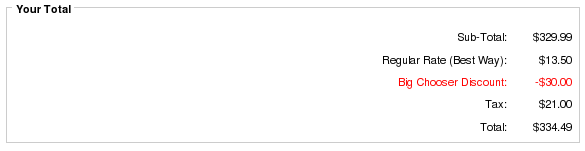
Note that details on how to make the text red are provided in this tip.
Detailed Description:
Conditions and parameters are specified in the setup() method at the bottom of the file
includes/modules/order_total/ot_big_chooser.php
There is no admin interface; you must modify the file directly.
Any number of these discounts may be offered; discount computation will be done in the following order:
- conditions are calculated in the order in which they are specified in setup()
- For each condition, the set_discount() and set_cart_discount() statements are executed first (in the order they were specified), then the set_choice_discount() statements (in the order they were specified)
- Once an item has been discounted, it is not subject to re-discounting, even if rules would permit it
- Items in the cart are discounted from least expensive to most expensive.
To make these discounts visible on your product info page, customize the file
includes/templates/template_default/templates/tpl_product_info_display.php
as described in marketing below in the installation instructions.
This step will display the message you provided in the add_condition()
command:
For every 3 items from open stock cookware, select 2 free gifts ...
The message is displayed to encourage the customer to meet the condition. It is displayed on any item which will contribute to meeting the condition *and* any item which is discounted after meeting the condition.
This step is optional; if you prefer, you can add your own marketing text.
Note that CAT has different semantics in Big Chooser when compared to Better Together. In Better Together, CAT only includes items directly below the specified category (i.e. CAT means "parent category" based on the master_categories_id field in the products table). In Big Chooser, CAT includes all items below the specified category, whether they are directly below or in subcategories.
Men's Clothing (category 3)
     |
     ---->  Shirts (category 5)
     |      |
     |      -------> shirt A
     |               shirt B
     |               shirt C
     ---->  Pants (category 6)
     |      |
     |      -------> pants A
     |               pants B
     |               pants C
     ---->  Shoes (category 7)
            |
            --->  Dress Shoes (category 12)
            |     |
            |     -------> dress shoes A
            |              dress shoes B
            |              dress shoes C
            --->  Casual Shoes (category 18)
                  |
                  -------> casual shoes A
                           casual shoes B
                           casual shoes C
Specifying "Men's Clothing" as a category in Big Chooser will
include all items in Shirts, Pants and Shoes.
Specifying "Shoes" (CAT 7) as a category will include both dress shoes and casual shoes. This cannot be done in Better Together.
Note that "parent category id" is determined using the master_categories_id field from the products table. So if casual shoes A is also linked into a category called "Hot Products," the parent category is still category 18 (Casual Shoes). For more details on category handling in Big Chooser, please see the Category Issues page.
How Discounts are Selected
The basic operation of all my "Buy X, Get Y at a discount" modules is the same:- sort from most expensive to least;
- pick off the most expensive matching item(s) for the condition (the item(s) which must be purchased to get the discount)
- pick off the least expensive matching item(s) to discount
- remove the matching items from further consideration by this module (unless some sort of override exists)
Big Chooser sorts items by price in descending order, then looks for the constraints from the top going down. Once it has found a match, it looks for the discount from the bottom going up. So if the following items are in your cart,
| Product ID | Category ID | Price |
|---|---|---|
| 1 | 12 | $4.00 |
| 5 | 18 | $20.00 |
| 7 | 12 | $5.00 |
| 9 | 12 | $10.00 |
Big Chooser sorts them by price like this:
| Product ID | Category ID | Price |
|---|---|---|
| 5 | 18 | $20.00 |
| 9 | 12 | $10.00 |
| 7 | 12 | $5.00 |
| 1 | 12 | $4.00 |
It then matches constraints from most expensive items to least (top down), and matches discounts from least expensive items to most (bottom up).
If your discount is
   function setup() {
     $this->add_condition("Buy a category 12 item, get a second free", true);
        $this->set_constraint(CAT, 12, 1);
        $this->set_discount(CAT, 12, 1, "%", 100);
   }
then this means that product 9 will be the constraint, and product
1 will be the item which is discounted 100%.
But if your discount is
   function setup() {
     $this->add_condition("Buy a category 12 item, get a category 18 item free", true);
        $this->set_constraint(CAT, 12, 1);
        $this->set_discount(CAT, 18, 1, "%", 100);
   }
then this means that product 9 will be the constraint, and product
5 will be the item which is discounted 100%. Since product 5
is more expensive than product 9, this may not be what you want.
The way to prevent this from happening is to use
condition_price_gte.
This will ensure that the constraint's price is greater than or equal to
the discounted item's price.
   function setup() {
     $this->add_condition("Buy a category 12 item, get a category 18 item free", true);
        $this->set_constraint(CAT, 12, 1);
        $this->condition_price_gte();
        $this->set_discount(CAT, 18, 1, "%", 100);
   }
As items are used as conditions and discounted items, they are no longer
available for subsequent use as conditions or discounted items. So if
your cart contents are this:
| Quantity | Product ID | Price |
|---|---|---|
| 1 | 5 | $20.00 |
| 2 | 8 | $10.00 |
| 1 | 12 | $10.00 |
   function setup() {
     $this->add_condition("Buy one product 5,get a product 8 free", true);
        $this->set_constraint(PROD, 5, 1);
        $this->set_discount(PROD, 8, 1, "%", 100);
   }
you will only get one of product 8 for free. The second product 8 has
no matching product 5.
Discounts are also done "in order" of specification, so if you have,
   // DO NOT DO THIS!
   function setup() {
     $this->add_condition("Buy one product 5,get a product 8 free", true);
        $this->set_constraint(PROD, 5, 1);
        $this->set_discount(PROD, 8, 1, "%", 100);

     $this->add_condition("Buy two product 5, get a product 8 and product 12 free", true);
        $this->set_constraint(PROD, 5, 2);
        $this->set_discount(PROD, 8, 1, "%", 100, PROD, 12, 1, "%", 100);

   }
the first discount will trigger and you will not have two product 5's left.
The correct specification would be to put the larger discount on top.
   function setup() {
     $this->add_condition("Buy two product 5, get a product 8 and product 12 free", true);
        $this->set_constraint(PROD, 5, 2);
        $this->set_discount(PROD, 8, 1, "%", 100, PROD, 12, 1, "%", 100);

     $this->add_condition("Buy one product 5,get a product 8 free", true);
        $this->set_constraint(PROD, 5, 1);
        $this->set_discount(PROD, 8, 1, "%", 100);
   }
Installation Instructions:
- Back up everything! Try this in a test environment prior to installing it on a live shop.
- Copy the contents of the unzipped folder to the root directory of your
shop.
The names of these files reflect a template name of "custom." If you are using a different template name, please change file paths using "custom" to use your template name instead. Note: If you are using Zen Cart 1.5.5 or higher, your template name will be "responsive_classic" if you have not changed it. - Login to Admin and in Modules > Order Total you will see 'Big Chooser Discount' listed along with all the other modules available.
- Click on 'Big Chooser Discount' to highlight the module and click on 'Install'
- Decide on the discounts you wish to use. The easiest way to do this
is to open a shopping cart in another window, and just start adding
discounts to the setup() method of
includes/modules/order_total/ot_big_chooser.phpThe discounts are shown on the second step of checkout in "Your Total" under "Big Chooser Discount." - You may wish to use a less silly name than "Big Chooser Discount."
If so, modify the file
includes/languages/english/modules/order_total/ot_big_chooser.php - If you wish, follow the guidelines in marketing to advertise your discounts.
Optional Installation Instructions:
- I highly recommend Discount Preview with all my discounting modules. Without Discount Preview, your customers cannot see the price reductions they are entitled to until the second page of checkout (checkout confirmation). Obviously this is a disadvantage, particularly for new customers who need to go through the additional step of creating an account before they can see this information. Sometimes seeing is believing, so here's a video showing Discount Preview in action.
Verbiage in add_condition
Pay close attention to the phrase you use to promote the discount where the condition and discount refer to the same category or product. For instance, I do not recommend using verbiage like "buy three, get one free" because it's ambiguous. Rather, use "buy three, get a fourth free" or "buy three, get the least expensive one free" to indicate whether the customer will need to pay full price for two or three items.Other phrases you can use to indicate that the discounted item is in addition to the condition items (which are at full price), are
- "get another"
- "get an additional"
- "get an extra"
Marketing
What good is having cross selling and upselling specials if you don't advertise them?Big Chooser Discounts may be automatically displayed in two places: on the product info page, and on a separate promotional page. We'll talk about the product info page first.
Customize the tpl_product_info_display.php file to advertise your discounts. Copy the file
includes/templates/template_default/templates/tpl_product_info_display.php
into
includes/templates/<YOUR_TEMPLATE>/templates
Then add this block of code to the new copy of
tpl_product_info_display.php:
<?php
require($template->get_template_dir('/tpl_big_chooser_marketing.php',DIR_WS_TEMPLATE,
   $current_page_base,'templates'). '/tpl_big_chooser_marketing.php');
?>
The placement of this code is a matter of personal preference;
try placing it below the product description and adjust to your tastes.
It creates a message on your page that uses the description you
provided in the add_condition():
For every 3 items from open stock cookware, select 2 free gifts ...
Only one div block of text will be produced, with the div id bigChooserDiscountPolicy.
The file
tpl_big_chooser_marketing.php also contains additional print statements which are commented out, but which you may uncomment if desired. These include:
- An indication of whether this product contributes towards reach the condition and/or is discounted after the condition is reached
- The display of additional "supporting" text for the discount that you have added using $this->set_support(). Such text can include links to PDFs, links to products in your cart, links to external pages, or simply descriptive text. This text will be automatically displayed on the Big Chooser Discount promotional page.
Styling this block of text (changing font, color, etc.) is simply a matter of adding to your stylesheet
#bigChooserDiscountPolicy {
   font-size: 200%;
   color: #ff0000;
}
This would give you
For every 3 items from open stock cookware, select 2 free gifts ...
Probably a bit more obnoxious than you would truly want, but you get the idea.
Alternately, you could modify the marketing text template (tpl_big_chooser_marketing.php) and put the text into a fieldset:
The approach to marketing text for Big Chooser is similar to the one used in Better Together or Combination Discounts. It is displayed on product info pages with the following conditions:
- It will not be displayed if that product is constrained out of the discount (unless it is the discounted product).
- It will not be displayed if there are constraints and the product does not meet the constraints (unless it is the discounted product).
- It will always be displayed if it is the discounted product
   $this->add_condition("Buy 5 items of Men's clothing (excl. shoes), get a free product 20", false);
      $this->set_constraint(CAT, 3, 5);
      $this->set_discount(PROD, 20, 1, "%", 100);
then the marketing text will appear on pages for products in category 3 (and subcategories), and the page for product 20,
but not on pages in category 7 (and subcategories).
Note that price based constraints
are not used to filter out marketing text because the final price
of a product may not be known
on the product info page.
The other available marketing vehicle is the Big Chooser Discount promotional page. This page is completely optional; it is not included in the Big Chooser zip archive, but it is a free download from my website for people who have purchased Big Chooser. It creates a new page on your site that looks like this, displaying all discounts and supporting text.
This new page can be accessed via the URL
YOURSITE.com/index.php?main_page=bigchooser_promoA link to this page may be added to the categories sidebox, the site footer, or the main page content for your site. See Promotional Pages for more information and ideas.
Big Buy Now displays a Buy Now button next to any set_support_prod link, as long as the product does not have attributes and may be added from a listing page.
Big Chooser and Discount Preview
Discount Preview makes Big Chooser pop! It shows the discount on the shopping cart page, instead of making your customers wait until the checkout payment page to see their discounts. Here's a screenshot of the shopping cart page on a cart using Discount Preview and Big Chooser - the discount was "Buy 2, get 1 free" for this item. Notice that the Description has been changed to "Monthly Special."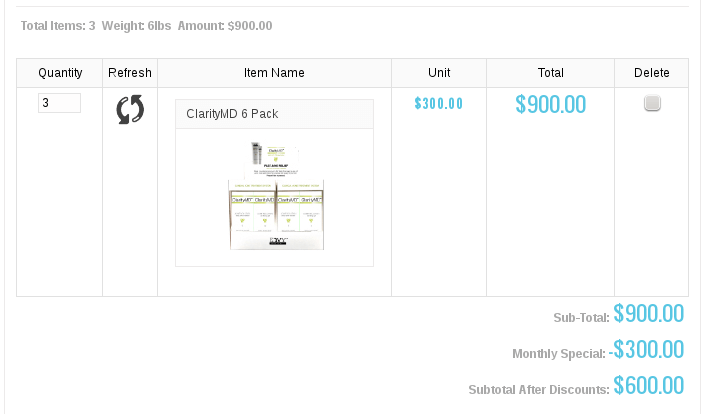
Discount Preview is sold separately. Buy Discount Preview Now!
Notes on Taxes
If you don't use embedded taxes, and don't have a mix of taxable and tax-free products, and don't have a different rate of tax for shipping, please skip this section.
However, if you any of the above apply to you, please read my Notes on Taxes.
Be sure that the sort order for the Tax module (set in Admin->Modules->Order Total->Tax) is greater than the largest order total sort order, so that your taxes are shown after all discounts. 399 is a good value for most stores.
Files
(new)  includes/languages/english/modules/order_total/ot_big_chooser.php
(new)  includes/modules/order_total/ot_big_chooser.php
(new)  includes/templates/custom/templates/tpl_big_chooser_marketing.php
Formal Syntax of Conditions and Parameters
Conditions and Parameters, which are specified in the setup() function of ot_big_chooser.php, are the mechanism for configuring a store's discounts.Conditions
Discounts always begin by specifying a condition. All subsequent parameters (until the next condition) apply to this condition.
$this->add_condition(<description>,<repeatable>);
where:
| description | Is a textual description of the discount. This description is not automatically created the way it is in Better Together or Combination Discounts; it must be added manually. The reason for this is to allow greater flexibility |
| repeatable | is a boolean flag indicating whether to apply the discount only one time (false) or as many times as possible (true). |
Parameters - set_constraint
The set_constraint() command specifies the items which must be present in the cart for the condition to be passed.
$this->set_constraint(<required_purchase_quantity 1>[,<required_purchase_quantity 2>,...,<required_purchase_quantity n>]);
where:
| required_purchase_quantity | is the string PROD, CAT, PRICE, MINPRICE, or MANUF, followed by an identifier (product or category id, product price or manufacturer id), followed by a quantity
<PROD | CAT | PRICE | MINPRICE | MANUF> <product, category or manufacturer identifier or price> <quantity>
|
Parameters - set_choice_constraint
The set_choice_constraint() command specifies the items which must be present in the cart for the condition to be passed.
$this->set_choice_constraint(<count>,<required_purchase 1>,<required_purchase 2>[,...,<required_purchase n>]);
where:
| quantity | is the number of items from this choice the customer must buy; it must be numeric |
| required_purchase | is the string PROD, CAT, PRICE, MINPRICE, or MANUF, followed by an identifier
(product or category id, product price or manufacturer id).
<PROD | CAT | PRICE | MINPRICE | MANUF> <product or category identifier or price>
|
Note quantities are not specified per choice; the quantity is cumulative for all choices in the constraint.
Parameters - set_negative_constraint
The set_negative_constraint() command specifies the items which are excluded from the promotion; they will not be counted towards the condition.
$this->set_negative_constraint(<ignored_purchase 1>[,<ignored_purchase 2>,...,<ignored_purchase n>]);
where:
| ignored_purchase | is the string PROD, CAT, PRICE, MINPRICE or MANUF, followed by an identifier
(product or category id, product price or manufacturer id).
<PROD | CAT | PRICE | MINPRICE | MANUF> <product or category identifier, manufacturer identifier or price>
|
Big Spender users note: The behavior of set_negative_constraint was changed in Big Chooser 1.2.16, to align it with Big Spender. It now only removes the item from consideration as a constraint; the item is a candidate for possible discounting.
Prior to version 1.2.16, Big Chooser's set_negative_constraint command both excluded items from counting towards the condition *and* did not discount these items. This was different from the behavior of set_negative_constraint in Big Spender, which only removes the item from threshold calculation; it does not prohibit it from being discounted.
The set_negative_constraint command was added in version 1.0.4.
Parameters - set_no_discount
The set_no_discount() command specifies the items or categories which should be excluded from any set_discount price reductions in this offer.
$this->set_no_discount(<excluded_purchase 1>[,<excluded_purchase 2>,...,<excluded_purchase n>]);
where:
| excluded_purchase | is the string PROD, CAT, PRICE, MINPRICE, or MANUF, followed by an identifier (product or category id, or product price)
<PROD | CAT | PRICE | MINPRICE | MANUF> <product or category identifier or price>
|
See also set_negative_constraint.
Items listed in the set_no_discount command are not eligible for discounting, even if they otherwise meet the specified constraints. This is useful when set_discount lists a parent category with many subcategories, but a few specific items in the subcategories are excluded from discounting.
The set_no_discount command was added in version 1.2.16.
Parameters - set_discount
The set_discount() command specifies the items or categories whose prices should be reduced if the condition has been met.
$this->set_discount(<discount 1>[,<discount 2>,...,<discount n>]);
where:
| discount | is the string PROD, CAT, PRICE, MINPRICE or MANUF, followed by an identifier
(product or category id, product price or manufacturer id),
followed by a quantity, followed by a percent or dollar sign, followed by an amount
<PROD | CAT | PRICE | MINPRICE | MANUF> <product, category or manufacturer identifier or price> <item count> < "$" | "%" > <discount amount>
The item_count may be specified as "*", meaning "the discount may be taken an unlimited number of times." |
Parameters - set_choice_discount
The set_choice_discount() command specifies that the customer may choose between a series of discounts if the condition has been met.
$this->set_choice_discount(<quantity>,<choice 1>,<choice 2>[,...,<choice n>]);
where:
| quantity | is the number of discounts the customer will receive; it must be numeric |
| choice | is the string PROD, CAT, PRICE, MINPRICE or MANUF, followed by an identifier
(product or category id, product price or manufacturer id),
followed by a percent or dollar sign, followed by an amount
<PROD | CAT | PRICE | MINPRICE | MANUF> <product or category identifier or price> < "$" | "%" > <discount amount>
|
Note quantities are not specified per choice; the quantity is cumulative for all choices. For set_choice_discount, the quantity must be numeric (i.e. "*" is not allowed).
Parameters - set_cart_discount
The set_cart_discount() command specifies the reduction in the total cart price that should be done if the condition has been met.
$this->set_cart_discount(<"$"|"%">, <discount_amount>, [discount_application]);
where:
| discount_amount | is the amount (dollars or percent off) that the cart total will be reduced by. |
| discount_application | defaults to applying the discount to the final cart total, but can be set to CART_DISCOUNT_CONSTRAINTS_ONLY if you only want to discount the items that met the constraints. This allows you to offer a "package discount" by percentage or dollars off. See more details below. |
Advanced feature: most people want the cart discount to apply to the entire cart, but some people wanted the discount to only apply to the items that met the constraints. For these people, the optional 3rd parameter to set_cart_discount may be added, and set to CART_DISCOUNT_CONSTRAINTS_ONLY.
$this->set_cart_discount("%", 25, CART_DISCOUNT_CONSTRAINTS_ONLY);
Doing so will only discount the price of the constraints, not the entire cart.
The discount_application parameter was added in Zen Cart Big Chooser 1.2.14.
The easiest way to understand this is with a series of examples. Suppose you have the items in your cart:
5x product 28  @$5: $25
1x product 29 @$10: $10
1x product 30 @$25: $25
-----------------------
Subtotal:           $60
If you used this offer
 $this->add_condition("Buy product 29 and 30, get 10% off your purchase", false);
     $this->set_constraint(PROD, 29, 1, PROD, 30, 1);
     $this->set_cart_discount("%", 10);
the discount would be 10% of $60, or $6.
If you used this offer
 $this->add_condition("Buy product 29 and 30, get 10% off the pair", false);
     $this->set_constraint(PROD, 29, 1, PROD, 30, 1);
     $this->set_cart_discount("%", 10, CART_DISCOUNT_CONSTRAINTS_ONLY);
the discount would be 10% of $35, or $3.50.
Parameters - set_support
The set_support() command provides additional supporting text to describe your promotion. It is completely optional.
$this->set_support(<text>);
where:
| text | is a text string, which can be plain text or a link |
These strings are displayed on your promotional page, and optionally, on your product info page if you customize the file
includes/templates/YOUR_TEMPLATE/templates/tpl_big_chooser_marketing.php
They can also be shown on your shopping cart and checkout shipping pages
using Big Upsell.
If you wish to add a message providing a link to a product in your discount, look at set_support_prod below.
Parameters - set_support_prod
The set_support_prod() command allows to to display a link directly to a product used in your discount. It's a shortcut for
$this->set_support('<a href="' . zen_href_link(zen_get_info_page(prid), 'products_id='. prid) . '">' .
     zen_get_products_name(prid) .  '</a>');
$this->set_support_prod(<prid>);
where:
| prid | is the product id |
| text | is optional anchor text, if you do not wish to use the product's name. |
These strings are displayed on your promotional page, and optionally, on your product info page if you customize the file
includes/templates/YOUR_TEMPLATE/templates/tpl_big_chooser_marketing.php
They can also be shown on your shopping cart and checkout shipping pages
using Big Upsell.
In addition, Big Buy Now (sold separately) displays a Buy Now button next to any set_support_prod link, as long as the product does not have attributes and may be added from a listing page.
The set_support_prod command was added in version 1.2.17.
Parameters - set_deal_id
The set_deal_id() command allows you to give a condition and its associated discount an id, to allow later discounts to be filtered out if this discount has been run using set_no_double_dip. This parameter is optional and is only needed for discounts which preclude other discounts.
$this->set_deal_id(<nnnn>);
where:
| nnnn | is some number which identifies this condition or group of conditions. |
Parameters - set_no_double_dip
The set_no_double_dip() command allows you to give a specify that if a certain discount has already been run, the current discount should be skipped. This parameter is optional and is only needed for discounts which preclude other discounts.
$this->set_no_double_dip(<nnnn>);
where:
| nnnn | is the id which was used in a set_deal_id() command for one or more previous conditions. |
Multiple set_no_double_dip commands may be used as required.
See also one_discount_only() below.
Parameters - one_discount_only
The one_discount_only() command allows you to stop discounting after the first discount is granted. This saves you from having to set deal_id and do set_no_double_dip through a number of related discounts if you wish to grant only one.
$this->set_one_discount_only();
The one_discount_only command was added in version 1.2.18.
Parameters - set_cart_free_shipping
The set_cart_free_shipping() command specifies that the order shipping charge be added to the Big Chooser discount. By default, any shipping method will be discounted, but if only specific methods are to be discounted, they can be added as parameters.
$this->set_cart_free_shipping([<shipping method 1>,...,<shipping method n>]);
where:
| shipping_method | (if specified) is the shipping method which will be rebated.
Shipping methods should be specified using their class name
('ups', 'flat', 'usps', etc.)
|
Notes:
- This command is only supported in Zen Cart 1.3.8 and above. Additionally, filtering shipping methods is not compatible with Ceon Advanced Shipper; if you use this mod, you must discount ALL shipping methods.
- Only ONE set_cart_free_shipping() or set_cart_discount_shipping() command will apply to the order, and they are processed in the order specified in the setup function.
- Discount Preview will not show this discount until a shipping method has been selected, and will show the discount calculated against the last amount selected.
Parameters - set_cart_discount_shipping
The set_cart_discount_shipping() command specifies that a portion of the order shipping charge be added to the Big Chooser discount. By default, any shipping method will be discounted, but if only specific methods are to be discounted, they can be added as parameters.
$this->set_cart_discount_shipping("$|%", $amount [,<shipping method 1>,...,<shipping method n>]);
where:
| amount | is percent or dollar amount to be of the discount, up to the total price of shipping |
| shipping_method | (if specified) is the shipping method which will be rebated.
Shipping methods should be specified using their class name
('ups', 'flat', 'usps', etc.)
|
Notes:
- This command is only supported in Zen Cart 1.3.8 and above. Additionally, filtering shipping methods is not compatible with Ceon Advanced Shipper; if you use this mod, you must discount ALL shipping methods.
- The amount is capped at the total cost of shipping. Specifying
$this->set_cart_discount_shipping("$", 20);when shipping is $10 will result in a $10 discount. - Only ONE set_cart_free_shipping() or set_cart_discount_shipping() command will apply to the order, and they are processed in the order specified in the setup function.
- Discount Preview will not show this discount until a shipping method has been selected, and will show the discount calculated against the last amount selected.
Parameters - set_group
The set_group() command specifies that the discount is only available to members of the listed group(s).
$this->set_group(<group 1>[,<group 2>,...,<group n>]);
where:
| group | is the group eligible to receive the discount |
Parameters - include_condition_items
The include_condition_items() command allows you to include items that allowed you to reach the condition in the discount calculation. Normally these items would be excluded.
$this->include_condition_items();
The include_condition_items command was added in version 1.0.2.
Parameters - set_extra_discount
Advanced usage; only required for discounts which use include_condition_items, where the conditions don't match the discounts.The set_extra_discount command extends the set_discount command when used with include_condition_items(). Normally, in discounts which use include_condition_items(), the discounts should match the conditions (because items are removed from contention for further discounting based on their presence in the condition). The set_extra_discount command allows you to add extra discounts and still have them accounted for properly and not double-discounted.
$this->set_extra_discount(<discount 1>[,<discount 2>,...,<discount n>]);
parameters are as per set_discount.
The set_extra_discount command was added in version 1.0.3.
Parameters - set_extra_choice_discount
Advanced usage; only required for discounts which use include_condition_items, where the conditions don't match the discounts.The set_extra_choice_discount command extends the set_choice_discount command when used with include_condition_items(). Normally, in discounts which use include_condition_items(), the discounts should match the conditions (because items are removed from contention for further discounting based on their presence in the condition). The set_extra_choice_discount command allows you to add extra discounts and still have them accounted for properly and not double-discounted.
$this->set_extra_choice_discount(<quantity>,<choice 1>,<choice 2>[,...,<choice n>]);
parameters are as per set_choice_discount. Note quantities are not specified per choice; the quantity is cumulative for all choices. For set_extra_choice_discount, the quantity must be numeric (i.e. "*" is not allowed).
The set_extra_choice_discount command was added in version 1.0.3.
Parameters - set_coupon
Require a coupon in order to use the discount.
$this->set_coupon(<coupon-code>);
Note: To prevent interoperability problems with the rest of Zen Cart, I recommend that coupons created for use with Big Chooser either use a Coupon Amount of 0.01 or more, or set the Free Shipping checkbox, unless you make the additional code changes shown in my Zero Dollar Coupon changes post.
If you create a coupon with Coupon Amount 0.00 (and no free shipping), without my Zero Dollar Coupon changes, then the native Uses per Coupon and Uses per Customer functionality will not work properly.
If you do wish to use a coupon with no value, you can do so by applying my Zero Dollar Coupon changes. These are changes to
includes/modules/order_total/ot_coupon.php, which must be made in order for coupons with a value of under
$0.01 to work.
The set_coupon command was added in version 1.0.4.
For a more detailed explanation of how to use Coupons with Big Spender and Big Chooser, please see my Zen Cart Coupon Extensions page.
Parameters - set_auto_coupon
Require an automatically generated coupon (created by Spender AutoCoupon or Chooser AutoCoupon) in order to use the discount.
$this->set_auto_coupon(<new-coupon-name>);
Please see my Zen Cart Coupon Extensions page for an explanation of how you might use this feature.
The set_auto_coupon command was added in version 1.2.1.
Parameters - set_constraint_regprice
Require items counted towards the constraint not be on sale or special.
$this->set_constraint_regprice();
The set_constraint_regprice command was added in version 1.2.5.
Parameters - set_wholesale_level
The set_wholesale_level() command specifies that the discount is only available to members of the listed wholesale level(s), as defined by the Dual Pricing mod. (Please note that I do not support the Dual Pricing mod; this is just a way to access the data which it uses. Support for dual pricing is on the Zen Cart forum.)
$this->set_wholesale_level(<wholesale 1>[,<wholesale 2>,...,<wholesale n>]);
where:
| wholesale | is the wholesale level which is not eligible to receive the discount |
The set_wholesale_level command was added in version 1.2.9.
Parameters - set_no_group
The set_no_group() command specifies that the discount is not available to members of the listed group(s).
$this->set_no_group(<group 1>[,<group 2>,...,<group n>]);
where:
| group | is the group which is not eligible to receive the discount |
The set_no_group command was added in version 1.2.10.
Parameters - set_constraint_attrfilter
The set_constraint_attrfilter() command specifies that the constraint items must also have the listed attributes set to the specified values.
$this->set_constraint_attrfilter(<attribute id 1>,<attribute value 1>[,
...
<attribute id n>,<attribute value n>]);
where:
| attribute id | is the id of the attribute you want set |
| attribute value | is the value of the attribute you want set |
To get these numbers, look in Admin > Catalog > Option Name Manager and Admin > Catalog > Option Value Manager to get the ID and Value for the attributes you want.
Another way to do this is to view the source of your product info page and look at the way the attribute is set up. Here's an example for a dropdown box which allows you to choose USB or PS/2.
If you were to do a view source on this, here's what it would look like:
<h4 class="optionName back"><label class="attribsSelect" for="attrib‐3">Model</label></h4>
<div class="back">
<select name="id[3]" id="attrib-3">
  <option value="9">USB ( +$6.00 )</option>
  <option value="8">PS/2</option>
</select>
So to only give the discount for USB, you would use
$this->set_constraint_attrfilter(3,9);
The following attribute types may be used: dropdown, radio button, checkbox.
If multiple attribute id/value pairs are specified, only one of them needs to be set for an item to be considered to meet the constraint. For example, if you specify id 4, value 9 and id 12, value 7, then any item with either attribute id 4, value 9 OR id 12, value 7 will pass this check.
The set_constraint_attrfilter command was added in version 1.2.11.
Parameters - set_discount_attrfilter
The set_discount_attrfilter() command specifies that the discount items must also have the listed attributes set to the specified values.
$this->set_discount_attrfilter(<attribute id 1>,<attribute value 1>[,
...
<attribute id n>,<attribute value n>]);
where:
| attribute id | is the id of the attribute you want set |
| attribute value | is the value of the attribute you want set |
To get these numbers, look in Admin > Catalog > Option Name Manager and Admin > Catalog > Option Value Manager to get the ID and Value for the attributes you want. See the example above in set_constraint_attrfilter for instructions.
The following attribute types may be used: dropdown, radio button, checkbox.
If multiple attribute id/value pairs are specified, only one of them needs to be set for an item to be considered to be discountable. For example, if you specify id 4, value 9 and id 12, value 7, then any item with either attribute id 4, value 9 OR id 12, value 7 will pass this check.
Note: If you are using set_extra_discount, the discount_attrfilter also applies to these items.
The set_discount_attrfilter command was added in version 1.2.11.
Parameters - condition_price_gte
The condition_price_gte() command allows you to ensure that the conditions have a price which is greater than or equal to the discounted item(s).
$this->condition_price_gte();
This feature was added in Big Chooser 1.2.20.
Major Versions
- Version 1.4 -02/12/22 - PHP8
- Version 1.3 -12/21/18 - PHP7
- Version 1.2.20 -12/01/13 - Added condition_price_gte
- Version 1.2.19 -08/01/13 - Fixed bug in set_negative_constraint
- Version 1.2.18 -07/01/13 - Add one_discount_only
- Version 1.2.17 -03/01/13 - Add set_support_prod and support for Big Buy Now
- Version 1.2.16 - 12/01/12 - Added set_no_discount, made set_negative_constraint consistent with Big Spender behavior, Code Inspection.
- Version 1.2.15 - 10/15/12 - Fix to issue with set_constraint_attrfilter.
- Version 1.2.14 - 06/01/12 - Added CART_DISCOUNT_CONSTRAINTS_ONLY
- Version 1.2.13 - 05/01/12 - Added set_cart_free_shipping, set_cart_discount_shipping commands
- Version 1.2.12 - 02/01/12 - Added VAT setting for tax recalculation
- Version 1.2.11 - 01/01/12 - Added set_constraint_attrfilter, set_discount_attrfilter.
- Version 1.2.10 - 03/26/10 - Added set_no_group.
- Version 1.2.9 - - Added set_wholesale_level.
- Version 1.2.8 - 10/30/10 - Ordered include_condition discounts by price.
- Version 1.2.7 - 05/11/10 - Ordered set_choice_constraint by price, instead of by specified order.
- Version 1.2.6 - 04/30/10 - Resolved "*" issues with quantities
- Version 1.2.5 - 12/01/09 - Added set_constraint_regprice
- Version 1.2.4 - 03/22/09 - Fixing issues introduced in 1.2.3
- Version 1.2.3 - 02/22/09 - Issues with unlimited iterations on set _discount, set_extra_discount
- Version 1.2.2 - 12/17/08 - Issues with set_extra_discount
- Version 1.2.1 - 10/04/08 - Added set_auto_coupon
- Version 1.2.0a - 09/13/08 - Resolved set_constraint/set_choice_constraint issue described in this blog post.
- Version 1.2.0 - 08/20/08 - Added MANUF
- Version 1.0.4 - 02/10/08 - Added set_coupon
- Version 1.0.3 - 01/26/08 - Added set_extra_discount, set_extra_choice_discount
- Version 1.0.2 - 01/15/08 - Added include_condition_items
- Version 1.0.0 - 01/06/08 - First release
Interoperability
- If you are using Zen Cart 1.5.x and Edit Orders 4.x along with
Big Chooser,
you must make the following change:
Create a file calledadmin/includes/functions/extra_functions/big_chooser_lookups.php
It should contain this code:<?php if (! function_exists('zen_get_products_manufacturers_id')) { function zen_get_products_manufacturers_id($product_id) { global $db; $product_query = "select p.manufacturers_id from " . TABLE_PRODUCTS . " p where p.products_id = '" . (int)$product_id . "'"; $product =$db->Execute($product_query); return $product->fields['manufacturers_id']; } }
Bugs
-
For recalculate tax = Standard, carts using Edit Orders 4.3.1 will need to change the process() function
in the code file in
includes/modules/order_totalas follows:
Changeif ($this->calculate_tax != 'VAT') { $order->info['total'] -= $od_amount[$key]; }toif (!IS_ADMIN_FLAG) { if ($this->calculate_tax != 'VAT') { $order->info['total'] -= $od_amount[$key]; } } - The initial release of set_constraint_attrfilter failed to filter on the attribute specified; this bug was fixed in Big Chooser version 1.2.15.
- Users wishing to sort native discounts (such as Coupons or Group Discounts) after my discounts, with tax recalculation, should look at this page.
- Big Chooser versions prior to 1.2.0a had a defect in handling certain set_constraint and set_choice_constraint parameters which is described in this blog post.
FAQ
Q: Why is there an Big Chooser in the first place?A: To better facilitate a more powerful model for discounting based on product choices than can be created by modifying Better Together.
Q: I'm using a category based discount and it's not working!
A: There are several possible root causes. Please see the Category Issues page for solutions.
Q: Why does using overlapping categories for my condition and discounted item not work?
A: Having overlapping category specifications for the conditions and discounting issues can cause issues. This issue (and some remedies) is discussed on this page.
Q: Why do you have to add PHP code to setup()? Why didn't you put this in the Admin panel?
A: Although it's a bit tedious to have to manually code the associations, it maximizes the module's flexibility. If you need help with the setup logic, I will be happy to do it for you for a small fee, but first look at the many examples in this page.
Q: Can I start and stop my Big Chooser discounts on certain dates in the future?
A: Please see Timing Discounts in Zen Cart for an explanation of how to do this.
Q: How do I find out the manufacturer id so I can use MANUF?
A: See Manufacturers in Zen Cart for some techniques.
Q: I would like my discounts to show up in the shopping cart. Why don't they?
A: The way the Order Total modules work is that they show up at checkout time. However, if you require the discounts to show up in the shopping cart, you may wish to purchase the Discount Preview module for $30.
Alternately, you may indicate that you have a Big Chooser discount policy by adding to TEXT_INFORMATION in
includes/languages/english/shopping_cart.php, and inform the user that Big Chooser discounts will be
calculated (and visible) at checkout time.
Additionally, changing SUB_TITLE_SUB_TOTAL in the same file to
something like 'Sub-Total BEFORE Discount' will emphasize the fact that
a discount will be added at checkout time.
Q: How can I present my Big Chooser discounts on the product page?
A: Create your custom template if you haven't already done so. Then customize the file
includes/templates/template_default/templates/tpl_product_info_display.php
Follow the directions in
marketing in the installation instructions
for details on the changes that are required.
Q: I like the message on my product page, but I'd like it to have a link in it. The condition for my discount is "two items from hardware," which corresponds to category 1.
A: You can create a link in your message.
         $this->add_condition('Buy two items from <a href="index.php?main_page=index&cPath=1">hardware</a>,
             get two movies free', false);
This will show up on your product info page as
'Buy two items from hardware, get two movies free'
Be sure to construct your link WITHOUT a zenid. Do not just copy and paste
from your address bar!
Q: What is the difference between MINPRICE and PRICE?
A: PRICE means the price must be exactly equal to the specified value. MINPRICE means the price must be greater than or equal to the specified value. So using MINPRICE in a set_constraint means that only items of this price or greater count in the condition calculation. Using MINPRICE in a set_discount() or set_choice_discount() means that items at the specified price or greater will match the rule.
Q: If I specify multiple conditions with the same discounts, will Big Chooser double discount my products?
A: Each product in the customer's cart will only be discounted once by Big Chooser. Specifying "repeatable" for a condition or an item count greater than 1 for set_discount will discount multiple times only if multiple items exist; it will not cause the same item to be discounted multiple times.
Q: In what order are the discounts evaluated?
A: The conditions are evaluated in the order they are entered, with the set_discount() parameters executed first (in the order they were entered), followed by the set_choice_discounts (in the order they were entered). If repeatable is specified, a discount is run as many times as possible (as long as products are not discounted multiple times). If a condition uses no_double_dip, and other conditions with the specified ids have already been passed and discounted, that condition's discounts will not be run.
All discounts are run unless a discount is precluded because of a set_no_double_dip() command. Items are discounted in the order least expensive to most expensive.
Q: OK, I have the Big Chooser information on my product page, but my customers can't figure out that the discount isn't visible until checkout time
A: Add some explanatory text to the discountPolicy information you created above. This way it will show up every time there is Big Chooser information on a page. Alternately, you may purchase the Discount Preview module, or you may also add text to the shopping cart page to indicate that Big Chooser discounts will show up at checkout time as discussed above.
Q: I operate a multilingual shop. How can I avoid putting my descriptions in ot_big_chooser.php?
A: If you run a multilingual shop, then instead of putting the string in the add_condition() command directly, create the file
includes/languages/english/extra_definitions/ot_conditional_defs.php and put your definitions there as PHP defined strings.
Here's an example:
<?php
  define('CONDITIONAL_MOVIE_DISCOUNT', "Buy movies A, B and C, get 10% off your total");
?>
Then, in ot_big_chooser.php, do
$this->add_condition(CONDITIONAL_MOVIE_DISCOUNT, false);
Q: I want to avoid hardcoding product and category names. How can I do this?
A: To make Zen Cart specify the name, rather than hardcoding it, use the zen_get_category_name() and zen_get_products_name() functions. Change this:
 $this->add_condition("Buy any three DVD movies, get a free Blade Runner", false);
     $this->set_choice_constraint(3, CAT, 3);
     $this->set_discount(PROD, 5, 1, "%", 100);
to this:
 $this->add_condition("Buy any three " . zen_get_category_name(3, $_SESSION['languages_id']) .
       ", get a free " . zen_get_products_name(5), false);
     $this->set_choice_constraint(3, CAT, 3);
     $this->set_discount(PROD, 5, 1, "%", 100);
Q: How do I put a link in my supporting text?
A: To put an external link, use
$this->set_support('<a href="articles/Sample_PDF.pdf">Sample PDF document</a>');
(single quotes around the entire string and double quotes around the
href parameter or vice versa.)
For a link to a category (say category 17), use
$this->set_support('Here is our <a href="index.php?main_page=index&cPath=17">hardware</a> category');
For a link to a product (say product 9), use
$this->set_support('Here is our <a href="index.php?main_page=product_info&products_id=9">widget</a> product');
If you have multiple product types in your cart, you can make this more general by using
$this->set_support('<a href="' . zen_href_link(zen_get_info_page(9), 'products_id=9') . '">widget</a> product');
(If you are using Big Chooser 1.2.17 or above, you can take advantage of the
set_support_prod command as a shortcut for this.)
Q: How can I display images? Can I use set_support to display images?
A: Absolutely!
$this->set_support('<img src="images/my_image.jpeg" />');
Q: Where's Checkout Candy for Big Chooser?
A: The complexity of the specification mechanism for Big Chooser makes it very difficult to create a workable Checkout Candy algorithm. Instead, I created Big Upsell.
Q: When I use PROD, it works, but I can't seem to get CAT to work. Why?
A: There are several possible root causes. Please see the Category Issues page for solutions.
Q: Why is there a set_extra_discount and set_extra_choice_discount?
A: You only need to worry about these commands if you have a discount which uses include_condition_items, and you only have to worry about this if you have a "quantity discount" style offer where the products which helped the customer meet them condition are themselves discounted. If your discount is two for one, buy 2 get 1 free, etc. you don't need to worry about these commands.
Q: How can I make a Big Chooser offer dependent on a coupon code?
A: Please see my Zen Cart Coupon Extensions page for an explanation of how you might use this feature.
Q: All these rules and parameters and combinations make my head hurt. Will you configure this for me?
A: Naturally. Contact me with your requirements for a quote.

I charge a fee of $60 for Big Chooser.
Buy Big Chooser!
The fee covers software only; installation is extra if you require help.
The fee covers software only; installation is extra if you require help.