 eCommerce with Zen Cart!

Zen Cart Discount Preview
A Zen Cart™ mod which allows you to display order total discounts on the shopping cart page (and in the shopping cart sidebox, if desired). In this way, discounts which are normally not visible until the second page of checkout are visible earlier.Works with my Better Together and Quantity Discounts contributions, the built-in Zen Cart Group Discount module, and my Discount Chooser, Discount Spender, BOGO Discount, Combination Discounts, Big Spender, Big Chooser, Manufacturer Discount, Case Discounts, Table Discounts, and Frequency Discounts extensions.
Note that Discount Preview does not support Newsletter Discount. As an alternative, see this tip in the MailChimp installation page.
Relevance: Zen Cart™ 1.5.x. Please specify your Zen Cart version when ordering.
Current Version: 1.15 (for Zen Cart 1.5.x), 1.15_subtotal (for Zen Cart 1.5.x) (version history)
Support Thread: My commercial software is not supported on the Zen Cart forum. Please email me questions instead.
Installed Cost: $200.00 (Professional installation by That Software Guy)

Would you like to ask me questions before buying? I'm happy to help likely purchasers make the right decision. Please use my contact form.
See it Live: Go to my demo shop and add ten of any item to your cart (excluding gift certificates). You will immediately see the discount because of Discount Preview. Without Discount Preview, the discount would not be visible until the second page of checkout.
You can also see this in the Discount Preview Video:
Bugs: click here
Incompatibilities: This software will not work with Ajax add-to-cart or Ajax checkout mods that do not reload the page when changing the cart contents or checking out. Please do not order this software if you are using these mods.
This software will not display a discounted price in the header if you are using a mod to display the shopping cart total in the header. I can modify it to do this if you purchase installation, but it won't do it by default since displaying a cart summary in the header is a modification and not part of Zen Cart.
Screenshots: See Discount Preview in the wild! Discount Preview Styling can be done to match your template.
Overview:
This mod permits customers to preview the order total discounts they will receive from the built-in Group Discount module, as well as from the Better Together and Quantity Discounts contributions and the Discount Chooser, Discount Spender, Combination Discounts, Big Spender, Big Chooser, BOGO Discount, Manufacturer Discount, Table Discounts, Case Discounts, and Frequency Discounts extensions. You may preview whatever combinations of discounts is configured for your shop.Let's look at three example screenshots of the shopping cart page, assuming you have a Better Together Discount of "Buy the keyboard, get the mouse free."
Regular Shopping Cart Page
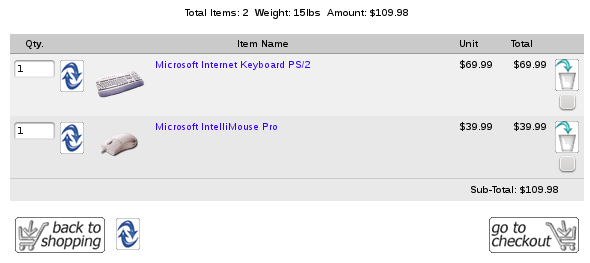
Although both the keyboard and the mouse are in the cart, it's not clear to your customer that the mouse is actually free.
Shopping Cart Page with Discount Preview
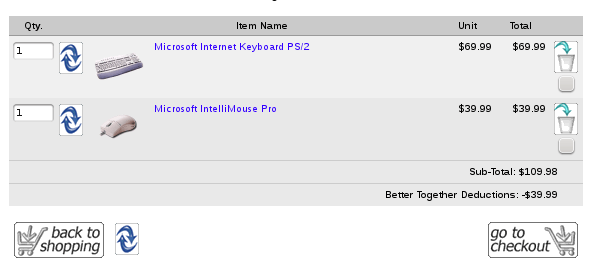
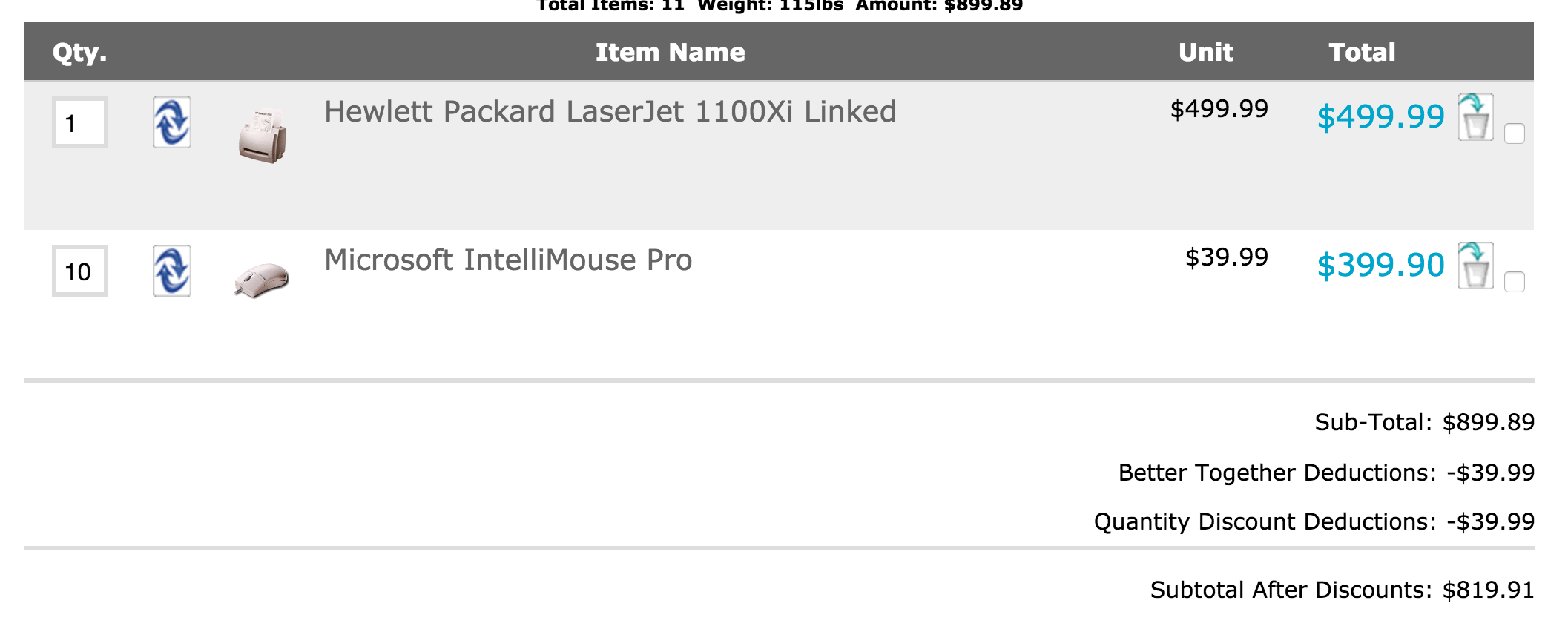
This is better! It shows the discount prior to them checking out. This way they won't think there's something wrong or they didn't understand the discount.
Shopping Cart Page with Discount Preview AND Revised Subtotal
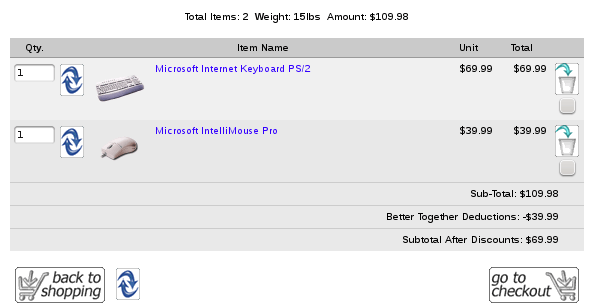
Some people prefer this type of layout, where the subtotal is recomputed after the discount. It's your choice.
There are many other examples of Discount Preview Styling that my clients have sent me.
Shopping Cart Sidebox With Discount Preview Extension
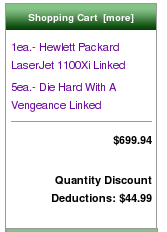
The discounts are shown as line items below the subtotal on the shopping cart page. The summary computation is optional for a small additional fee of $5. Initial versions didn't have it, since these line items are designed to appear the way they will on page two of the checkout, but enough people asked for it that I added it as a feature.
The money I make from Discount Preview helps fund the work I do on free software, such as Quantity Discounts and Better Together.
Installation Instructions:
- Back up everything! Try this in a test environment prior to installing it on a live shop.
- Copy the contents of the unzipped folder to the root directory of your
shop.
The names of these files reflect a template name of "custom." If you are using a different template name, please change file paths using "custom" to use your template name instead. Note: If you are using Zen Cart 1.5.5 or higher, your template name will be "responsive_classic" if you have not changed it. - If you use the Shipping Estimator feature to display an estimate of
shipping costs in the cart
(i.e. 2= Display as Listing on Shopping Cart Page), you MUST change the file
includes/modules/shipping_estimator.php.Look for a line that saysrequire(DIR_WS_CLASSES . 'order.php');and change this torequire_once(DIR_WS_CLASSES . 'order.php');(Note that if you are using Ajax Shopping Cart by Numinix, you will have to make the same change inincludes/modules/ac_shipping_estimator.php- as well as many other changes to the files inincludes/modules/YOUR_TEMPLATEto make the display work.)
You will know if you have the Shipping Estimator enabled by checking Admin > Configuration > Shipping Estimator Display Settings for Shopping Cart. - If you have also ordered
Checkout Candy or
Checkout Candy for Combination Discounts
from me, you will have to merge the files
   includes/templates/custom/templates/tpl_shopping_cart_default.php

includes/templates/custom/css/shopping_cart.css - As of version 1.12: If you are still using a non-responsive template, after installing the files under "includes", cd to the non_responsive_template directory and install that set of files.
- The shopping cart sidebox will not display the discount information when the shopping cart page is being displayed. If you use the shopping cart sidebox, you must configure your cart not to displayed this sidebox on the shopping cart page. Go to Admin > Configuration > Layout Settings > Shopping Cart Box Status, and set this value to 2.
Installation Problems:
The most common installation problems for this module are as follows:- Forgetting to rename the folder from
includes/modules/customtoincludes/modules/YOUR_TEMPLATEif your template is not named "custom" - If you see the message that looks something like,
"Fatal error: Cannot redeclare class order in /var/www/web4/web/includes/classes/order.php on line 20"
you need to look for statements that dorequire(DIR_WS_CLASSES . 'order.php');
and change them torequire_once(DIR_WS_CLASSES . 'order.php');
This must be done in the following places:includes/modules/shipping_estimator.phpincludes/modules/payment/paypalwpp.php(if you are using PayPal Website Payments Pro).
- Got a blank page? Review the guidelines for Debugging a blank page in Zen Cart
- Are you using embedded taxes (such as a VAT)?
First of all, make sure the discount is correct on the
checkout payment page if you have not already done so.
If it is not, please read my Notes on Taxes. Once you have this correct, go back to Discount Preview, and
make these changes:
- Edit
includes/templates/custom/templates/tpl_shopping_cart_default.phpand look for the 2 blocks that say "UK VAT". Uncomment them. (Note that the first "UK VAT" block in each file assumes that your default class id is 1; if it is not, change the first parameter in the call to zen_get_multiple_tax_rates accordingly.) - Make the same changes to
includes/templates/custom/sideboxes/tpl_shopping_cart.php - I have seen one case where logging in but instead of checking out,
going back to the shopping cart page, causes
the discount to be displayed without tax.
Please test this case, which is an unusual but not impossible workflow.
If this happens to you,
change the first UK VAT block in both files noted above to:
 // build tax groups for UK VAT people who have embedded taxes
 if ($order->info['tax'] == 0) {
   $order->info['tax_groups'] = array();
   if (isset($_SESSION['customer_zone_id'])) {
      $zone = $_SESSION['customer_zone_id'];
      $country_id = $_SESSION['customer_country_id'];
   } else {
      $zone = -1;
      $country_id = -1;
   }
   $order->info['tax_groups'] = zen_get_multiple_tax_rates(1,$country_id,$zone);
- Edit
-
If you are using Zen Cart 1.5.5 with the new Responsive Template,
version 1.12 (with or without recalculated subtotal) has the
updated CSS for you.
It looks like this:
Tips
- If you've never installed a Zen Cart mod before, please read my Guide to Mod Installation on Zen Cart.
- IMPORTANT! If you are using Quantity Discounts, and you're
using the
marketing suggestions
on the product info page, please be sure you have the latest code:
<?php
  $value = "ot_quantity_discount.php";
  include_once(zen_get_file_directory(DIR_WS_LANGUAGES . $_SESSION['language'] .
          '/modules/order_total/', $value, 'false'));
  include_once(DIR_WS_MODULES . "order_total/" . $value);
  $discount = new ot_quantity_discount();
  echo '<div class="content" id="discountPolicy">';
  echo '<h2>' . STORE_POLICY . '</h2>';
  echo $discount->get_html_policy();
  echo '<br /></div>';
?>
(i.e. both "include" statements should be "include_once")
- To place a message at the top of the shopping cart page near the undiscounted
total, edit the file customize the file
includes/languages/english/shopping_cart.php, and set TEXT_INFORMATION to something like "See bottom of page for discount information." -
If you use the shopping cart sidebox, you should define the following new
CSS class in includes/templates/custom/css/stylesheet.css
.cartBoxDiscount {
        text-align: right;
        font-weight: bold;
        }
This is how your discount information will appear in the shopping_cart sidebox.
-
If you have any problems after installing this mod, the first thing you
should do is delete
includes/templates/custom/sideboxes/tpl_shopping_cart.php
Although this works well with a freshly installed cart,
it is possible that the logic in this file will not interoperate with
other modifications you have made. You may need to turn off the
shopping cart sidebox or simply use some text in here telling the customer
to go to the shopping cart page to see discount information.
The next tip describes how to do this.
-
If you are using the shopping cart sidebox
but would prefer not to indicate the amount of the discount
(or have interoperability problems as described above),
customize the file
includes/templates/template_default/sideboxes/tpl_shopping_cart.php, copying it toincludes/templates/custom/sideboxes/tpl_shopping_cart.phpAt the bottom of the file, right before the line$content .= '</div>';
insert the line$content .= CART_INFORMATION_SIDEBOX;
If you have used CSS styling in the main page of shopping_cart.php, you can make the sidebox look the same by using this line instead:$content .= '<div id="cartInstructionsDisplay" class="content">'; $content .= CART_INFORMATION_SIDEBOX; $content .= '</div>';
CART_INFORMATION_SIDEBOX is a string you have defined in includes/languages/english/extra_definitions/discount_preview.php like this:define('CART_INFORMATION_SIDEBOX','Discounts displayed in shopping cart');
- Want to show off your discounts even more using red lettering, yellow background or some other effect? See my Highlighting your Discounts tip.
Showing the revised subtotal
Want see the subtotal after discounts? Some people like this and others don't, so I make it optional. Just ask if you want it.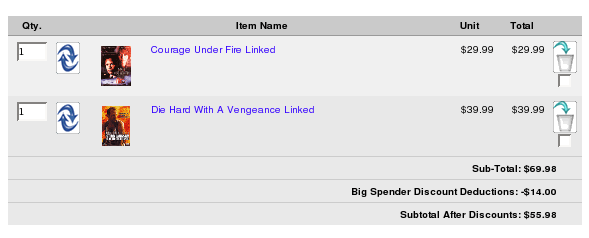

Major Versions of Discount Preview with Subtotal
- 1.15_subtotal 02/12/22 Updated for PHP 8
- 1.14_subtotal 01/17/21 Updated for Zen Cart 1.5.7
- 1.13_subtotal 12/20/18 Updated for PHP 7
- 1.12_subtotal 04/03/16 Updated for Zen Cart 1.5.5
- 1.11_subtotal 10/01/15 Added Free Gift Spender, don't display sidebox on account_history_info
- 1.10_subtotal 05/01/13 Added Case Discounts, Free Gift Chooser.
- 1.3.9_9_subtotal 09/01/12 Added BOGO Discount.
- 1.3.9_8_subtotal 04/29/11 Added Manufacturer Discount.
- 1.3.8_8_subtotal 04/29/11 Added Manufacturer Discount.
- 1.3.9_7_subtotal 09/05/10 Fixed Account History Info page
- 1.3.8_7_subtotal 09/05/10 Fixed account history info page issue
- 1.3.9_6_subtotal 04/25/10 Upgraded for 1.3.9
- 1.3.8_6_subtotal 04/02/10 Added Table Discounts
- 1.3.8_5_subtotal 11/30/09 Added Frequency Discount
- 1.3.8_4_subtotal 10/07/08 Did not get group discount fix in 1.3.8_2
- 1.3.8_3_subtotal 09/27/08 Bugs in Big Spender, Big Chooser in subtotal
- 1.3.8_2_subtotal 05/13/08 fix to group discount issue
- 1.3.8_1_subtotal 01/31/08 Subtotal added in
- 1.3.8_1 12/24/2007 - Upgrade to 1.3.8
- 1.3 12/07/2007 - Added Big Chooser
- 1.2 08/26/2007 - Added Big Spender
- 1.1 04/07/2007 - Added Combination Discounts
- 1.0 10/25/2006 - First Release for 1.3.7
Major Versions of Discount Preview
- 1.15 02/12/22 Updated for PHP 8
- 1.14 01/17/21 Updated for Zen Cart 1.5.7
- 1.13 12/20/18 Updated for PHP7
- 1.12 04/03/16 Updated for Zen Cart 1.5.5
- 1.11 10/01/15 Added Free Gift Spender, don't display sidebox on account_history_info.
- 1.10 05/01/13 Added Case Discounts, Free Gift Chooser.
- 1.3.9_9 09/01/12 Added BOGO Discount.
- 1.3.9_8 04/29/11 Added Manufacturer Discount.
- 1.3.8_8 04/29/11 Added Manufacturer Discount.
- 1.3.9_7 09/05/10 Fixed Account History Info page
- 1.3.8_7 09/05/10 Fixed account history info page issue
- 1.3.9_6 04/25/10 Upgraded for 1.3.9
- 1.3.8_6 04/02/10 Added Table Discounts
- 1.3.8_5 11/30/09 Added Frequency Discount
- 1.3.8_4 10/07/08 Did not get group discount fix in 1.3.8_2
- 1.3.8_3 09/27/08 Bugs in Big Spender, Big Chooser in subtotal
- 1.3.8_2 05/13/08 fix to group discount issue in 1.3.8
- 1.3.8_1 12/24/2007 - Upgrade to 1.3.8
- 1.3 12/07/2007 - Added Big Chooser
- 1.2 08/26/2007 - Added Big Spender
- 1.1 04/07/2007 - Added Combination Discounts
- 1.0 10/25/2006 - First Release for 1.3.7
Bugs
-
All versions prior to 11: if you use the shopping cart sidebox, you should make this change.
Edit the fileincludes/modules/sideboxes/YOUR-TEMPLATE-NAME/shopping_cart.php(Copy it from includes/modules/sideboxes if it doesn't already exist)
Above the lineif ($show_shopping_cart_box == true) {add this blockif ($show_shopping_cart_box == true) { if (($current_page_base == "shopping_cart") || ($current_page_base == "account_history_info")) { $show_shopping_cart_box = false; } }This just turns off the shopping cart sidebox on the account history info page and the shopping cart page.
The prior fix for this issue was to not display the discount in the shopping cart sidebox on these pages, which can be confusing to customers.