 eCommerce with Zen Cart!

Zen Cart Save For Later
Save For Later is a Zen Cart™ contribution which allows customers to remove items from their cart temporarily but still keep those items in view for later purchase. It is modelled after Amazon.com, which also features "save for later" buttons on the shopping cart page.Donate: This is free software. Show your appreciation by supporting my efforts.

And if you love Save for Later, why not buy Save for Later Report!
Relevance: Zen Cart™ 1.3.9, 1.5.x
Current Version: 1.9
(version history)
Support Thread: Save For Later Support Thread
Cost: Free, but donation appreciated.
You can also show your appreciation by buying Save for Later Report!
Installed Cost: $200 Buy Professional Installation by That Software Guy
Installation Difficulty: Moderate - High
Installation Instructions: click here
Location: Zen Cart Plugins, under Marketing Tools.
Download: Save For Later in Zen Cart Plugins
FAQ: click here
Overview:
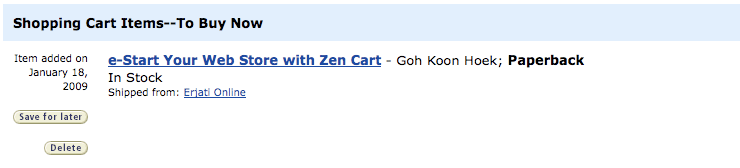
This contribution provides a mechanism to allow customers to "save for later" items they don't wish to purchase immediately.Here's what it looks like when Amazon does it.
Amazon.com Shopping Cart Page displaying Save For Later
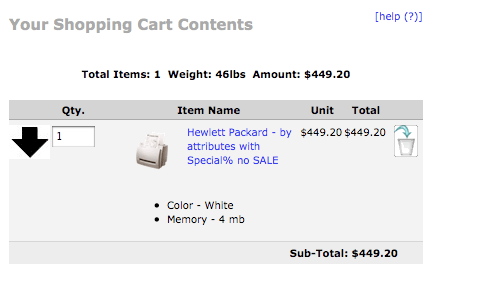
To save space, I used up and down arrows. These can be replaced if you prefer buttons with text on them.
When an item is added to the cart, the down arrow allows the customer to save the item for later.
Shopping Cart Page displaying Save For Later
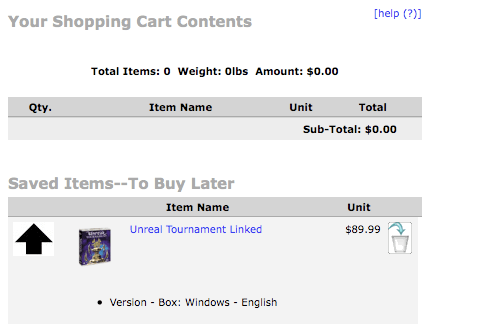
When the Save For Later button is pressed, the item appears below the cart contents. It can be moved back into the cart by pressing the Move To Cart button.
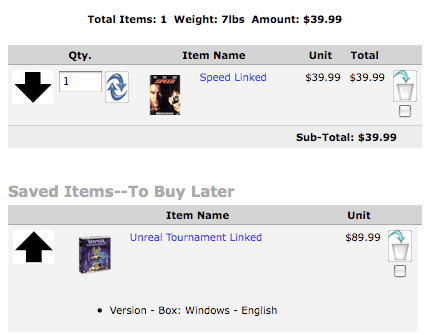
Shopping Cart Page with Save For Later items
Here is a cart with both current contents and Save For Later items.
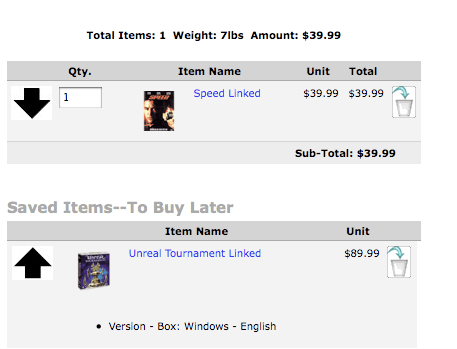
I recommend specific settings for Admin > Configuration > Stock, but you can use whichever ones you prefer. You can see here what it looks like with different settings.
Product Info Page displaying Save For Later
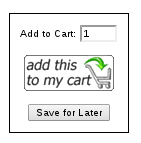
In Save for Later version 1.4 and above, you can use the Save for Later button on the product info page.
Installation Instructions:
This mod assumes your template name is "custom." If you have used another template name, use that name when installing this mod instead of custom.- Back up everything! Try this in a test environment prior to installing it on a live shop.
- Unzip the file you have received.
- Copy the contents of the "common_files" to the root directory of your shop.
- Use zc139 or zc15x, depending on which version of Zen Cart you have. Merge the files in with what you have in your cart.
- Run the sql script
mysql_sfl.sqlagainst your database. You can do this in phpMyAdmin or you can use your Zen Cart Admin panel under Tools > Install SQL patches.
If you are using phpMyAdmin and have used a prefix in your database, modifymysql_sfl.sqlto reflect this (e.g. change "customers_basket_later" to "zen_customers_basket_later" if your prefix is "zen_", and make the same change for "customers_basket_later_attributes"). - Donate! Show your appreciation by supporting my efforts.
- By default the header displays the shopping cart link only if products are
in the cart. You can change this by editing
includes/templates/YOUR_TEMPLATE/common/tpl_header.phpand changing:<?php if ($_SESSION['cart']->count_contents() != 0) { ?> <li><a href="<?php echo zen_href_link(FILENAME_SHOPPING_CART, '', 'NONSSL'); ?>"> <?php echo HEADER_TITLE_CART_CONTENTS; ?></a></li>to<li><a href="<?php echo zen_href_link(FILENAME_SHOPPING_CART, '', 'NONSSL'); ?>"> <?php echo HEADER_TITLE_CART_CONTENTS; ?></a></li> <?php if ($_SESSION['cart']->count_contents() != 0) { ?> - I recommend setting Admin > Configuration > Stock > Show Shopping Cart - Delete Checkboxes or Delete Button to the value of 1 (Delete button only). It's one less thing to crowd the screen, and it's the way Amazon does it. Similarly, the value Show Shopping Cart - Update Cart Button Location should be set to 2 for the same reason.
- You can add descriptive text about Save For Later to the shopping cart help
screen by copying the file
includes/languages/english/info_shopping_cart.phpintoincludes/languages/english/<your template>/info_shopping_cart.phpModify SUB_HEADING_TEXT_2 to describe Save For Later. Or, if you prefer, update the string TEXT_INFORMATION inincludes/languages/english/<your template>/shopping_cart.php
- If you would like to offer Save for Later on your product info page,
do the following manual edits:
- In
includes/templates/YOUR_TEMPLATE/templates/tpl_product_info_display.php, right before the closing </div>for the cartAdd div which displays the button, add this block:<!-- bof save for later --> <?php if (isset($_SESSION['customer_id']) && $_SESSION['customer_id'] != '') { echo "<br /><br />"; echo '<input type="submit" value="' . BUTTON_SAVE_FOR_LATER_ALT . '" name="sfl" />'; } ?> <!- eof save for later -->In Zen Cart 1.5.1, on the default template, this would be inserted above line 111. On Zen Cart 1.5.0, same line, on Zen Cart 1.3.9, same line. - In
includes/main_cart_actions.php, change the blockcase 'add_product' : $_SESSION['cart']->actionAddProduct($goto, $parameters); break;
tocase 'add_product' : if (isset($_POST['sfl'])) { actionSaveForLaterFromProductPage($goto, $parameters); } else { $_SESSION['cart']->actionAddProduct($goto, $parameters); } break;In Zen Cart 1.5.1, this would replace lines 42-44. On Zen Cart 1.5.0, same lines, on Zen Cart 1.3.9, same lines. -
In the file
includes/classes/shopping_cart.php,under in the function actionAddProduct, right below the call to$this->add_cart(...insert the line$_GET['uprid'] = zen_get_uprid($_POST['products_id'], $real_ids);In Zen Cart 1.5.1, this line would go below line 1767. On Zen Cart 1.5.0, same line, on Zen Cart 1.3.9, line 1760.
Then towards the bottom of the function, change the two calls to zen_redirect as follows.
First change:zen_redirect(zen_href_link($goto, zen_get_all_get_params($parameters)));toif ($goto!= '') zen_redirect(zen_href_link($goto, zen_get_all_get_params($parameters)));In Zen Cart 1.5.1, this would be line 1777. On Zen Cart 1.5.0, same line, on Zen Cart 1.3.9, line 1773.
Second change:zen_redirect(zen_href_link(FILENAME_SHOPPING_CART));toif ($goto != '') zen_redirect(zen_href_link(FILENAME_SHOPPING_CART));This is just two lines after the first redirect you changed above.
- In
Installation Issues:
- If you're having trouble installing this mod, it's likely that your merge of the shopping cart template page has failed. Install the one from this contribution, test, and then merge your changes in (instead of vice versa).
How Save For Later on the Shopping Cart page Works
- When "Save for Later" is pressed, the item, along with its attributes and quantity, are moved to the Save For Later area. If an identical item exists already in the Save For Later area, the quantity of that item is increased. The item is then removed from the cart.
- Quantities are stored but not displayed in the Save For Later area.
- When "Move To Cart" is pressed, the item, along with its attributes and quantity, are moved to the cart. If an identical item exists already in the cart, the quantity of that item is increased accordingly. The item is then removed from the Save For Later area.
- In the case of items with attributes, the word "identical" means "with identical attribute settings."
- All attributes, including File and Text attributes, are preserved during Save For Later and Move To Cart operations.
- If there is a max constraint on the item, it is respected during the Move to Cart process.
- You must be logged in to use Save For Later.
- Price changes are reflected in Save For Later items immediately.
- The checkout and shipping estimator buttons are not shown if you have no products in your cart.
How Save For Later on the Product Info page Works
- When "Save for Later" is pressed, the item, along with its attributes and quantity, are added to the cart. It is then moved from the cart to the Save For Later area. If an identical item exists already in the Save For Later area, the quantity of that item is increased. The item is then removed from the cart if it was not there previously. If it was there previously, the quantity in the cart is reduced back.
Like Save For Later?
I have lots of other cool software to soup up your shopping cart page and the rest of your Zen Cart. Please consider supporting my work by buying software or making a donation.Major Versions
- 1.9 08/20/2023 - Updates for Zen Cart 1.5.8
- 1.8 02/26/2022 - Updates for PHP 7.3+
- 1.7 08/15/2020 - Updates for Zen Cart 1.5.7 / PHP 7+
- 1.6a 11/18/2019 - Updates for Zen Cart 1.5.6
- 1.6 09/29/2019 - Updates for PHP 7.3
- 1.5 07/03/2016 - Updates for 1.5.5
- 1.4 05/03/2013 - Added save for later on product page
- 1.3 04/22/2012 - Fixes for products with attributes
- 1.2 11/06/2011 - updated for Zen Cart 1.3.9, 1.5.0
- 1.1 11/06/2009 - Updated help, validated markup
- 1.0 01/18/2008 - First Release
FAQ
Q: Why don't the Saved for Later products appear on the shopping cart page when there are no items in the cart?A: They do on the Responsive Classic template. So compare the shopping cart template file
includes/templates/responsive_classic/templates/tpl_shopping_cart_default.php to your
template's copy of the file.
And be sure to do the first
recommended installation tweak
(show the shopping cart link in the header even if the cart is empty).
Q: How do I see which items are most frequently saved?
A: Take a look at Save for Later Report. It's the perfect companion to Save for Later.
Q: I would like to replace the up and down arrows with buttons that have text on them. How do I do it?
A: First, place the two new button images into the directory
includes/templates/<your template>/buttons/english/
Then, assuming the filenames have changed, edit the file
includes/languages/english/extra_definitions/sfl_defines.php
and change the definitions BUTTON_IMAGE_SAVE_FOR_LATER and
BUTTON_IMAGE_MOVE_TO_CART.
For your convenience, here are a couple of sets of buttons I created.
| 10 point font |  |
 |
| 8 point font |  |
 |
Q: The styling of my shopping cart page looks different in the table heading above the Save for Later icon. Why?
A: You have styled the scQuantityHeading id. Copy this styling to the scSFLHeading id. To apply these same stylings to the Saved Items table, style the ids sfl_scMoveToCart, sfl_scProductsHeading, sfl_scUnitHeading, sfl_scRemoveHeading and sfl_scUpdateQuantity.
Q: The cart contents table looks squeezed. How can I make it wider?
A: Assuming you have sideboxes on the right, the best way is to turn off your right sideboxes on the shopping cart page. This will give you 150px (default) more room, and will reduce distractions on this critical page. It's an easy change: copy the file
includes/templates/template_default/common/tpl_main_page.php
to
includes/templates/<your template>/common/tpl_main_page.php
In your template copy of tpl_main_page.php, search for the line
if (!isset($flag_disable_right) || !$flag_disable_right) {
Immediately above it, add the code
  if ($body_id == "shoppingcart") {
     $flag_disable_right = true;
  }
This will create a much wider space for both your cart contents
and the items which have been saved for later.
So now instead of a narrow cart like this:
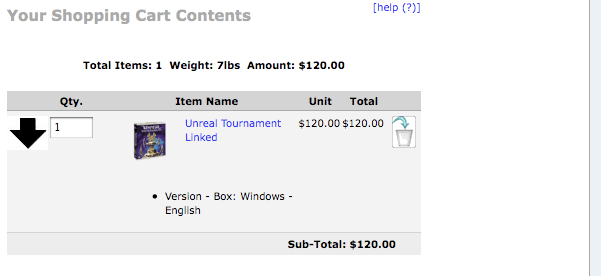
you will have a wide cart like this
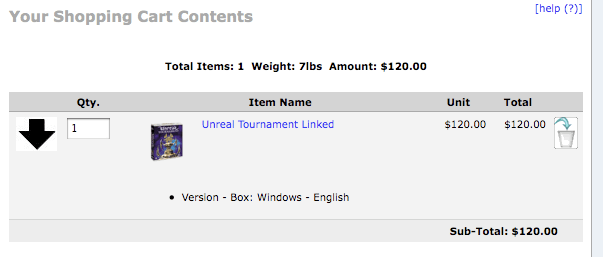 If you don't have sideboxes on the right, it can be done entirely using the admin panel;
go to Admin > Configuration > Layout Settings, and set
"Column Width - Right Boxes" and
"Column Width - Right" to 0px.
If you don't have sideboxes on the right, it can be done entirely using the admin panel;
go to Admin > Configuration > Layout Settings, and set
"Column Width - Right Boxes" and
"Column Width - Right" to 0px.
Q: How can I find how many people are using Save For Later?
A: Run the following query against your database in phpMyAdmin:
SELECT count(DISTINCT customers_id), count(distinct products_id) from customers_basket_later;